
Payment Flows
The Web SDK makes it easy to integrate payment flows into your web and browser-based experiences.
Additional resources
- Yuno offers a TypeScript library that complements the SDK.
- See Choose the right integration for you if you're unsure which flow to follow.
- See the Demo App for a complete implementation (clone from the repository).
Requirements
- A customer created in Yuno and a checkout session: reference each API when setting up your backend.
- Public API key (obtain from the Yuno Dashboard → Developers > Credentials)
Include the library in your project
The web SDK supports Subresource Integrity (SRI), see the common reference for details.
The first step is always including the library in your project; this step is performed regardless of which integration type you choose. The integration guide provides three flexible methods:
- Direct HTML script inclusion: Add the script tag to your page.
- Dynamic JavaScript injection: Load the SDK at runtime.
- NPM module installation: Install via npm (recommended).
Option 1: NPM (Recommended)
npm install @yuno-payments/sdk-webOption 2: HTML Script Tag
<script src="https://sdk-web.y.uno/v1.5/main.js"></script>Option 3: Dynamic JavaScript
const script = document.createElement('script');
script.src = 'https://sdk-web.y.uno/v1.5/main.js';
document.head.appendChild(script);
Once Step 1 is complete, continue with your desired integration.
Basic flows
- Full (Web): Complete control with backend support and full customization options
- Seamless (payment Web): Fastest integration with pre-built UI components
Advanced flows
- Lite (Web): Lightweight integration allowing you to control the UI and payment methods list, as well as backend support
- Headless (Web): Full checkout experience customization without requiring PCI compliance
Parameters
These are the parameters covered in this guide. For the full list of parameters and callbacks, see the Web SDK Common Reference.
| Parameter | Description |
|---|---|
checkoutSession | Checkout session ID from your backend (Create checkout session API). Required for all flows. |
elementSelector | CSS selector for the element where the SDK mounts (e.g. #root). |
countryCode | ISO country code where the payment runs (e.g. FR, US). |
language | Language code for the UI (e.g. fr-FR). Optional; defaults to browser language when available. |
showLoading | Show SDK loading spinner. Optional. |
showPaymentStatus | Show payment result screen. Optional. |
yunoCreatePayment(oneTimeToken) | Callback: send one-time token to your backend to create the payment; then call yuno.continuePayment(). |
yunoPaymentResult(status) | Callback: payment finished. Receives payment status (e.g. SUCCEEDED, DECLINED, PENDING). |
yunoError(message, data) | Callback: error during the flow. |
onLoading | Callback: loading state updates. |
card | Card form options (e.g. onChange, isCreditCardProcessingOnly). Optional. |
vaultedToken | (Seamless) Saved payment method token for one-click payment. Optional. |
paymentMethodType | (Seamless) Type of payment method to mount. |
Full (Web)
Implement Yuno's Full integration: pre-built checkout UI with full control over branding, forms, and flow. Use this when you want Yuno to render the checkout experience while you manage customer and checkout session creation on your backend.
Step 1: Include the library in your project
Follow the steps in Include the library in your project above.
Step 2: Initialize the SDK
After including the library (step 1), initialize the SDK. See Quickstart guide for initialization.
Step 3: Start the checkout process
Use the yuno.startCheckout function to start the checkout process with the necessary parameters.
See Parameters for all options. For styling, themes, and additional configurations, see SDK customizations.
yuno.startCheckout({
  checkoutSession: "438413b7-4921-41e4-b8f3-28a5a0141638",
  elementSelector: "#root",
  countryCode: "FR",
  language: "fr-FR",
  showLoading: true,
  issuersFormEnable: true,
  showPaymentStatus: true,
  card: {
    isCreditCardProcessingOnly: true,
    onChange: ({ error, data }) => {
      if (error) {
        console.log('Card form error:', error);
      } else {
        console.log('Card form data:', data);
      }
    },
  },
  onLoading: (args) => {
    console.log(args);
  },
  yunoPaymentMethodSelected: () => {
    console.log("Payment method selected");
  },
  yunoPaymentResult: (status) => {
    console.log("Payment result:", status);
  },
  yunoError: (message, data) => {
    console.error("Payment error:", message, data);
  },
  async yunoCreatePayment(oneTimeToken) {
    await createPayment({ oneTimeToken, checkoutSession });
    yuno.continuePayment({ showPaymentStatus: true });
  },
});
By default, Yuno SDK renders as a modal. You can specify the element where the SDK will render. See Render mode for details.
For all APMs (Google Pay, Apple Pay, PayPal), onPaymentMethodSelected triggers when the customer chooses the payment method (before the payment flow begins). Define onPaymentMethodSelected in startCheckout before mountCheckout. For PayPal, the payment sheet opens immediately after selection—no extra confirmation click required.
Step 4: Mount the SDK
Display the payment methods:
yuno.mountCheckout();Alternatively, mount with a default payment method selected:
yuno.mountCheckout({
  paymentMethodType: PAYMENT_METHOD_TYPE,
  vaultedToken: VAULTED_TOKEN,
});
Step 5: Initiate the payment process
Call yuno.startPayment() to initiate the payment flow after the user selects a payment method:
const PayButton = document.querySelector("#button-pay");

PayButton.addEventListener("click", () => {
  yuno.startPayment();
});
Step 6: Get the OTT (one-time token)
After the customer fills out the requested data in Yuno's payment forms, the SDK provides the one-time token. The configuration function yunoCreatePayment(oneTimeToken) is then triggered with the one-time token.
yunoCreatePayment(oneTimeToken);You can also use tokenWithInformation to receive additional information provided by the customer in the checkout, such as installments or document type/number:
yunoCreatePayment(oneTimeToken, tokenWithInformation);Use Yuno's default loader or implement your own with the required configuration.
Step 7: Create the payment
Create a payment using the Create Payment endpoint. The merchant's backend should call this endpoint to create the payment in Yuno using the one-time token and checkout session.
After Step 6, the basic payment flow is implemented. Test using the checkout session and one-time token. For additional features, see Complementary features.
Required: After creating a payment, integrate the continuePayment method. When the API response sets sdk_action_required to true, call yuno.continuePayment() to present the necessary screens.
continuePayment return value or null
continuePayment return value or nullFor payment methods that require merchant-side action (e.g., when the payment provider requires a redirect URL in a webview), the await yuno.continuePayment() method returns either an object with the following structure or null:
{
  action: 'REDIRECT_URL'
  type: string
  redirect: {
    init_url: string
    success_url: string
    error_url: string
  }
} | null
When the method returns an object, you can handle your application's payment flows that require custom redirect handling. When it returns null, no additional merchant-side action is needed.
Complementary features
For styling, themes, form options, and additional configurations, see SDK customizations. Changelog.
Seamless (payment Web)
Implement Yuno's Seamless integration. Recommended for pre-built UI.
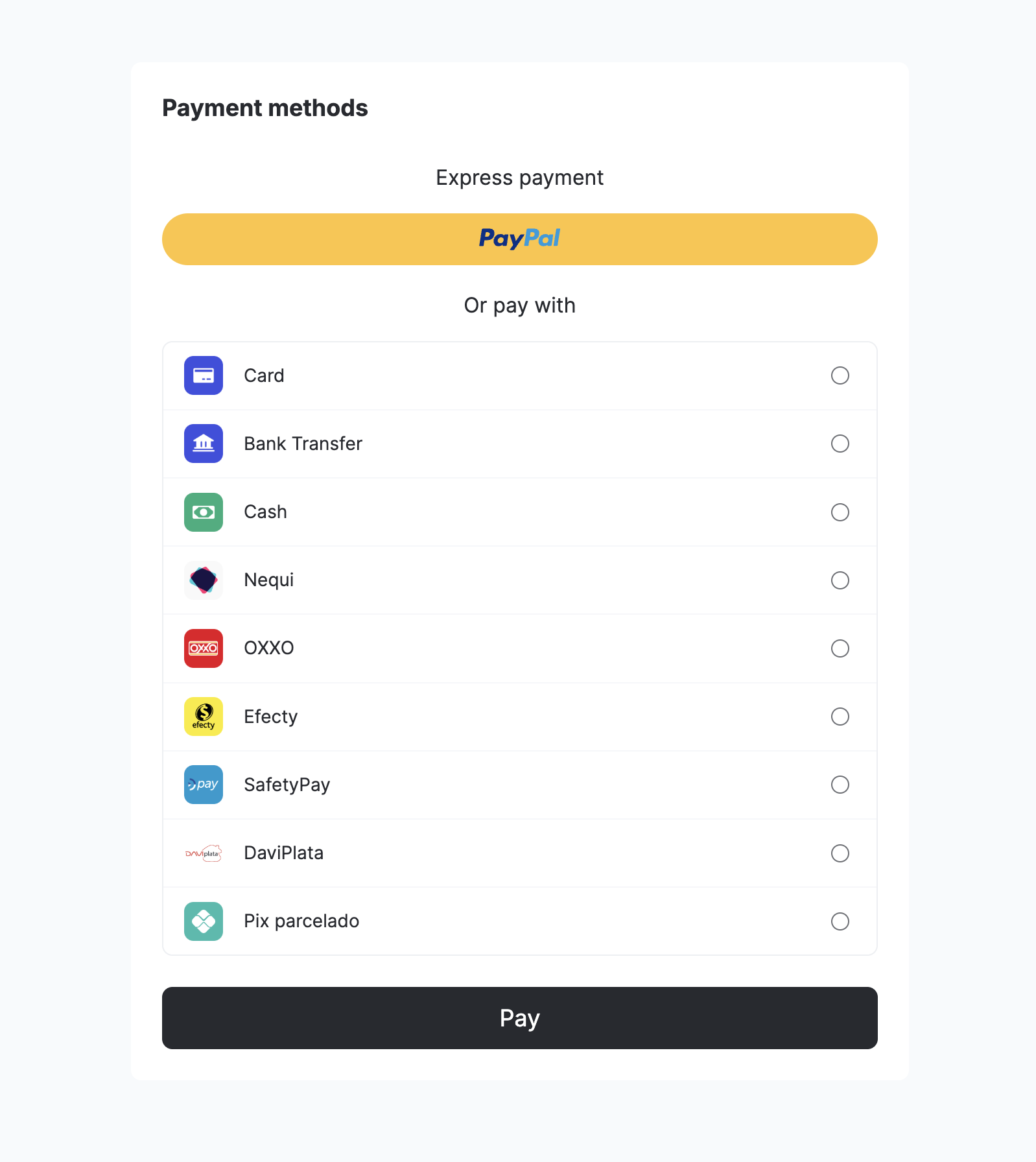
Step 1: Include the library in your project
Follow the steps in Include the library in your project above.
Step 2: Initialize the SDK
See Quickstart guide for initialization.
Step 3: Create a checkout session
Create a checkout_session using the Create checkout session endpoint. If your workflow requires sending the additional_data object, include it in the checkout session.
- Create a customer or retrieve an existing customer ID
- Include it when creating the
checkout_session
To control authorization and capture with cards, include payment_method.detail.card.capture in the checkout session: set false to authorize only, true to capture immediately. See Parameters.
For all APMs (Google Pay, Apple Pay, PayPal), onPaymentMethodSelected triggers when the customer chooses the payment method (before the payment flow begins). Define onPaymentMethodSelected in startSeamlessCheckout before mountSeamlessCheckout.
Step 4: Start the checkout process
Use the configuration below:
yuno.startSeamlessCheckout({
  checkoutSession: "438413b7-4921-41e4-b8f3-28a5a0141638",
  elementSelector: "#root",
  countryCode: "US",
  language: "en-US",
  showLoading: true,
  issuersFormEnable: true,
  showPaymentStatus: true,
  onLoading: (args) => console.log(args),
  renderMode: {
    type: "modal",
    elementSelector: {
      apmForm: "#form-element",
      actionForm: "#action-form-element",
    },
  },
  card: {
    type: "extends",
    styles: "",
    cardSaveEnable: false,
    texts: {},
  },
  texts: {},
  async yunoCreatePayment(oneTimeToken, tokenWithInformation) {
    await createPayment({
      oneTimeToken,
      checkoutSession,
      vault_on_success: true
    });
    yuno.continuePayment({ showPaymentStatus: true });
  },
  yunoPaymentMethodSelected(data) {
    console.log("Payment method selected:", data);
  },
  yunoPaymentResult(data) {
    console.log("Payment result:", data);
    yuno.hideLoader();
  },
  yunoError(error, data) {
    console.error("An error occurred:", error);
    yuno.hideLoader();
  },
});
When using startSeamlessCheckout, specify the callbacks to handle payments. See Parameters for all options.
Payments can be customer-initiated (CIT) or merchant-initiated (MIT). See Stored credentials for details. Sections below cover customer-initiated transactions (one-time; no recurrence).
Step 5: Mount the SDK
To present the checkout process based on the selected payment method, use the yuno.mountSeamlessCheckout() function. This step ensures the SDK is properly mounted on your chosen HTML element.
yuno.mountSeamlessCheckout({
  paymentMethodType: PAYMENT_METHOD_TYPE,
  vaultedToken: VAULTED_TOKEN,
});
See the Payment type page to view the complete list of payment method types you can use when mounting the SDK.
The vaultedToken is optional. It represents a previously enrolled payment method. If you provide the vaultedToken, the user will not be required to provide the payment information again since it was provided in a previous transaction.
After mounting, you must start the checkout flow by calling yuno.startPayment(). If you skip this call, the payment form will not open.
Step 6: Start the payment flow (Required)
Call yuno.startPayment() immediately after yuno.mountSeamlessCheckout() to open the selected payment method UI:
yuno.mountSeamlessCheckout({
  paymentMethodType: PAYMENT_METHOD_TYPE,
  vaultedToken: VAULTED_TOKEN,
});

yuno.startPayment();
Alternatively, you can trigger the start from a user action such as a button click:
const payButton = document.querySelector('#button-pay');
payButton.addEventListener('click', () => {
  yuno.startPayment();
});
See the Demo App for a complete implementation (clone from the repository).
Mount external buttons
You can use the mountExternalButtons method to render Google Pay and Apple Pay buttons in custom locations within your UI. This gives you control over where these buttons are displayed.
await yuno.mountExternalButtons([
  {
    paymentMethodType: 'APPLE_PAY',
    elementSelector: '#apple-pay',
  },
  {
    paymentMethodType: 'GOOGLE_PAY',
    elementSelector: '#google-pay',
  },
]);Options: paymentMethodType: 'APPLE_PAY' or 'GOOGLE_PAY'; elementSelector: CSS selector for the button container.
Unmounting buttons
You can unmount a single external button by payment method type:
yuno.unmountExternalButton('APPLE_PAY');Or unmount all external buttons at once:
yuno.unmountAllExternalButtons();Enrolling payment methods in seamless flow
You can enroll payment methods (store cards for future use) directly during the seamless payment flow by setting payment_method.vault_on_success = true in the checkout session creation.
When vault_on_success is set to true:
- The payment method will be automatically enrolled if the payment status is
SUCCEEDED - If the payment does not succeed, no vaulting will occur
- The payment response will include a
vaulted_tokenthat you can use for future transactions
Example:
{
    "account_id": "...",
    ...
    "payment_method": {
        "vault_on_success": true
    }
}
To generate a vaulted_token when vault_on_success = true, the payment must reference an existing Yuno customer through customer_payer.id in the checkout session. Inline customer data in the payment request does not create the customer, so no vaulting occurs.
For more information about enrolling payment methods, see Enroll Payment Methods.
Lite (Web)
Implement Yuno's Lite integration.
Step 1: Include the library in your project
Follow the steps in Include the library in your project above.
Step 2: Initialize the SDK
See Quickstart guide for initialization.
Step 3: Start the checkout process
Use the yuno.startCheckout function with the necessary parameters. See Parameters. For optional parameters and configurations, see SDK customizations.
yuno.startCheckout({
  checkoutSession: "438413b7-4921-41e4-b8f3-28a5a0141638",
  elementSelector: "#root",
  countryCode: "FR",
  language: "fr-FR",
  showLoading: true,
  issuersFormEnable: true,
  showPaymentStatus: true,
  card: {
    isCreditCardProcessingOnly: true,
    onChange: ({ error, data }) => {
      if (error) {
        console.log('Card form error:', error);
      } else {
        console.log('Card form data:', data);
      }
    },
  },
  onLoading: (args) => {
    console.log(args);
  },
  async yunoCreatePayment(oneTimeToken) {
    /**
     * The createPayment function calls the backend to create a payment in Yuno.
     * It uses the following endpoint https://docs.y.uno/reference/create-payment
     */
    await createPayment({ oneTimeToken, checkoutSession });
    yuno.continuePayment({ showPaymentStatus: true });
  },
});
Payments can be initiated by the customer (CIT) or merchant (MIT). See Stored credentials for details.
Step 4: Mount the SDK
Mount the SDK for the selected payment method. You are responsible for displaying payment methods and capturing the customer's selection. See Lite (Web) above.
Use the yuno.mountCheckoutLite() function by selecting an HTML element and using a valid CSS selector (#, ., [data-*]) to display the checkout for the selected payment method.
yuno.mountCheckoutLite({
  /**
   * can be one of 'PIX' | 'CARD'
   */
  paymentMethodType: PAYMENT_METHOD_TYPE,
  /**
   * Vaulted token related to payment method type.
   * Only if you already have it
   * @optional
   */
  vaultedToken: VAULTED_TOKEN,
});
After mounting the SDK, the selected payment method flow will start automatically.
PayPal, Google Pay, and Apple Pay are not compatible with mountCheckoutLite in Lite mode. Use mountExternalButtons instead. See Step 5.
Step 5: Mount external buttons (Optional)
If you want to use PayPal, Google Pay, or Apple Pay in Lite, you must mount these payment buttons externally using the mountExternalButtons method. This method allows you to choose where each button is displayed in your UI.
// Mount external buttons
await yuno.mountExternalButtons([
  {
    paymentMethodType: 'APPLE_PAY',
    elementSelector: '#apple-pay',
  },
  {
    paymentMethodType: 'GOOGLE_PAY',
    elementSelector: '#google-pay',
  },
  {
    paymentMethodType: 'PAYPAL',
    elementSelector: '#paypal',
  },
]);
The mountExternalButtons method accepts an array of objects, each containing:
paymentMethodType:'APPLE_PAY','GOOGLE_PAY', or'PAYPAL'elementSelector: The CSS selector for the HTML element where the button should be rendered
Unmounting external buttons
You can unmount a single external button:
yuno.unmountExternalButton('APPLE_PAY');Or unmount all external buttons at once:
yuno.unmountAllExternalButtons();Step 6: Initiate the payment process
Call yuno.startPayment() after the user selects a payment method. Example:
const PayButton = document.querySelector("#button-pay");

PayButton.addEventListener("click", () => {
  yuno.startPayment();
});
Step 7: Get the OTT (one-time token)
The SDK provides the one-time token when the customer completes the form. yunoCreatePayment(oneTimeToken) is then triggered.
yunoCreatePayment(oneTimeToken);You can also use tokenWithInformation to receive any additional info the customer gives at checkout, such as installments or document type/number:
yunoCreatePayment(oneTimeToken, tokenWithInformation);The merchant manages the loader.
Step 8: Create the payment
Create the payment using the Create Payment endpoint. Use the one-time token and checkout session.
Integrate the continuePayment method after creating the payment. Some asynchronous payment methods require additional customer actions. When the API response sets sdk_action_required to true, call yuno.continuePayment() to display the necessary screens. If sdk_action_required is false, this step is not necessary.
Complementary features
For styling, themes, form options, and additional configurations (including mount external buttons, form loader, render mode, card form options), see SDK customizations.
Headless (Web)
Recommended: Use Seamless (payment Web) for pre-built UI and customization.
Yuno's Headless integration lets you create payments by requesting and sending via API all mandatory fields the payment provider requires. Use Headless when you need full control over the checkout UI and can collect and submit payment data yourself. You can create payments in two scenarios:
- Create a One-Time Use Token using credit card information, then create a payment.
- Create a One-Time Use Token using a
vaulted_tokenfrom a previously enrolled credit card, then create a payment.
Step 1: Include the library in your project
Follow the steps in Include the library in your project above.
Step 2: Initialize the SDK
See Quickstart guide for initialization.
Step 3: Start the checkout process
Start the checkout process using the apiClientPayment function with the necessary configuration parameters. See Parameters.
const apiClientPayment = yuno.apiClientPayment({
  countryCode: "US",
  checkoutSession: "eec6578e-ac2f-40a0-8065-25b5957f6dd3"
});
Step 4: Generate token
Create a one-time token (OTT) using apiClientPayment.generateToken. Use try/catch for errors. Examples:
- Example 1: Create a one-time token utilizing a card as the payment method and including all requisite card information.
- Example 2: Create a one-time token using the
vaulted_tokeninformation.
When using a vaulted token, all fraud information from providers configured in card routing is collected and attached to the one-time token. You can also add installment information and a security code if required by the provider.
Example 1: Create OTT using card data
const oneTimeToken = await apiClientPayment.generateToken({
  checkout_session: "eec6578e-ac2f-40a0-8065-25b5957f6dd3",
  payment_method: {
    type: "CARD",
    vaulted_token: null,
    card: {
      save: false,
      detail: {
        expiration_month: 11,
        expiration_year: 25,
        number: "4111111111111111",
        security_code: "123",
        holder_name: "ANDREA B",
        type: "DEBIT"
      },
      installment: {
        id: "64ceacef-0886-4c81-9779-b2b3029c4e8b",
        value: 1
      }
    },
    customer: {},
    device_fingerprint: "0753b47f-bb43-86ab-647b-d735b67baac6",
    third_party_session_id: "QbJU2KolVUm1fhQR0s9qgrS0ArEQmEfE"
  }
});
Example 2: Create OTT using vaulted token
const oneTimeToken = await apiClientPayment.generateToken({
  checkout_session: "eec6578e-ac2f-40a0-8065-25b5957f6dd3",
  payment_method: {
    type: "CARD",
    vaulted_token: "aad8578e-ac2f-40a0-8065-25b5957f6555",
    card: {
      detail: {
        security_code: "123"
      },
      installment: {
        id: "64ceacef-0886-4c81-9779-b2b3029c4e8b",
        value: 1
      }
    }
  }
});
The response includes the one-time token and, when applicable, 3DS or provider-specific data.
Step 5: Create the payment
Create the payment using the Create payment endpoint. Send the one-time token in payment_method.token.
await createPayment({
  checkout_session: "eec6578e-ac2f-40a0-8065-25b5957f6dd3",
  one_time_token: oneTimeToken.token,
});
Check the API response for sdk_action_required:
- If
false, no further SDK interaction is required and the payment process concludes. - If
true, additional SDK interaction is needed (e.g. 3DS). Follow Step 6.
Step 6: Handle 3DS and provider challenges
When sdk_action_required is true, some payment methods require additional steps such as 3D Secure authentication or provider-specific challenges. Use the Headless helper methods to manage these flows.
To get the 3DS challenge URL, call getThreeDSecureChallenge with the checkoutSession used to create the payment:
const challengeData = await apiClientPayment.getThreeDSecureChallenge(checkoutSession);

// Redirect the customer to the 3DS URL, or open it in an iframe/modal
window.location.href = challengeData.url;
To determine what action is needed to continue the payment flow, call getContinuePaymentAction:
const continueData = await apiClientPayment.getContinuePaymentAction({
  checkoutSession: "eec6578e-ac2f-40a0-8065-25b5957f6dd3",
});
Use the returned data to decide if additional customer actions are needed or if you can finalise the payment.
Saving cards during Headless payments
With Headless, you can save credit/debit cards for future purchases within the same payment request, without using the enrollment integration. When calling apiClientPayment.generateToken, set:
payment_method: {
  card: {
    save: true,
  },
}
If the payment succeeds and the provider supports vaulting, you will receive a vaulted_token in the response, which you can use for future Merchant-Initiated Transactions (MIT) or one-click payments.
Common reference
For full parameter and customization details, see the Web SDK Common Reference.
Updated 11 days ago