
Before implementing, review the Google Pay requirements and ensure Google Pay is available in your operating countries.
Integration flow
- Create a checkout session with Yuno.
- Initialize Yuno’s SDK in your app (Web, Android, or iOS).
- The SDK displays the Google Pay button and handles the payment sheet.
- The customer authorizes the payment through Google Pay.
- Yuno receives the payment token and processes the transaction with your configured provider.
- Monitor the payment status via webhooks.
Requirements
- A Yuno account with API credentials (Dashboard)
- A payment provider connection configured in the Yuno dashboard that supports Google Pay
- A routing rule that includes the Google Pay payment method
- Yuno SDK integrated in your app (Web, Android, or iOS)
Integration steps
Step 1: Create a checkout session
Use the create checkout session endpoint to start a payment session:checkout_session ID to initialize the SDK.
Step 2: Initialize the SDK
Initialize Yuno’s SDK with the checkout session. The SDK automatically detects available payment methods, including Google Pay, based on your dashboard configuration. Refer to the SDK documentation for your platform:Step 3: Customer completes payment
The SDK handles the rest. When the customer selects Google Pay:- The Google Pay payment sheet appears with the customer’s saved cards.
- The customer selects a card and authorizes the payment.
- The SDK sends the encrypted payment token to Yuno.
- Yuno processes the payment through your configured provider.
Step 4: Handle the response
The SDK returns the payment result. You can also monitor payment status through webhooks for asynchronous confirmation.Requesting contact information
You can configure which fields the Google Pay payment sheet requests from the customer directly from the Checkout Builder. The available fields are:- Phone
- Cardholder name
- Billing address
- Shipping address
This used to be configured at the connection level. It’s now unified under Required Fields in the Checkout Builder, the same way it works for Apple Pay.
Cardholder name is disabled by default for Google Pay, unlike cards, where it’s enabled by default. Enable it from the Checkout Builder if your integration needs it.
Create a payment with the SDK workflow
If you need to call the payment API directly while using the SDK checkout flow, set theworkflow to SDK_CHECKOUT and include the checkout session:
Recurring payments (CIT and MIT)
Google Pay recurring payments follow the same two steps as cards: a customer initiated transaction (CIT) that vaults the instrument, then merchant initiated transactions (MIT) on the resultingvaulted_token. The full reason and usage matrix is on Stored credentials.
Customer Initiated Transaction (CIT)
On the CIT, sendvault_on_success: true and place stored_credentials under detail.wallet, because the payment method is still the wallet at this point:
vault_on_success: true: Vaults the decrypted card as aCARDrecord withparent_payment_method_type: GOOGLE_PAYand returns itsvaulted_tokenin the payment response.customer_payer.idmust reference an existing customer (create it first with Create Customer). Without it the payment still succeeds but nothing is vaulted: the response carries an emptyvaulted_tokenand no error.detail.wallet.stored_credentials.usage: "FIRST": Marks the first transaction of the recurring series. Yuno stores thenetwork_transaction_idreturned by the provider on the saved record.
The
vaulted_token is returned only in the CIT payment response. Wallet-vaulted instruments are intentionally not included in Retrieve Enrolled Payment Methods, so store the token on your side when the CIT succeeds.Merchant Initiated Transaction (MIT)
Subsequent charges use thevaulted_token as a stored card. No Google Pay token and no checkout session are needed:
vaulted_token: The token returned in the CIT response.detail.card.stored_credentials.usage: "USED": Marks a subsequent transaction in the series. Yuno attaches thenetwork_transaction_idfrom the CIT automatically.
Enable and test Google Pay
To test Google Pay in sandbox:- Integrate Yuno’s SDK into your app.
- Create a Google test account and sign in to the Google Pay Business Console.
- In the Google Pay Business Console, navigate to the API section and select Create a Pass to enable Demo mode.
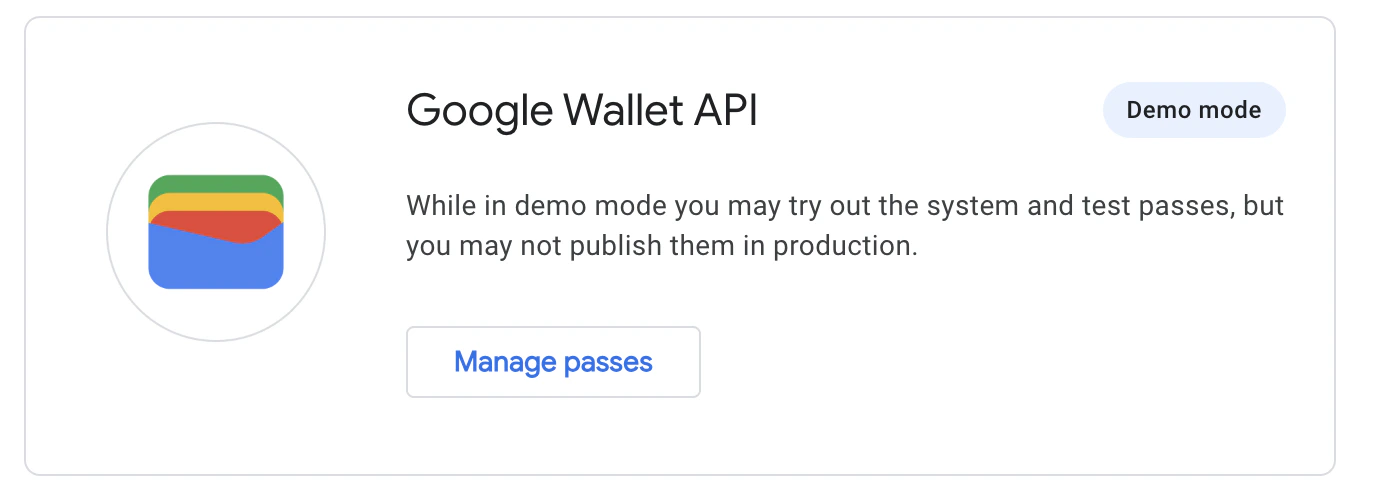
- Download the Google Wallet App on your test device.
- Run through the payment flow to verify the integration works.
Go live
After testing, request Google Production Access and contact your Technical Account Manager. The Yuno team will verify your configuration before going live.Related documentation
- Google Pay overview
- Google Pay Direct integration
- Google Pay via provider
- Google Pay with PIX
- Android Express Checkout: order breakdown, shipping method selector, and shipping address updates (Android SDK 2.24.0+)