
SDK Customizations
Modify Yuno iOS SDK styles (font, button, color) by setting appearance fields. Use these to match your app brand and improve consistency. For all iOS SDK parameters and config options, see iOS SDK Common Reference.
Appearance configuration
Available customization fields:
| Field | Description |
|---|---|
fontFamily | Specifies the font family used in the SDK. Provide the font file name used in your app, ensuring it matches your application's assets. |
accentColor | Defines the accent color used in several SDK elements. |
buttonBackgroundColor | Sets the background color for the primary buttons. |
buttonTitleColor | Determines the text color for the primary buttons. |
buttonBorderColor | Specifies the border color for the primary buttons. |
secondaryButtonBackgroundColor | Sets the background color for the secondary buttons. |
secondaryButtonTitleColor | Determines the text color for the secondary buttons. |
secondaryButtonBorderColor | Specifies the border color for the secondary buttons. |
disableButtonBackgroundColor | Sets the background color for the disabled-buttons. |
disableButtonTitleColor | Determines the text color for the disabled-buttons. |
Color ConfigurationEnsure all colors are specified as UIColor to maintain compatibility. Colors can be sourced from Xcode's predefined palette or the merchant's assets, but they must always be of type UIColor.
Use the Yuno.Appearance() function to define a variable with all your customizations to control the appearance. Then inform it when initializing the SDK:
let appearance = Yuno.Appearance(
    fontFamily: "Climate Crisis",
    accentColor: UIColor.orange,
    buttonBackgroundColor: UIColor.yellow,
    buttonTitleColor: UIColor.black,
    buttonBorderColor: UIColor.black,
    secondaryButtonBackgroundColor: UIColor.yellow,
    secondaryButtonTitleColor: UIColor.black,
    secondaryButtonBorderColor: UIColor.black,
    disableButtonBackgroundColor: UIColor.gray,
    disableButtonTitleColor: UIColor.black
)

Yuno.initialize(
    apiKey: apiKey,
    config: YunoConfig(appearance: appearance)
)
Usage examples
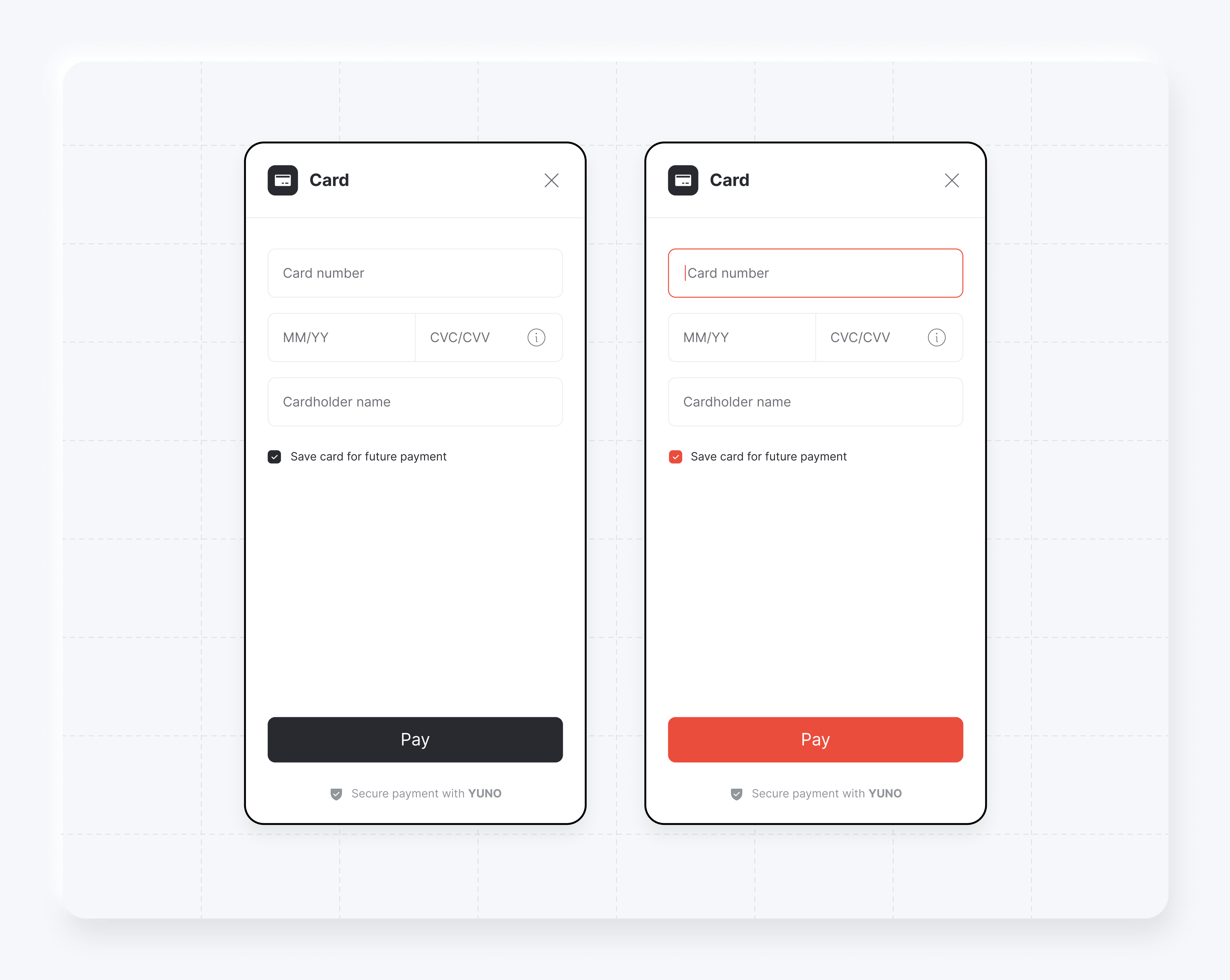
Example (two appearance customizations):
let appearance = Yuno.Appearance(
    fontFamily: "Climate Crisis",
    accentColor: UIColor.black,
    buttonBackgroundColor: UIColor.black,
    buttonTitleColor: UIColor.white
)

Yuno.initialize(
    apiKey: apiKey,
    config: YunoConfig(appearance: appearance)
)
let appearance = Yuno.Appearance(
    fontFamily: "Climate Crisis",
    accentColor: UIColor.orange,
    buttonBackgroundColor: UIColor.orange,
    buttonTitleColor: UIColor.white
)

Yuno.initialize(
    apiKey: apiKey,
    config: YunoConfig(appearance: appearance)
)
Address autocomplete
Merchants can enable or disable address autocomplete functionality in the iOS SDK. When enabled, the SDK automatically fills address fields based on postal code lookup. When disabled, users must manually enter all address information.
Updated about 1 month ago