
Harnessing the power of teams
- Building dynamic teams: Yuno allows you to create flexible teams composed of users from different accounts. A single user can be part of multiple teams, each with unique roles tailored to their responsibilities.
- Cross-account participation: Yuno supports cross-account collaboration, enabling users to contribute to teams across different accounts. This promotes a unified, efficient workflow across your organization.
- Customizable roles: Roles define each member’s level of access and responsibilities. Yuno offers a set of predefined roles with specific permissions, ensuring that every user has the appropriate tools and access to perform their tasks.
Working with teams
The Team members tab allows you to invite new members and manage existing ones. The actions available to you will depend on your assigned permissions.- Invite members: Send one or more invitations via email and assign roles to new members.
- Member management: Click the three-dot icon next to a member’s name to edit their role or delete them from the team.
Team for each accountPlease, take into consideration that you will have to create a team for each account you have created, unless the member’s role is assigned at the organization level — see Role scope: account vs. organization.
The dynamics of roles
Defining clear roles and permissions strengthens the security of your operations. Each team member works within a specific scope, reducing the risk of accidental errors or unauthorized access. Roles give individuals the access they need to do their jobs efficiently, while keeping workflows organized and secure. There are two types of roles in Yuno:- Default roles: Yuno offers a set of predefined roles, each encapsulating a distinct array of permissions. These default roles serve as a foundation for streamlined team functioning.
- Custom role creation: Yuno’s flexibility extends to crafting custom roles. Tailor permissions to suit your precise requirements, allowing your teams to function optimally while adhering to the principle of least privilege.
The Roles management tab shows the permissions assigned to each role. Select Create role to define custom roles tailored to your team’s specific needs.
Role scope: account vs. organization
A role can be assigned to a member at two different scopes:- Account: the member gets that role’s access only on the specific account(s) they’re assigned to. This is the original behavior — invite the same person separately on each account they need access to.
- Organization: the member gets that same access across every account in the organization, including accounts created later. This applies to any role, not just Admin — for example, an organization-level “payment analyst” role sees payments across every account, without being invited account by account.
Security permissionsPermissions under Security (2FA and SSO configuration) can only be granted through an organization-level role — they are not available to assign at the account level.
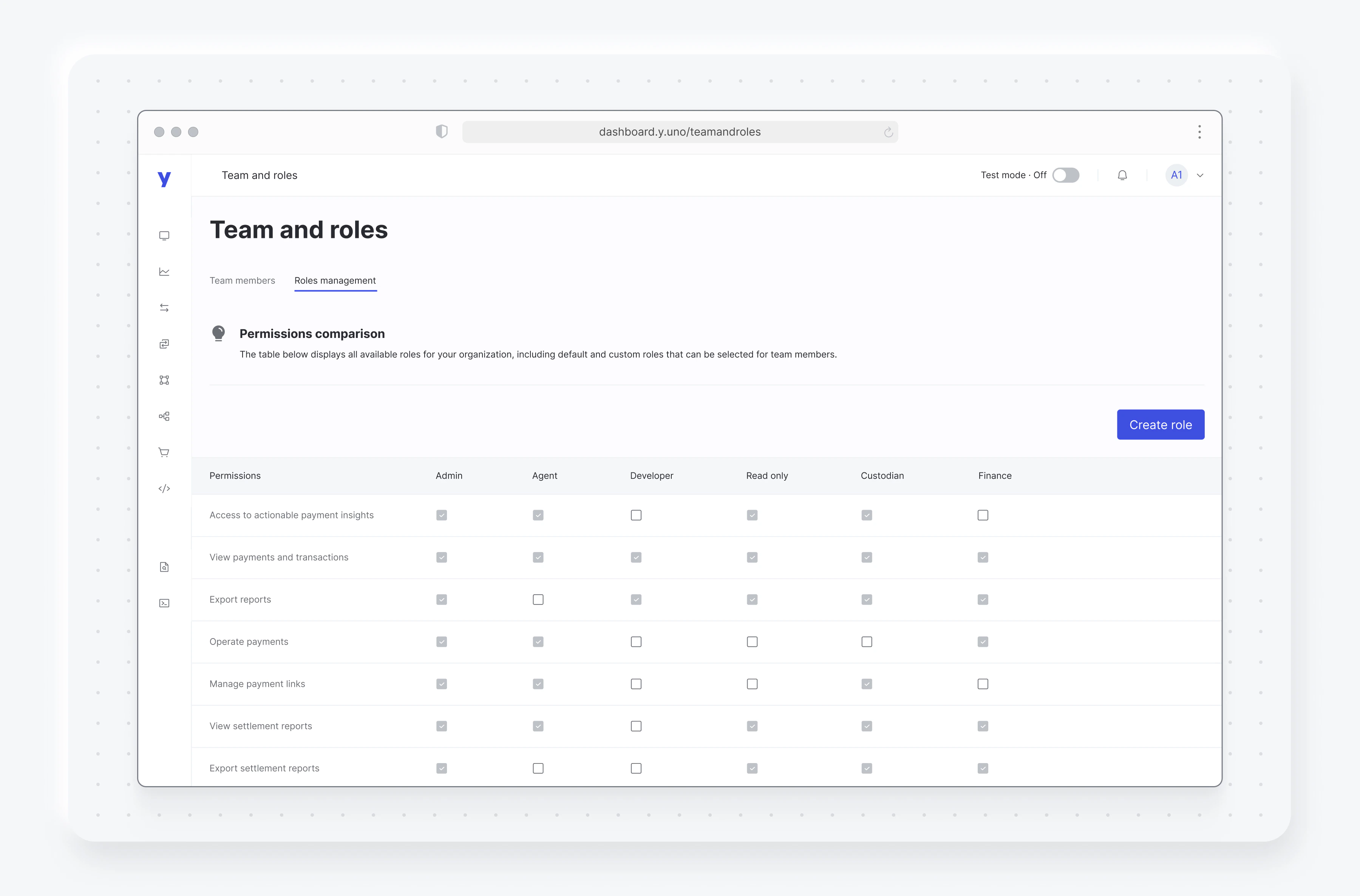
Creating custom roles
To create a custom role, navigate to the Roles management tab and select Create role. You can then define the role name, description, and assign specific permissions for each environment according to your team’s needs, giving you precise access controls that promote better security and operational control.Environment-specific configuration
For each permission, you can independently configure access for:- Sandbox environment: Perfect for testing and development activities
- Production environment: For live operations and sensitive data
Available permissions
The custom role creation interface includes these permissions:- Insights - Access to actionable payment insights
- Payments - View and operate payments, manage payment links
- Payouts - View payouts and transaction details
- Reconciliation - View settlement reports
- Connections - View and manage payment connections
- Routing - View and manage processing routes
- Checkout builder - View and build checkout configurations
- Developers - View and manage account keys
- Webhooks - View and manage webhooks
- Accounts - Manage account settings
- Team and roles - View and manage team members and roles
- Risk conditions - View and manage rules and lists
- Audit logs - View dashboard, API, and monitor logs
- Security - Manage 2FA and SSO configurations