
/payments endpoint. What runs depends on how the route is configured. For standalone, the route must resolve only to the Yuno 3DS connection with no payment provider attached, so only the authentication runs.
Dashboard configuration
Step 1: Create the Yuno 3DS connection
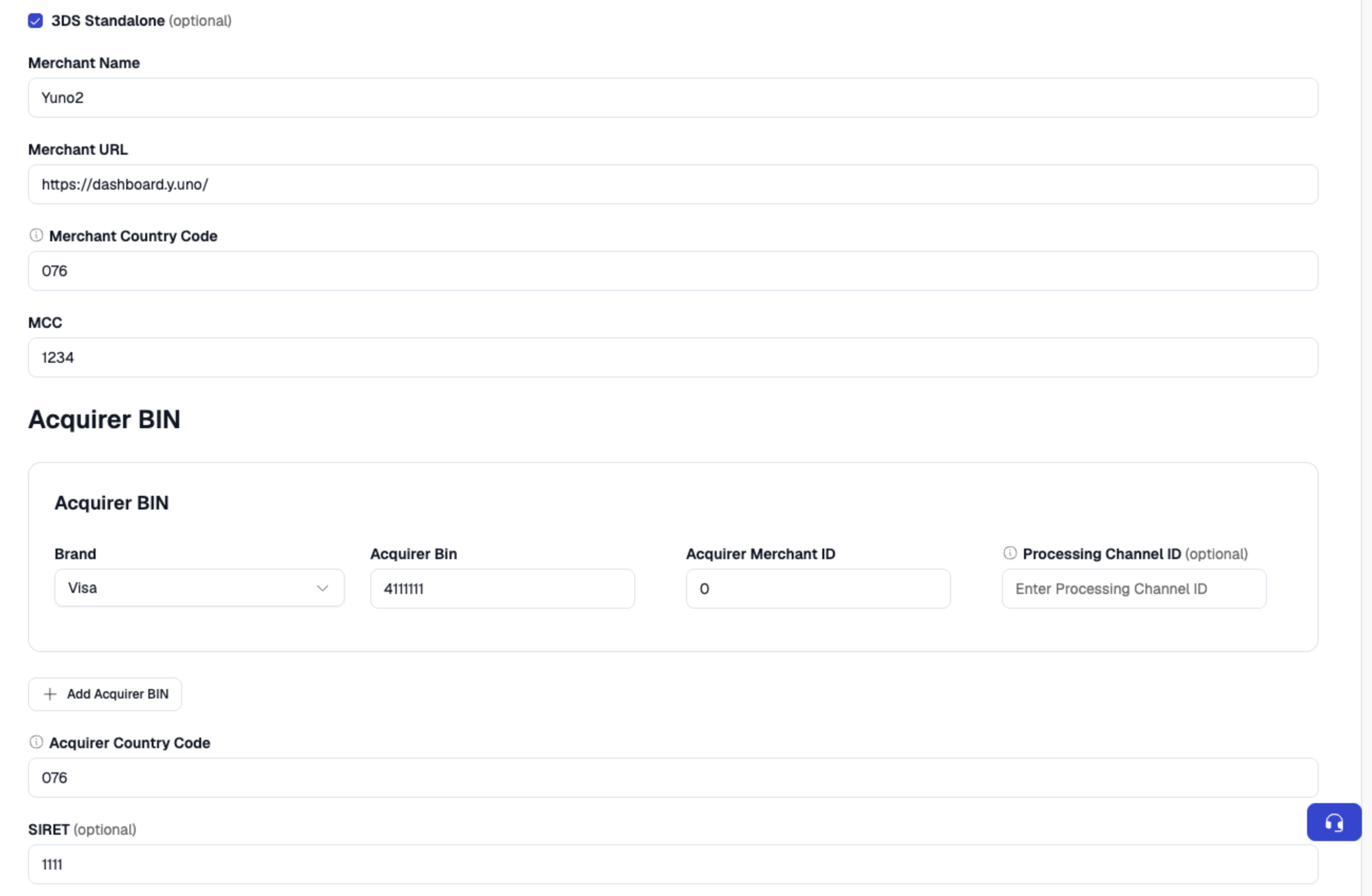
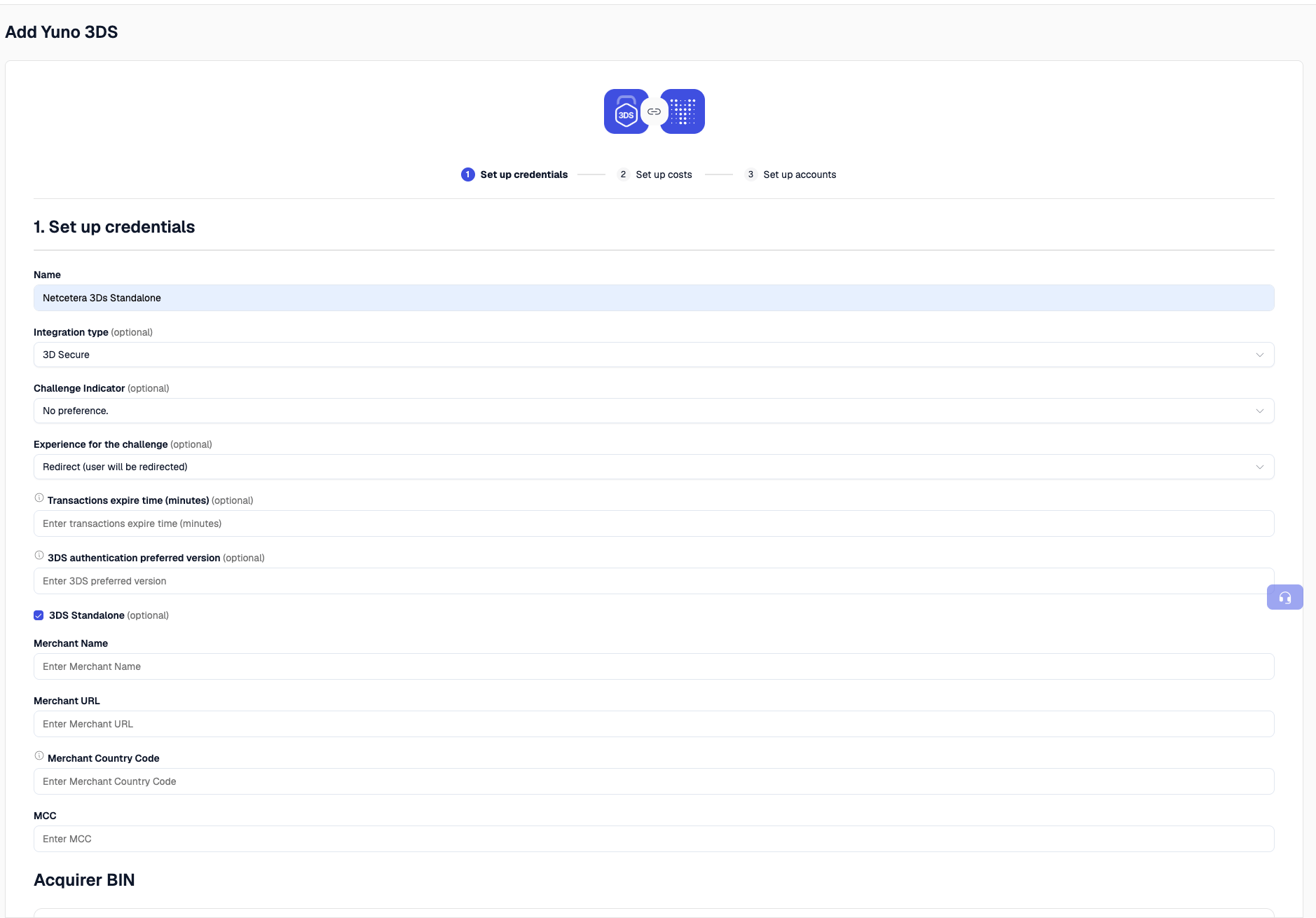
Go to Dashboard → Connections → Add Connection and select Yuno 3DS. Check the “Yuno 3DS Standalone” checkbox, fill in the acquirer data, and click Next. The acquirer data is the 3DS registration data your acquirer provides. For the default provider (Netcetera) the fields are:- Acquirer BIN: the Bank Identification Number used to clear and settle the transaction, together with the country where it is licensed.
- Merchant ID: the affiliation number provided by the acquirer.
- Merchant Category Code (MCC): the code representing your merchant category, provided by the acquirer.
- Merchant Name: the official business name conducting the transaction.
- Merchant URL: the merchant’s website / online platform.
- Country Code: the country where the payment is processed (ISO 3166-1).
Step 2: Configure the route
Go to Dashboard → Routing and create a CARD route that points all transactions to the Yuno 3DS connection. The branch that handles standalone traffic must resolve only to the Yuno 3DS connection: no payment provider.You might already have a CARD route that points to a payment provider, and want standalone authentication to coexist with it. You can isolate the standalone traffic with a condition group on metadata (for example
3ds_connection = standard) that points only to the Yuno 3DS connection.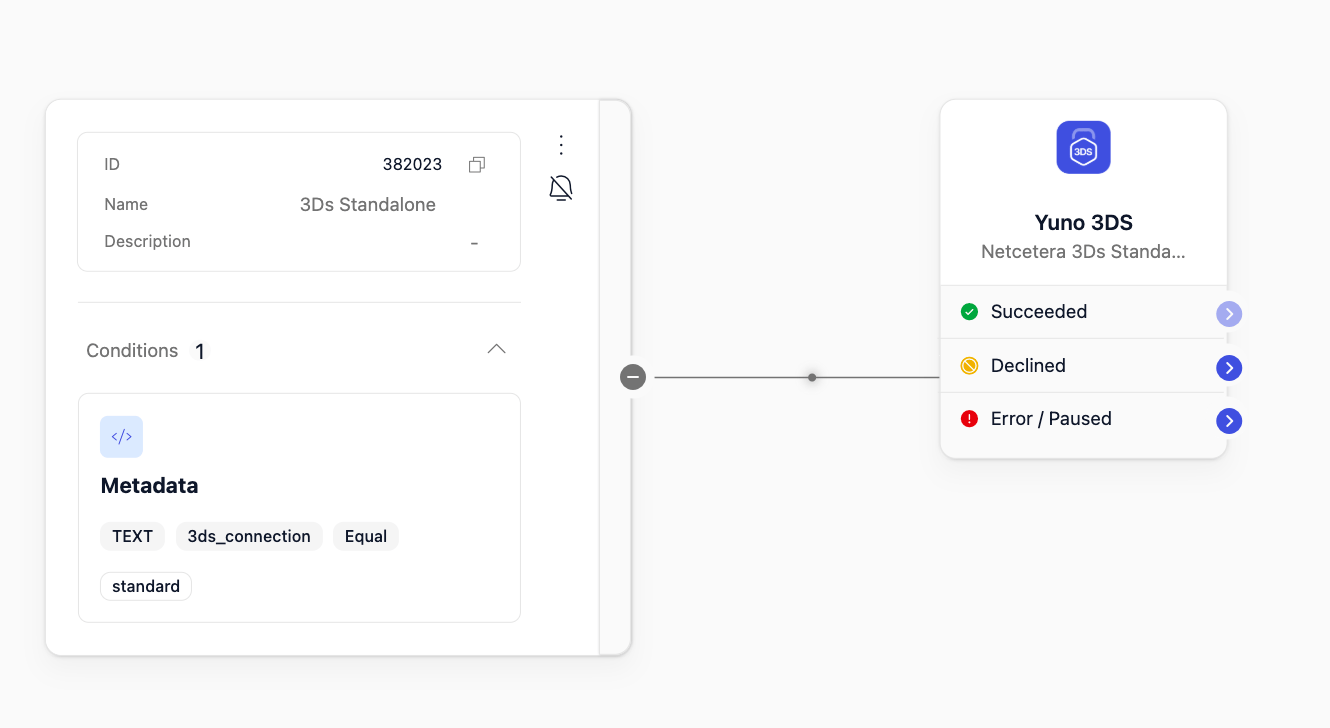
Selecting a specific connection (more than one 3DS Standalone connection)
You might have more than one 3DS Standalone connection configured, for example, one set to Data Only and another with no preference (standard). In that case, the router cannot decide on its own which one to use, so drive the selection explicitly with metadata. The mechanism has two parts that must always work together:- In the route: add a condition group per connection that matches on a metadata key. For example,
3ds_connection = standardfor one connection and a different value for the other. Each value points the traffic to the connection you want. - In the requests: add a
metadataentry carrying that same key/value. It must be sent in both the 3DS Setup request and the/paymentsrequest, and it must be identical in both.
metadata is a JSON array of { "key", "value" } entries. Send the same entry in both the Setup and the payment:
This applies when you have a single 3DS Standalone connection. If the route has no other condition groups beyond it (no other connections or conditionals), this metadata selection is not required. The route resolves to that connection automatically.The route may instead combine the 3DS Standalone connection with other conditionals, for example a second standalone connection. In that case, use the metadata mechanism above to isolate and select it.
Standalone flow (using 3DS Setup)
The standalone flow runs through a 3DS Setup that produces athree_d_secure_setup_id, which is then referenced in the payment.
1. Generate a 3DS Setup
The 3DS Setup has two possible values in thetype field. The difference is who collects the browser/device data used for authentication:
If you have more than one 3DS Standalone connection, include the
metadata in this request (as shown below). This routes the Setup to the intended connection. Remember to send the same metadata later in the /payments request.Type STANDARD
Yuno performs the device-data collection. The merchant must complete it by going to thecollect_url returned in the response and using the token also provided there.
STANDARD is the default, so the type field can be omitted.
Request
collect_url and token, complete the device-data collection (the 3DS Method) before creating the payment.
Suggested implementation (reference only, not a fixed contract). The exact field name and mechanics can vary by 3DS provider. Validate against the provider you use. The general idea: render a hidden iframe and auto-submit a form that POSTs the token to the
collect_url. Wait for the period indicated by timeout_value, then continue to create the payment.If the provider returns an empty
collect_url and token (for example CHECKOUT_COM_3DS above), there is no collection step. Skip it and go straight to creating the payment.Type MERCHANT_PROVIDED
The merchant sends all the required data themselves (browser_info and device_fingerprints), so no device-data collection step is performed.
Use
device_fingerprints only when a 3DS provider that collects this data on its own (i.e. does not use the collect_url) hands you the fingerprint id. Forward that id here. The provider_id must match the 3DS provider configured on the connection.2. Create the payment
Create the payment using thethree_d_secure_setup_id generated in the previous step. Since the route resolves only to the Yuno 3DS connection (no payment provider), only the authentication runs and the 3DS result is returned. No authorization takes place.
Request
Workflow: a frictionless / data-only authentication resolves inline (the examples ran with
workflow: DIRECT) and the result comes back on the payment response. A challenge needs the cardholder to act, so the payment returns PENDING with a redirect_url and checkout.sdk_action_required: true. Handle it with a redirect-capable workflow (REDIRECT) or the Yuno SDK (see Authentication outcomes → Challenge).status / sub_status tell you the outcome, and the 3DS result lives in payment_method.payment_method_detail.card.three_d_secure:
- Frictionless / Data Only →
status: SUCCEEDED,sub_status: THREE_D_SECURE_VERIFIED. - Challenge →
status: PENDING,sub_status: WAITING_ADDITIONAL_STEP, withcheckout.sdk_action_required: trueand aredirect_url(resolves later; see Webhook notification). - Failed / rejected authentication →
status: DECLINED.
SUCCEEDED / THREE_D_SECURE_VERIFIED (authentication completed) or DECLINED (authentication failed or rejected). The transaction-level status and 3DS response codes follow the standard Yuno reference: Transaction statuses and response codes. Example codes include SUCCEEDED_THREE_D_SECURE, CHALLENGE_REQUIRED, AUTHENTICATION_FAILED_THREE_D_SECURE, and REJECTED_THREE_D_SECURE_REQUIRED.
Authentication outcomes
Frictionless
three_d_secure object (inside the card detail):
View full payment response
View full payment response
- Authentication request sent to the ACS.
- The ACS authenticates by risk analysis, with no user interaction.
- Returns full data (cryptogram, ECI, dsTransID, version) with
pares_status = Y; the payment isSUCCEEDED/THREE_D_SECURE_VERIFIED. - The result is available on the payment response. Liability shift = yes.
Data Only
three_d_secure object (inside the card detail):
View full payment response
View full payment response
- Only browser/device data is shared with the issuer to feed their risk models: no real authentication occurs.
- The flow continues like frictionless and returns a result (
SUCCEEDED/THREE_D_SECURE_VERIFIED,pares_status = I). - Liability shift = NO: the merchant retains fraud liability. Typically ECI 04.
Challenge
The payment comes back asPENDING with a redirect_url and checkout.sdk_action_required: true. At this point the three_d_secure object carries the challenge data (pares_status: C, empty ECI, and a cryptogram that holds the encoded challenge request):
View full payment response
View full payment response
Once the cardholder completes the challenge, the final result is delivered through the payment webhook (see Webhook notification below). On success, the payment shows
status: SUCCEEDED / THREE_D_SECURE_VERIFIED, with a populated electronic_commerce_indicator and cryptogram / CAVV, pares_status: Y, and has_challenge: true. If the challenge fails, the payment shows status: DECLINED.- The payment response comes back as
PENDING/WAITING_ADDITIONAL_STEP(response_code: CHALLENGE_REQUIRED), withcheckout.sdk_action_required: trueand aredirect_url. - The cardholder must complete the issuer challenge:
- With the Yuno SDK: the SDK renders the challenge automatically.
- With a redirect-capable workflow (
REDIRECT): redirect the cardholder to theredirect_urlreturned in the payment response so they can complete the challenge.
- The cardholder completes the challenge (OTP, biometrics, Out-of-Band, Decoupled, Passkeys/FIDO-SPC). It is asynchronous.
- When finished, the cardholder is returned to your
callback_url. The final authentication result is delivered through the payment webhook (payment.purchase), or read it viaGET /v1/payments/{id}. - On success (
pares_status = Y) the payment isSUCCEEDED/THREE_D_SECURE_VERIFIEDand liability shift = yes. If the challenge fails, the payment isDECLINED. Until the result arrives, the merchant sees the payment asPENDING.
Failed / rejected
- The ACS returns a non-authenticated result (
pares_status N/R) or the authentication is rejected. - The payment resolves to
DECLINED; the transaction carries a failure response code such asAUTHENTICATION_FAILED_THREE_D_SECUREorREJECTED_THREE_D_SECURE_REQUIRED. - No liability shift: there is no successful authentication.
Receiving the result
For frictionless and data-only, thethree_d_secure result is available on the payment response immediately (status: SUCCEEDED). For a challenge, the result is delivered asynchronously once the cardholder finishes (see Webhook notification). Alternatively, poll GET /v1/payments/{id} to read the final three_d_secure result.
Webhook notification
The authentication result is delivered through the standard Yuno payment notification: the same webhook you already use for payment status updates. There is no separate 3DS-specific webhook. The event is apayment notification with type_event: "payment.purchase". The payment is under data.payment, and the 3DS result is in data.payment.transactions.payment_method.payment_method_detail.card.three_d_secure.
For a declined authentication the same webhook (
payment.purchase) is delivered; only the status changes. The payment is DECLINED and the transaction carries a failure response code such as AUTHENTICATION_FAILED_THREE_D_SECURE or REJECTED_THREE_D_SECURE_REQUIRED.View webhook payload
View webhook payload
Response fields
Testing (sandbox)
The 3DS sandbox uses specific test cards to force each outcome, and the cards depend on the 3DS provider configured on the connection.Netcetera (default)
HolderTEST CUSTOMER, expiry 12/26, CVV 123:
Cybersource
HolderJohn Doe, expiry 01/26, CVV 123:
Checkout.com
For a challenge in the sandbox, complete it with the password
Checkout1!. See the Checkout.com 3DS test cards documentation for expiry/CVV and additional cards.