
- “Why did my approval rate drop in the UK this week?”
- “Which PSP should I route Mastercard transactions to in Brazil?”
- “What’s causing my Adyen rejections, and how do I fix them?”
- “Compare all my PSPs over the last 7 days: who’s underperforming?”
- “Build me a full report of last month’s approval performance, broken down by country and provider.”
Setting up the Concierge
Before your team can work with the Concierge, an admin activates it for the organization and assigns each person an access level through a custom role.1
Request access
Open the Payment Concierge section and select Request access. In the dialog, choose your primary communication channel (Slack, WhatsApp, or Telegram), pick a desired activation date, accept the Terms and Conditions, and submit. The Yuno team reviews the request and activates the Concierge for your organization.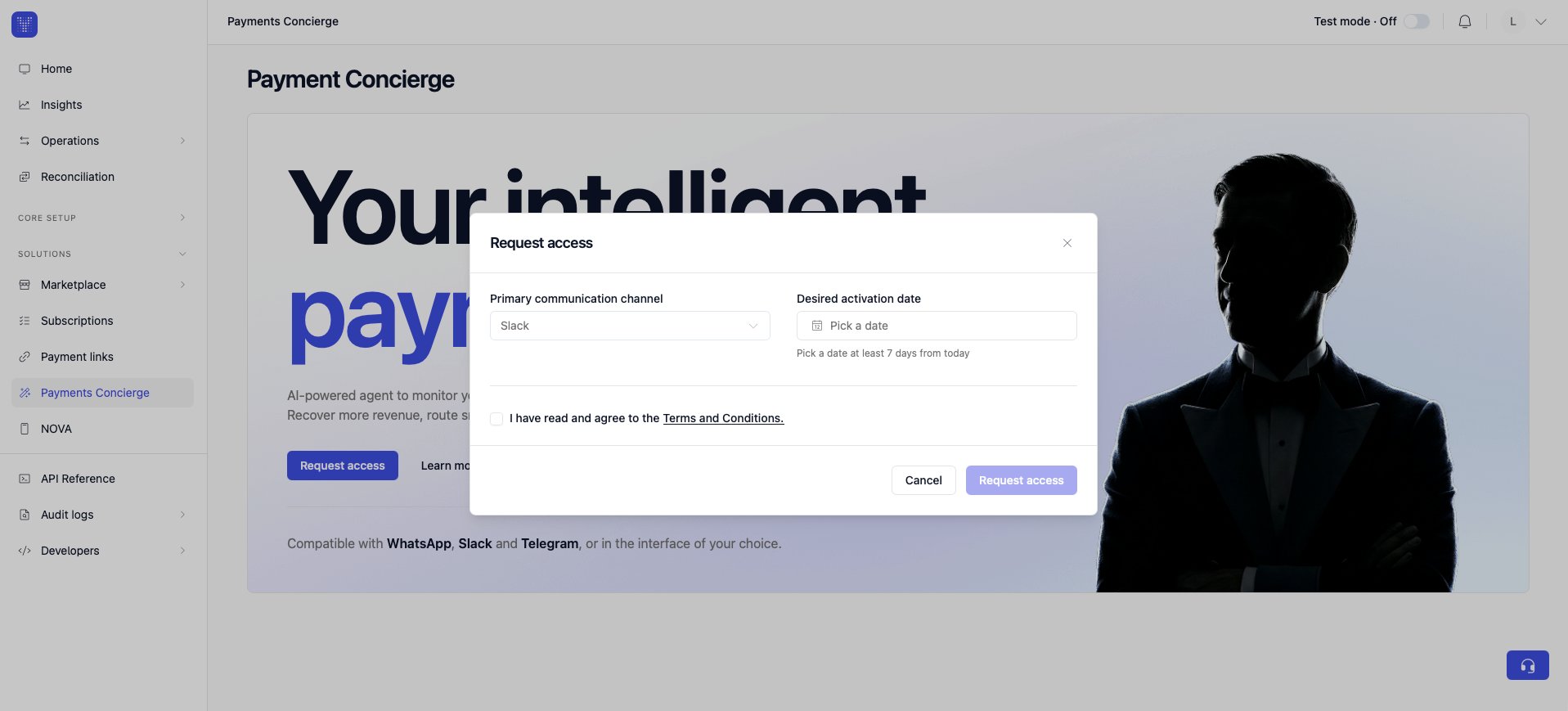
Admin-only stepOnly an admin can request access. The activation date must be at least 7 days from today.
2
Assign access levels with roles
Once the Concierge is active, you decide what each person can do. There are two access levels:You grant these levels through custom roles. From Organization → Roles → Create role, create a role, enable the Payment Concierge permission that matches the level, and assign the role to the person: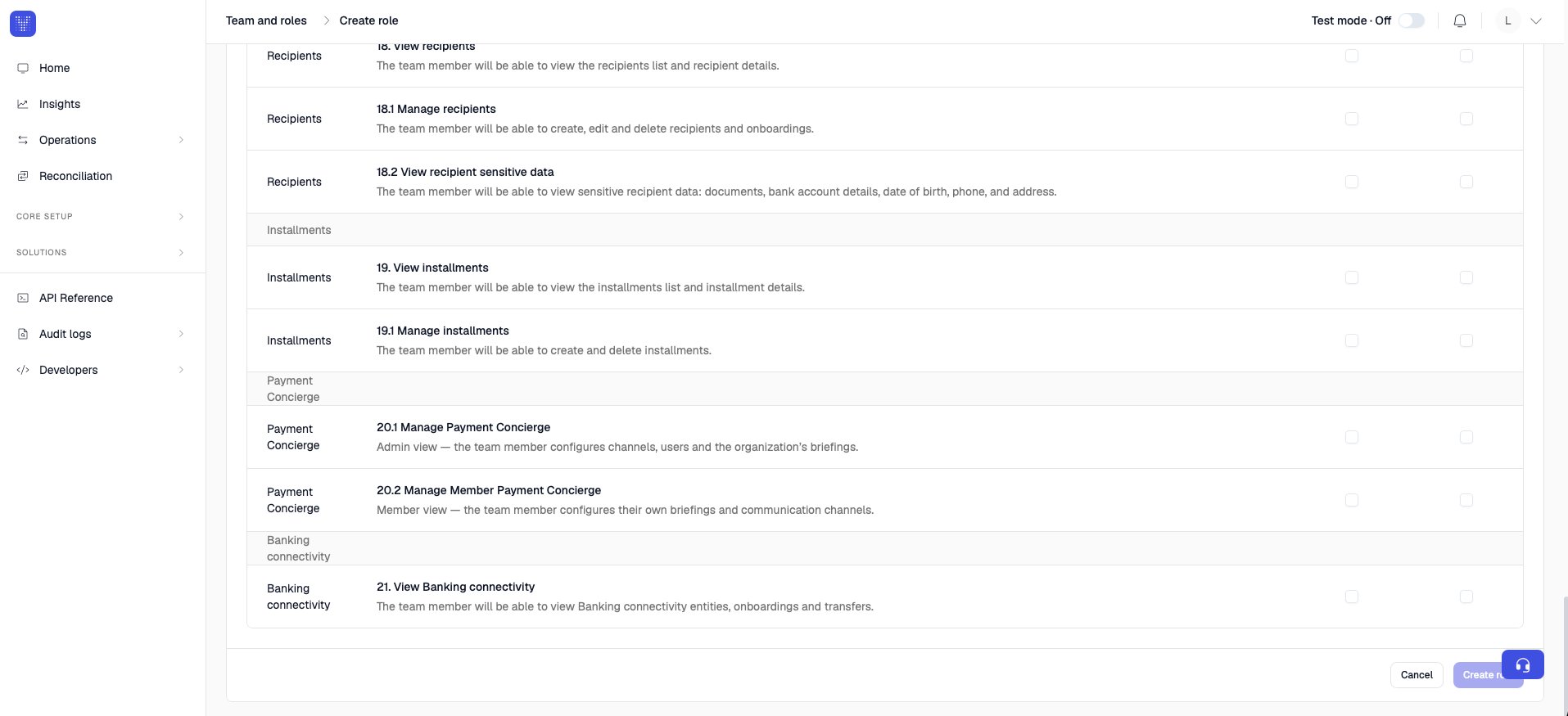
Admin
Member
- 20.1 Manage Payment Concierge: grants the Admin view.
- 20.2 Manage Member Payment Concierge: grants the Member view.
Views adapt to the roleThe section adjusts to each person’s role automatically, so they only see what applies to them.
For admins
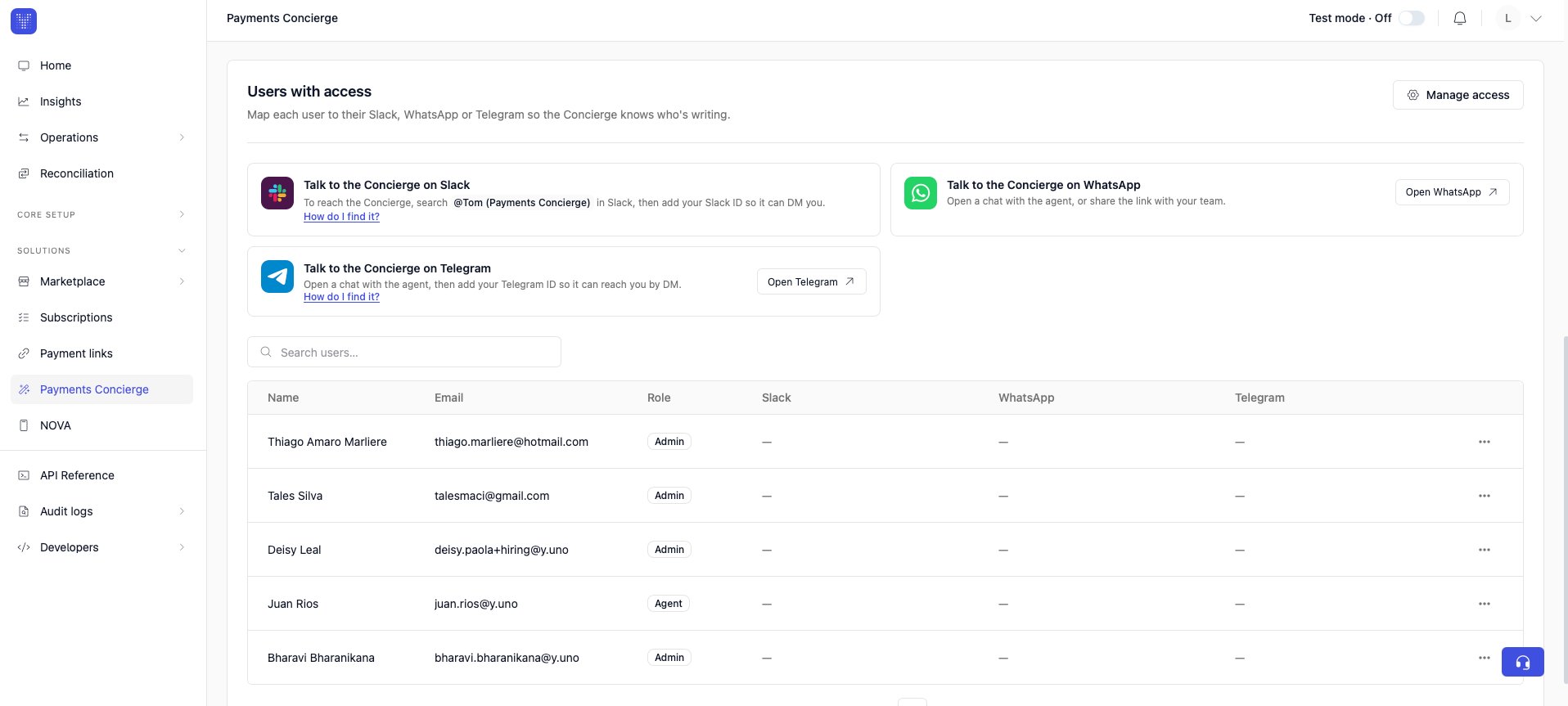
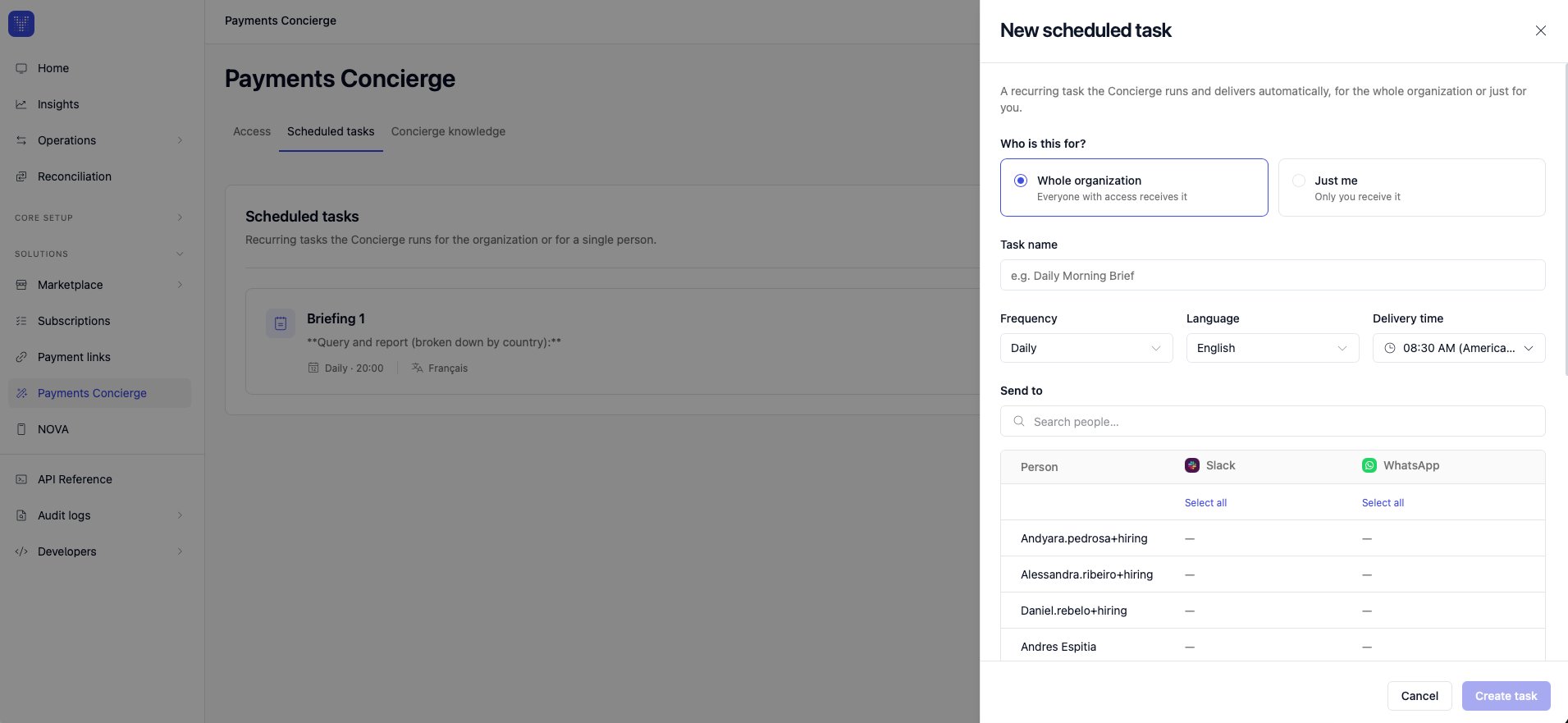
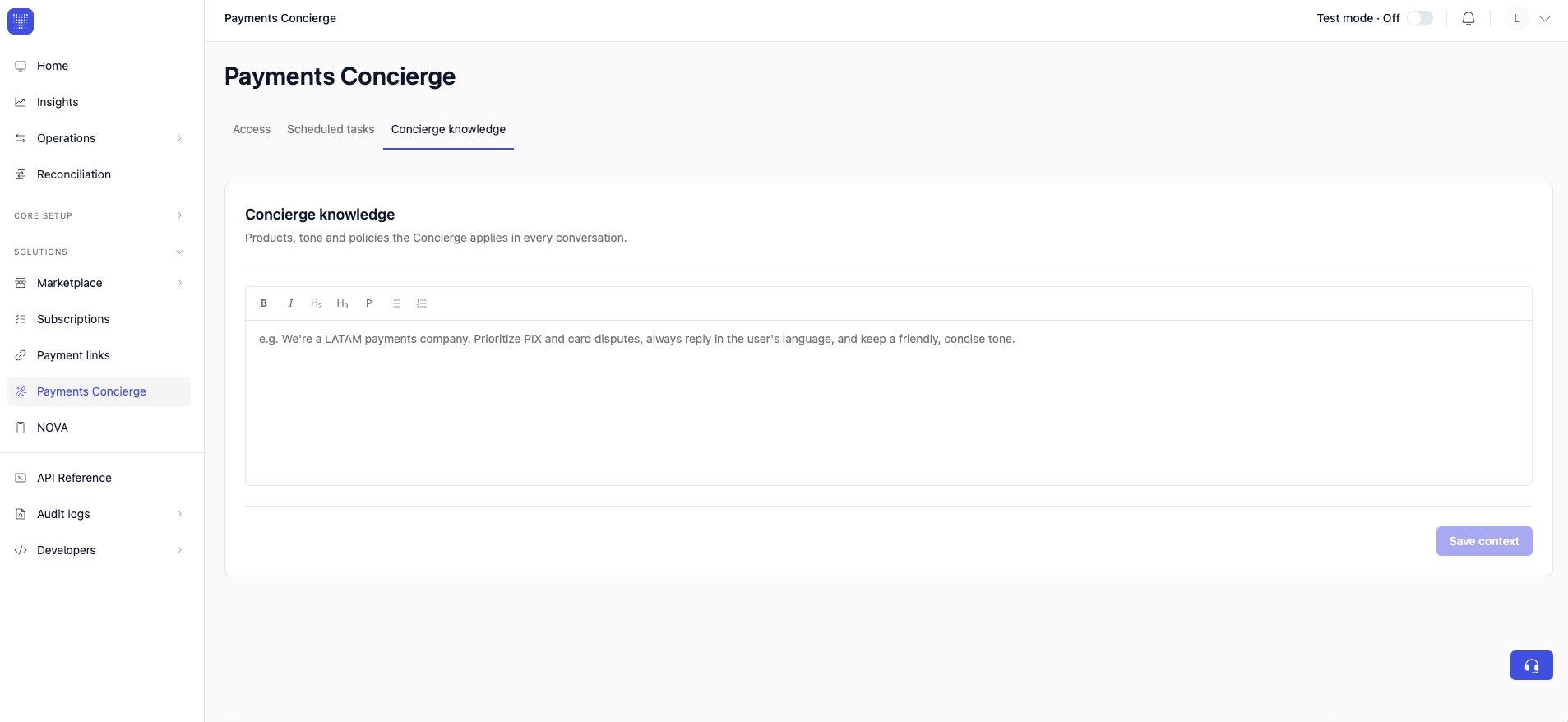
As an admin you see three tabs: Access, Scheduled tasks, and Concierge knowledge.- Access
- Scheduled tasks
- Concierge knowledge
This is where you decide where the Concierge can talk and who it can reach.Communication channels. Select the channels where the Payments Concierge can talk: Slack, WhatsApp, Telegram, and Microsoft Teams.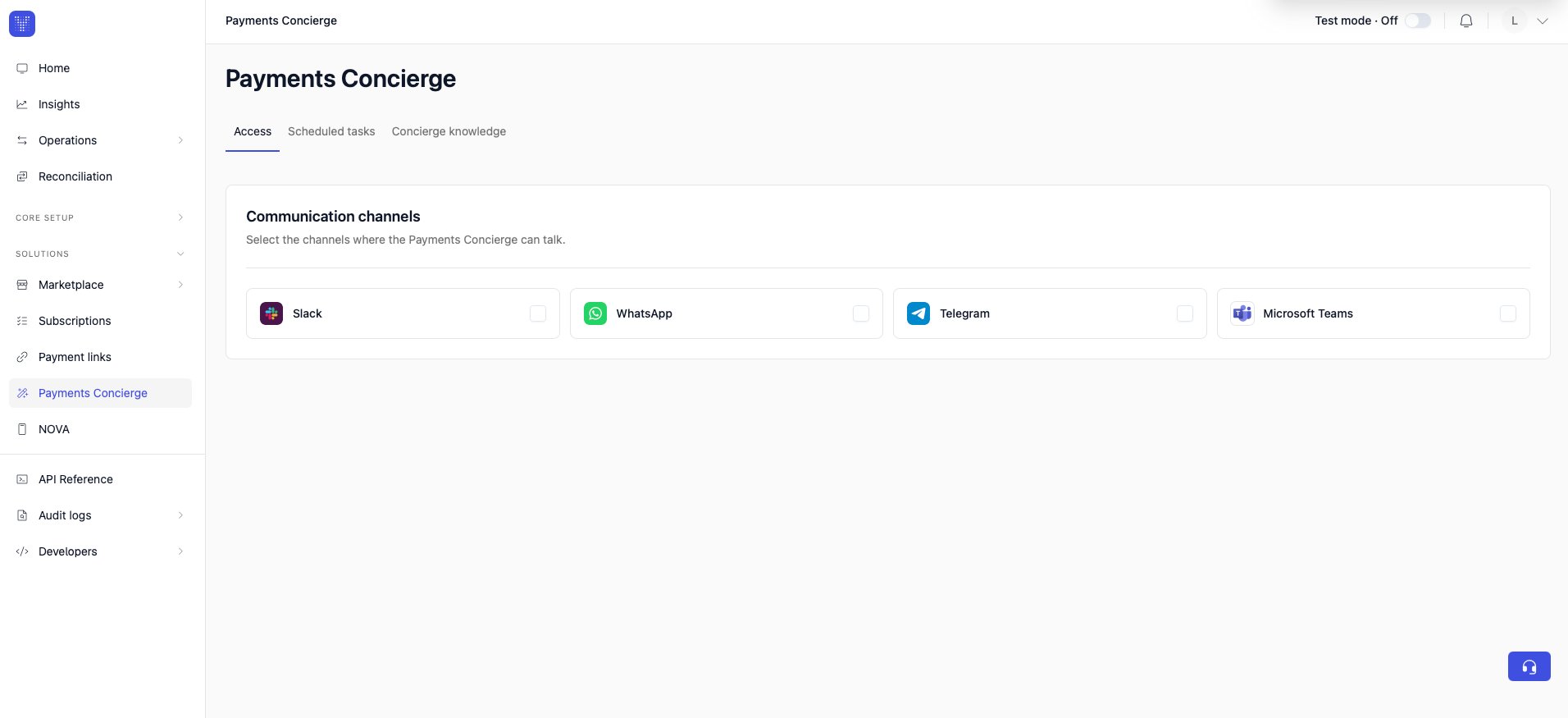
- Create the bot in Azure.
- Enable the Microsoft Teams channel.
- Copy the Microsoft App ID and App Tenant ID.
- Generate and copy a client secret.
- Grant Microsoft Graph permission, so the Concierge can identify your users by email.
- Upload the app to Teams, then select Connect.
Who can connect Microsoft TeamsThis step touches your Azure app registration and requires tenant-admin consent, so you’ll need a Teams admin of your organization or a developer to complete it.
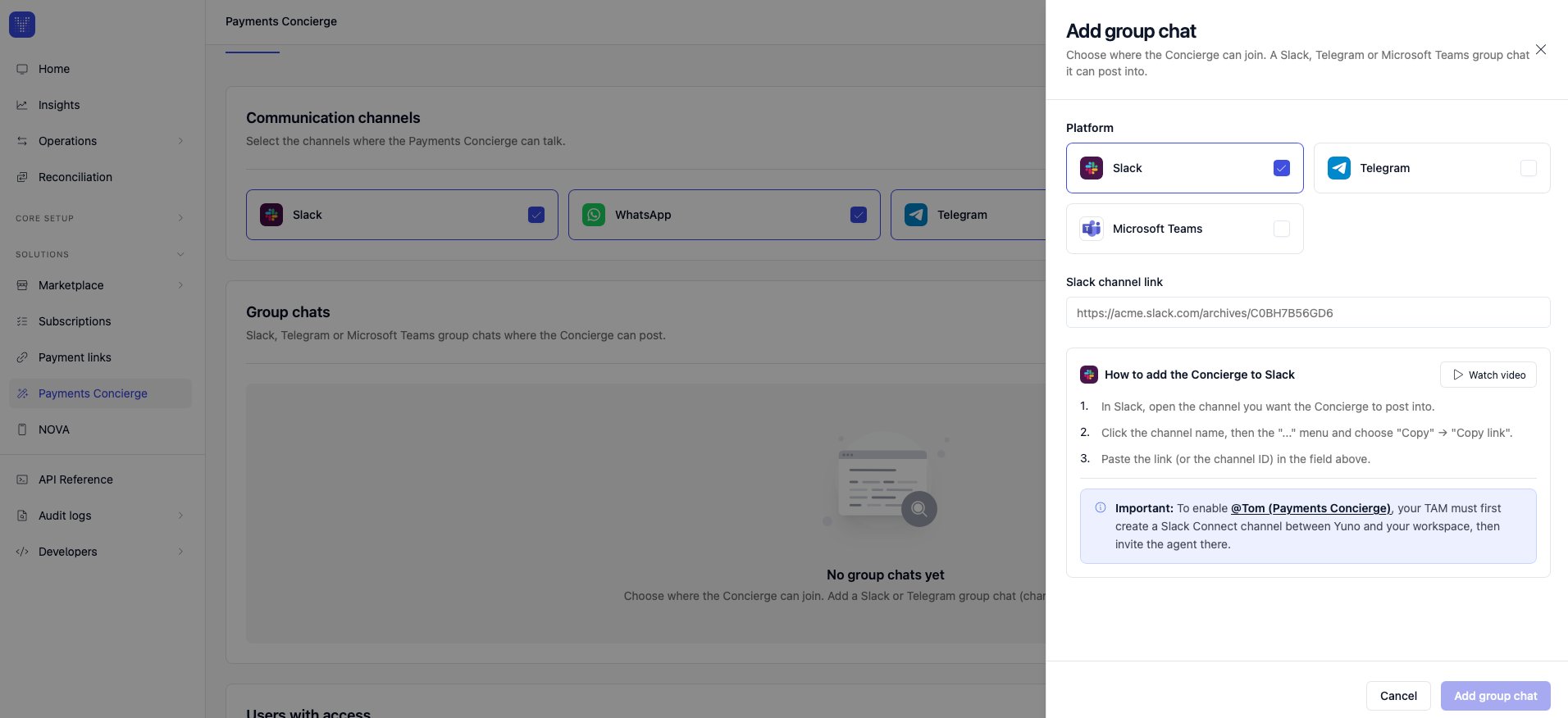
https://acme.slack.com/archives/C0BH7B56GD6). The panel includes a How to add the Concierge walkthrough (with a short video) that shows you where to copy the link from.Slack group chats need a Slack Connect channelTo enable @Tom (Payments Concierge) in Slack, your TAM must first create a Slack Connect channel between Yuno and your workspace, then invite the agent there.
- Slack: search for @Tom (Payments Concierge) in Slack, then add your Slack profile link so the agent can DM you.
- WhatsApp: open a chat with the agent from Open WhatsApp, or share the link with your team. Add your phone number with the country code (for example
+573000000000). - Telegram: open a chat with the agent from Open Telegram, then add your Telegram ID so it can reach you by DM.
For members
As a member, the Payment Concierge section is a single page focused on you: the channels where the Concierge can reach you, and your own scheduled tasks. You don’t see the organization-wide Access or Concierge knowledge settings.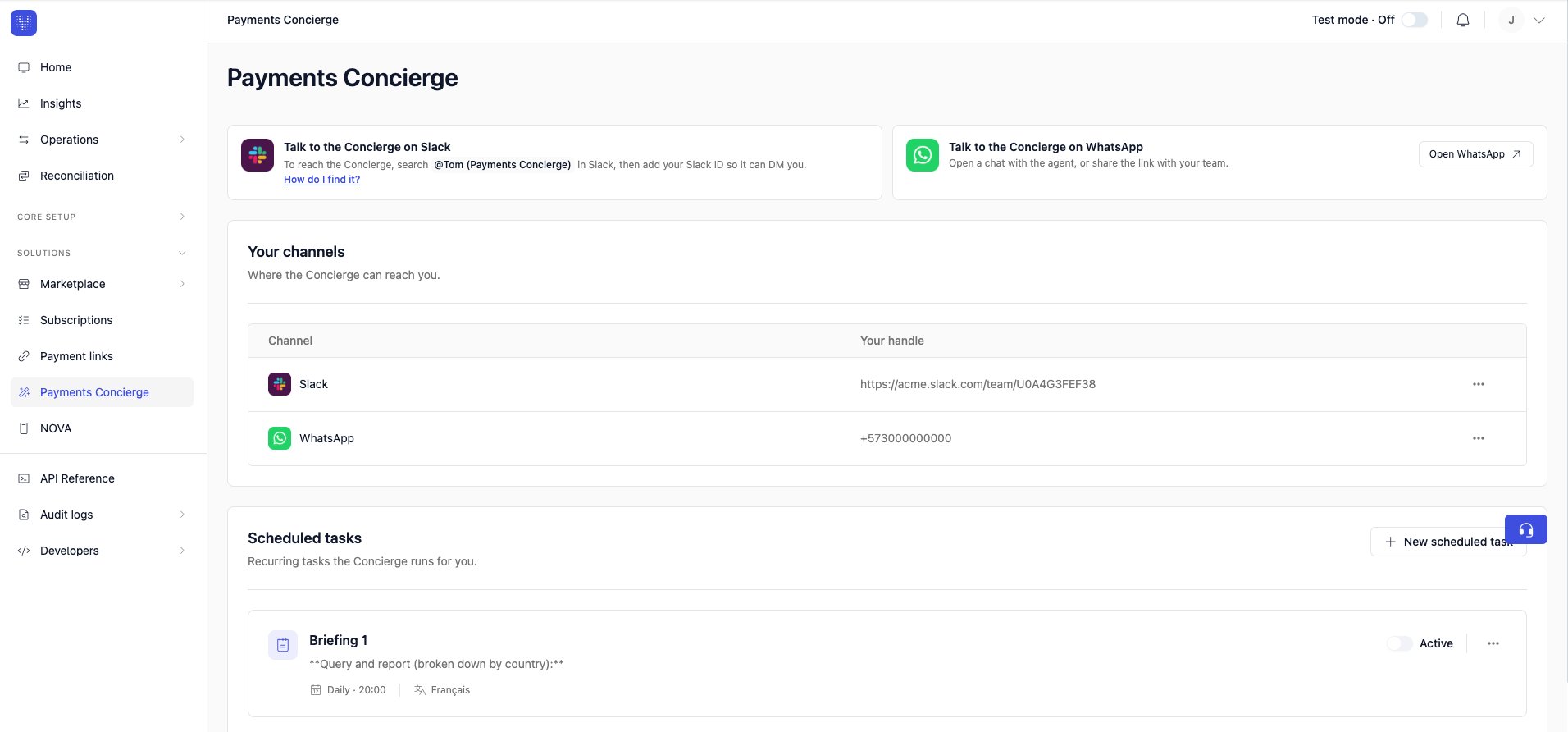
- Slack: search for @Tom (Payments Concierge), then add your Slack profile link so it can DM you.
- WhatsApp: open a chat with the agent from Open WhatsApp, and add your phone number with the country code (for example
+573000000000). - Telegram: open a chat with the agent from Open Telegram, then add your Telegram ID.