Setup
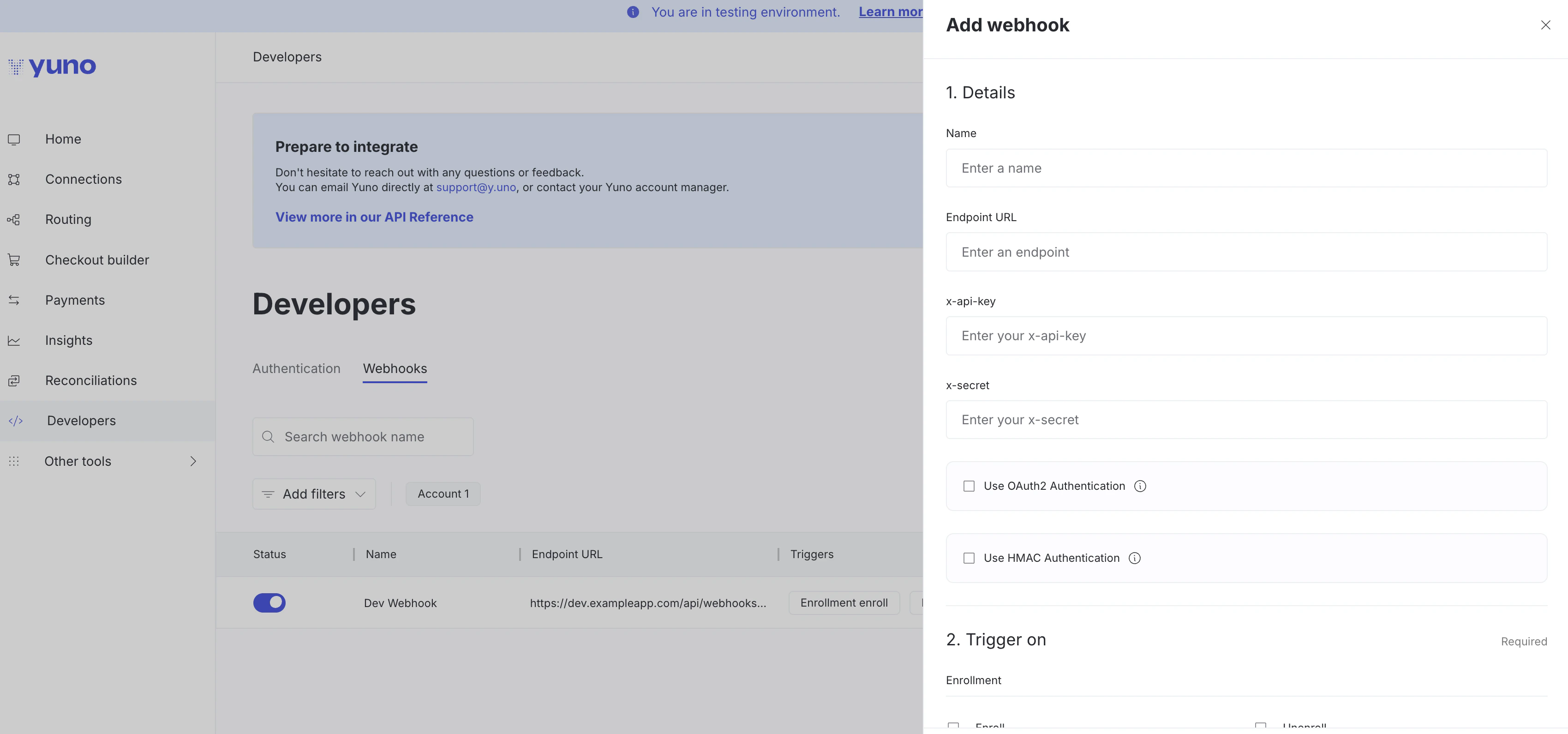
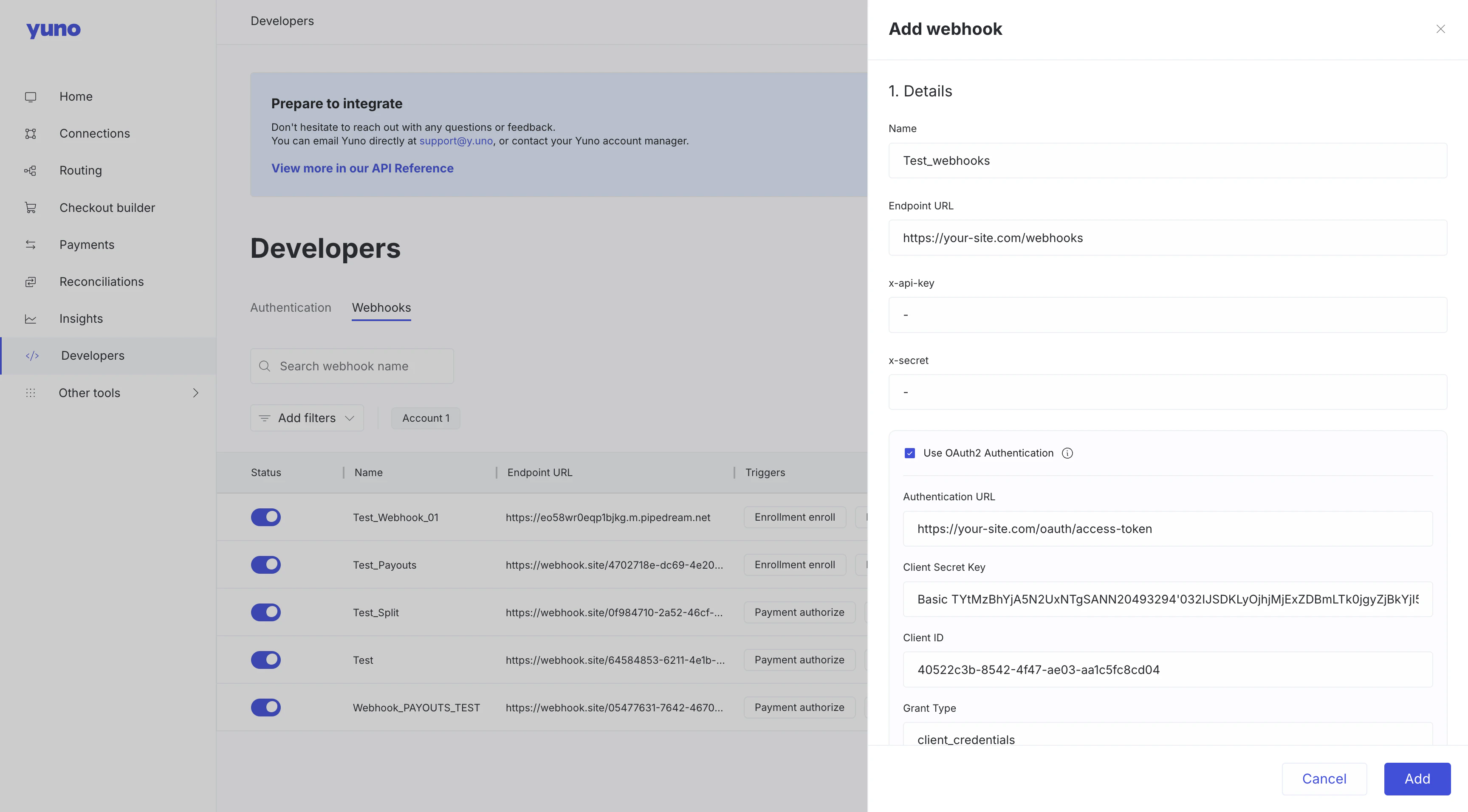
You can configure webhooks using the Yuno dashboard:- Navigate to the Developers tab
- Click Webhooks
- Click Add webhook
- Name: Identify your webhook
- Endpoint URL: Your server URL to receive notifications
- x-api-key: Your API key (sent in notification headers)
- x-secret: Your secret (sent in notification headers)
- Use OAuth2 Authentication: Optional checkbox for OAuth2
- Use HMAC Authentication: Optional checkbox for HMAC signature verification

HMAC authentication
When you enable Use HMAC Authentication in the dashboard, you’ll provide a client secret key. Yuno will use this key to generate an HMAC signature and send it in thex-hmac-signature HTTP header with each webhook request, allowing you to verify that webhooks genuinely come from Yuno and haven’t been tampered with.
See the Verify Webhook Signatures (HMAC) guide for implementation details.
oAuth2
When you enable Use OAuth2 Authentication in the dashboard, you can configure the following parameters so Yuno can obtain the authorization token that will be sent in the webhook headers:Authentication_url: url to use for authenticationCredentials: Necessary credentials to communicate with the authentication_url.- Client Secret_key
- Cliente Client_ID
Grant type: Type of grant for the authentication.

Receipt confirmation process
Yuno webhooks expect to receive an HTTP 200 OK status as a response to indicate that the webhook was received. The merchant system response does not need to provide any information on the body request, only the HTTP 200 status. In case of not receiving a response at the specified time, Yuno webhooks will send the event notification up to seven times to avoid information loss. The table below presents the webhooks notification schedule and the confirmation waiting time.| Event | Deadline after the first try |
|---|---|
| First try | |
| Second try | 5 minutes |
| Third try | 50 minutes |
| Fourth try | 6 hours |
| Fifth try | 24 hours |
| Sixth try | 48 hours |
| Seventh try | 96 hours |
Webhooks event types
Depending on the type of event, you will receive a different type of webhook and event. The next table presents the possible event types for enrollments and payments currently available.| type | type_event |
|---|---|
| enrollment | enroll |
| enrollment | unenroll |
| enrollment | expiration |
| payment | purchase |
| payment | authorize |
| payment | capture |
| payment | refund |
| payment | cancel |
| payment | verify |
| payment | chargeback |
| payment | fraud_screening |
| payout | payout |
| subscription | create |
| subscription | pause |
| subscription | resume |
| subscription | active |
| subscription | cancel |
| subscription | complete |
| onboarding | create |
| onboarding | pending |
| onboarding | succeeded |
| onboarding | canceled |
| onboarding | declined |
| onboarding | blocked |
| onboarding | unblocked |
subscription.activeis sent only when a subscription transitions from any other valid status intoACTIVE. No webhook is emitted if the subscription is already active.
Fraud Screening Webhook Behavior
When a transaction is declined by the fraud screening and doesn’t move forward to processing with any provider, no transactions are created — thetransactions array comes back empty. In this case, the only elements that get created are within the fraud_screening object, and the webhook that’s triggered is payment.fraud_screening.
If due to the routing configuration the fraud screening declines but the transaction still proceeds to processing, the event sent to the client is payment.purchase.