
- “Why did my approval rate drop in the UK this week?”
- “Which PSP should I route Mastercard transactions to in Brazil?”
- “What’s causing my Adyen rejections, and how do I fix them?”
- “Compare all my PSPs over the last 7 days: who’s underperforming?”
- “Build me a full report of last month’s approval performance, broken down by country and provider.”
Requesting access
If your organization doesn’t have Payment Concierge enabled yet, open the section from the dashboard and click Request access. Once your account is enabled, the section updates automatically to show the Briefing configuration and Communication channels tabs.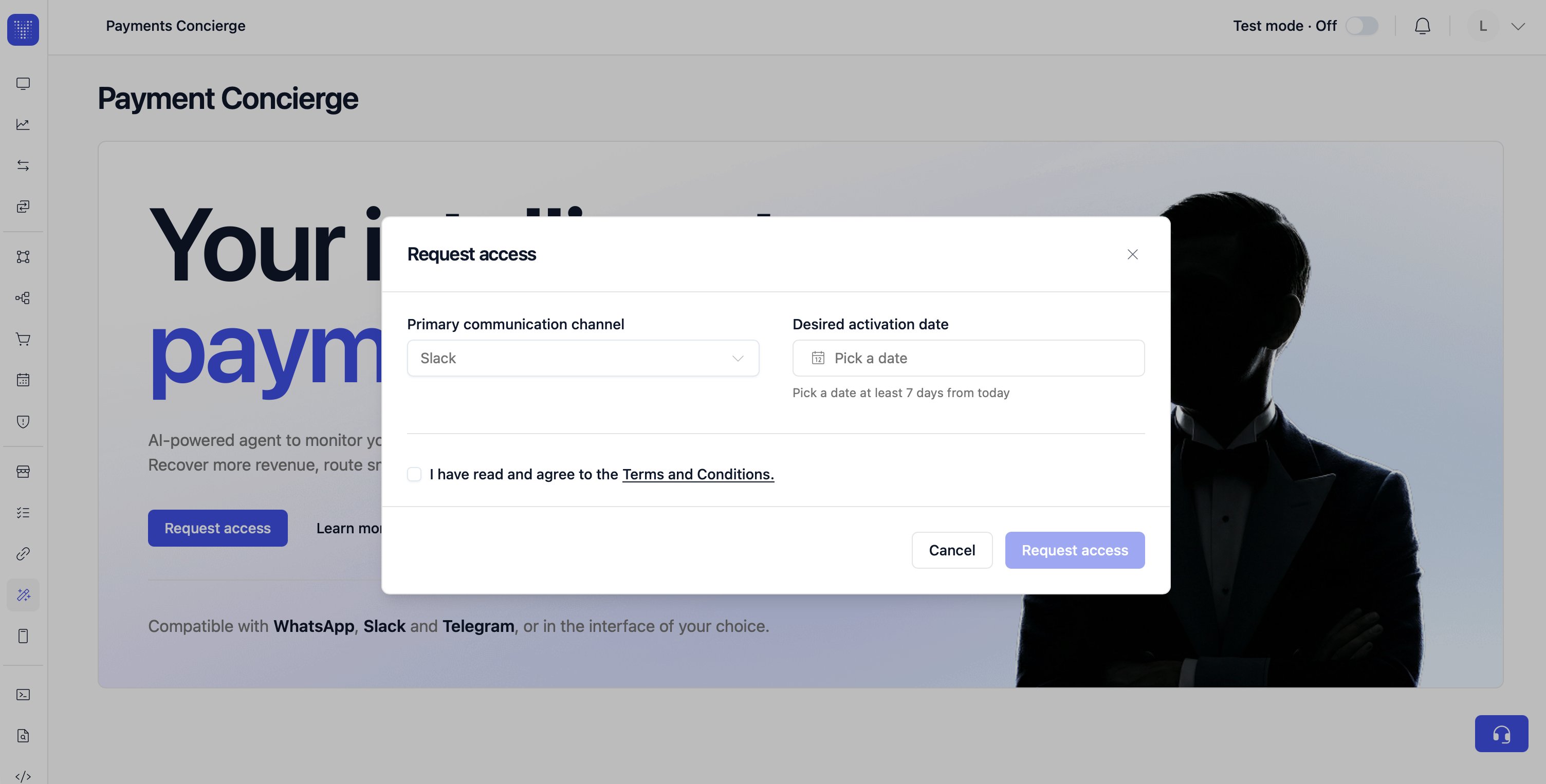
Adding a briefing
A briefing is a scheduled report the Concierge sends to your team with the metrics and insights you configure below.1
Open Briefing configuration
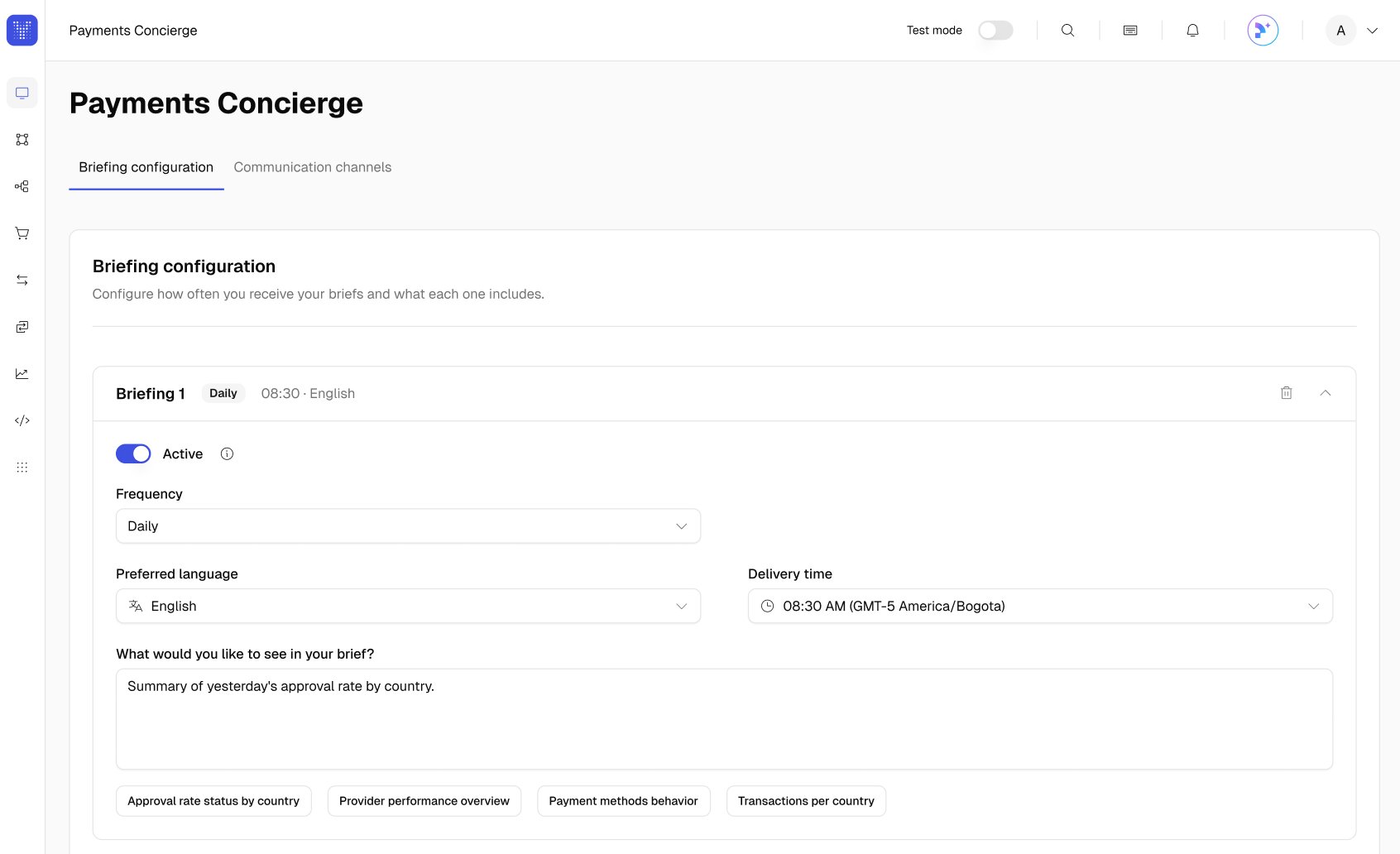
This tab displays by default when opening Payment Concierge in the dashboard. From here you can see the list of briefings your organization already has, and add new ones. Click Add briefing to create one. A new briefing card is added to the list with a default name. Click the name at the top of the card to rename it, then press Enter to confirm.
2
Set the delivery schedule
Choose a Frequency: Daily, Weekly, or Monthly. Then set the corresponding Day of the week or Day of the month if you picked Weekly or Monthly. Pick a Preferred language for the report and a Delivery time. The timezone label under the time picker shows the exact offset and identifier being used (for example, UTC-05:00 America/Bogota), so you can confirm the report will arrive at the right local time.
3
Describe the report content
Use the What would you like to see in your brief? editor to write plain-language instructions, like “Summary of yesterday’s approval rate by country, highlighting drops greater than 5%”, or use the formatting toolbar to structure the prompt with headings and bullet lists. To get started faster, click one of the suggestion buttons above the editor: Approval rate status by country, Provider performance overview, Payment methods behavior, or Transactions per country. Then edit the loaded template to fit your needs.
4
Activate and save
Make sure the Status switch on the card is set to Active, then click Save changes at the bottom of the page. The system confirms your changes and the briefing starts being delivered on the next scheduled run.
Multiple briefings for different audiencesYou can create as many briefings as you need. A common setup runs a short daily approval rate summary for the payment ops team and a longer weekly provider performance report for finance leadership, each in its own language and delivered to a different channel.
Templates as a starting pointThe four suggestion buttons load detailed multi-paragraph prompts into the editor. These are meant as a starting point. You can edit or extend them before saving. If you have a recurring report format your team already uses, paste it into the editor to replicate it.
Managing briefings
The Briefing configuration tab also lets you manage existing briefings to suit your evolving reporting needs:- Editing a briefing: Update the name, schedule, language, or content of any briefing by clicking on its card to expand it, changing the fields you need, and clicking Save changes.
- Pausing and resuming a briefing: To temporarily stop delivery without losing the configuration, toggle the Status switch on the card to Inactive. The card dims to signal it’s paused. Toggle it back to Active whenever you want deliveries to resume.
- Deleting a briefing: If a briefing is no longer needed, click the trash icon on its card to remove it. Deleting a briefing is only available when you have more than one. You always keep at least one briefing on the page.
- Managing multiple briefings at once: You can add, edit, pause, and delete several briefings in the same session. All changes are staged locally and only committed to the server when you click Save changes.
Configuring communication channels
Communication channels tell the Concierge where to deliver briefings and where your team can chat with it directly.1
Open Communication channels
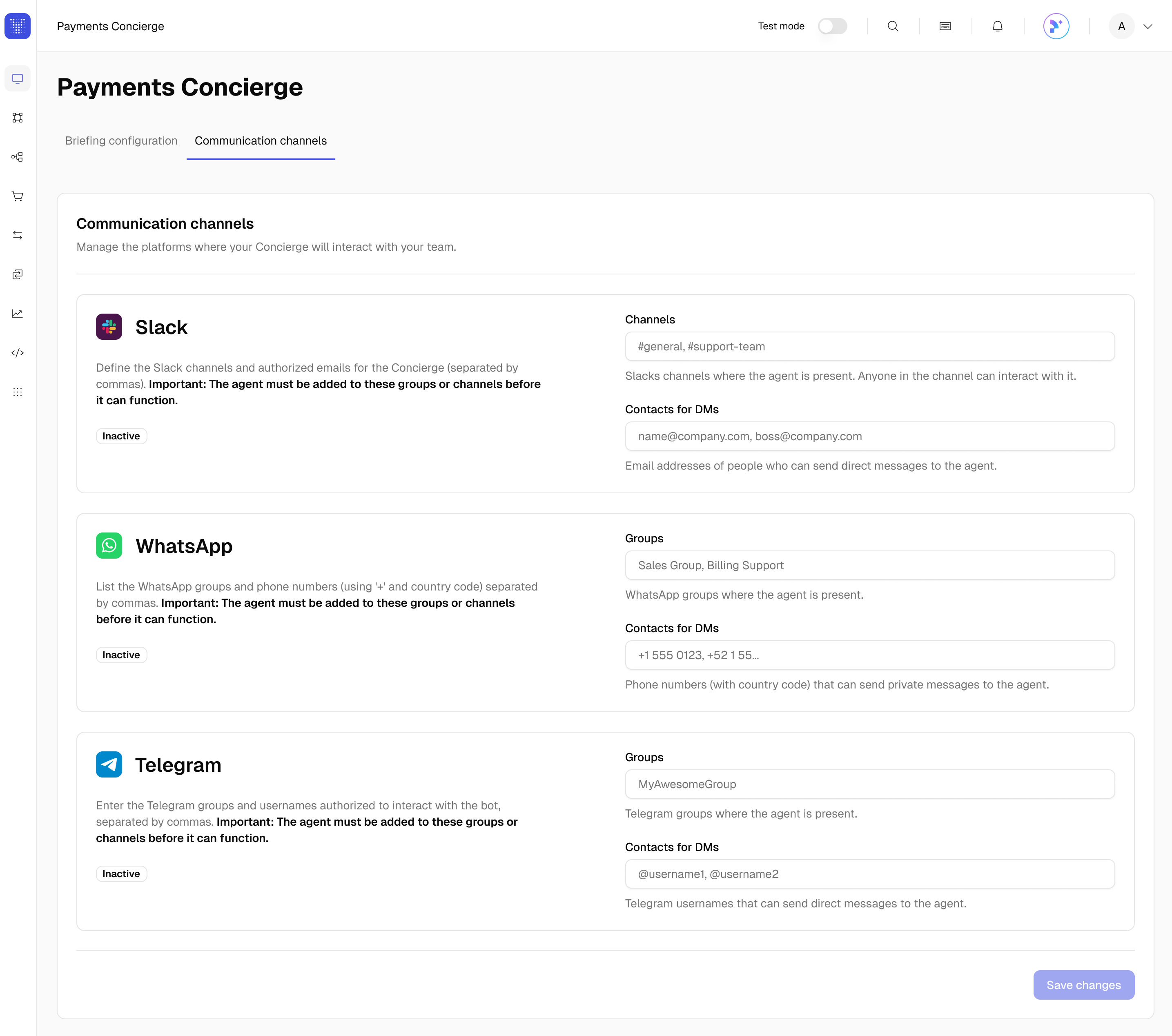
Three platforms are supported: Slack, WhatsApp, and Telegram. Each has its own card. Slack and Telegram support both shared destinations (Groups or Channels) and Contacts for DMs for direct messages, while WhatsApp is set up with Contacts for DMs only.
2
Connect Slack
Add the channels and contacts you want to enable. In the Channels field, paste a Slack channel URL (for example,
https://your-workspace.slack.com/archives/C0818KPQLEM). In the Contacts for DMs field, paste Slack profile URLs for the people who should be able to chat with the agent directly. Click How do I find it? next to any field to see a step-by-step visual guide.3
Connect WhatsApp
Add phone numbers in E.164 format in the Contacts for DMs field. Country code is required and each number must start with
+ followed by digits (e.g. +573001234567). Invalid entries are highlighted inline so you can fix them before saving.4
Connect Telegram
Paste the numeric group chat ID (starting with a minus sign, for example
-1001234567890) into the Groups field. In the User IDs for DMs field, add the numeric Telegram user IDs of the people who should be able to DM the agent. Click How do I find it? for instructions on locating each value. Telegram user IDs can be retrieved through @userinfobot.5
Save your channels
Click Save changes at the bottom of the page. Valid entries are stored and a success message confirms the update. If any value belongs to another organization or fails validation, the system explains the conflict inline so you can remove the entry and try again.
Adding multiple values at onceYou can add several values to a single field. Type each one and press Enter or Tab, or paste a comma-separated list. When a field has three or more entries, a Remove all button appears next to it so you can clear them in one click.
Slack Connect for @Tom (Payments Concierge)To mention @Tom (Payments Concierge) inside your Slack workspace, your Yuno TAM must first create a Slack Connect channel between Yuno and your workspace and invite the agent to it. Reach out to your TAM to set this up before adding Slack destinations.
Managing access and permissions
Access to Payment Concierge is controlled by two permission levels, granted by your account administrator:- View permission: Users can open the Payment Concierge section and see the current briefing and channel configuration in read-only mode. A banner reading Read-only view. Contact your account admin to make changes. shows at the top of each tab, and all inputs and buttons are disabled.
- Manage permission: Users can add, edit, pause, and delete briefings, and can update the list of channels and contacts. All the actions described above require this permission.