
- Overview: what screening did, and which rules and lists do the work.
- Rules: conditions that count payments over time, such as “more than 5 cards from one email in 1 hour”.
- Lists: fixed values to block, allow, or send to review, such as an email or a card BIN.
- Protection presets: reusable bundles of rules and lists.
- Held payments: payments waiting for someone to approve or decline them.
Before you start
A rule or list does nothing until it is on a route, and the route is published. To set that up once:1
Connect Risk Conditions
Go to Connections, search for Risk Conditions, and click Connect. Follow the on-screen steps.
2
Add a screening check to a route
Go to Routing, open a route, and add Risk Conditions as a step. In its Set rules and lists step, apply a protection preset or pick rules and lists one by one.
3
Publish the route
Changes to a route are saved as a draft. Publish the route to start screening.
What runs first
On each screening check, Yuno evaluates in this order and stops at the first match:- Allowlists
- Blocklists
- Review lists
- Rules, top to bottom, in the order set on the route
Permissions
Each action in Risk Conditions has its own permission: viewing the section, creating and editing rules, lists, and presets, creating presets for the whole organization, and approving or declining held payments. You can add these permissions to any custom role. The Admin role includes them by default.Overview
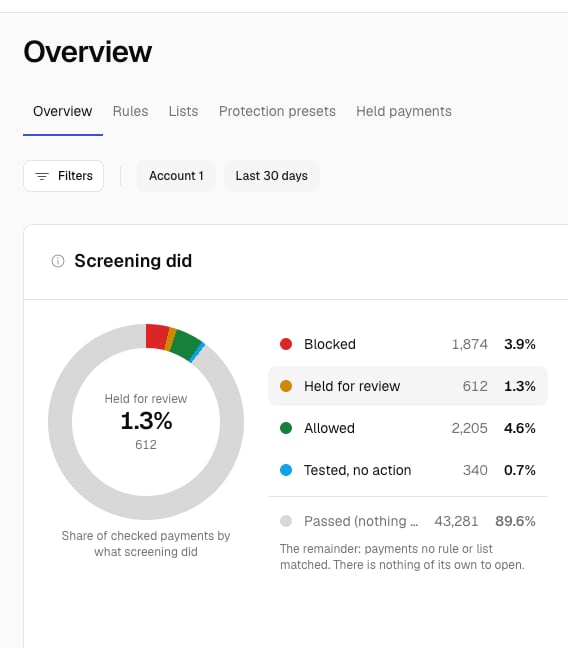
Overview shows what screening did for the period you pick (the last 7, 30, or 90 days).- Screening did: how many payments screening checked, split into Blocked, Held for review, Allowed, Tested, no action, and Passed (nothing matched). Each payment is counted once, by the match that decided it.
- Final payment status: what those same payments became at the bank, for example succeeded, declined by the bank, or charged back.
- Rule health and Blocklists & allowlists: counts per status. Each card opens the Rules or Lists tab, already filtered.
- Which rules & lists do the work: rules and lists ranked by how often they matched. If a rule never fires because a rule above it catches the same payments first, it says Never fires, names that rule, and links to Routing, where you change the order.
- Needs you: anything that asks for an action, such as a Block rule that isn’t really blocking or payments waiting for review.
The ranking counts match events, while the headline counts payments. One payment matched by a list and a rule counts once in the headline and twice in the ranking, so the ranking can add up to more than the total.
Rules
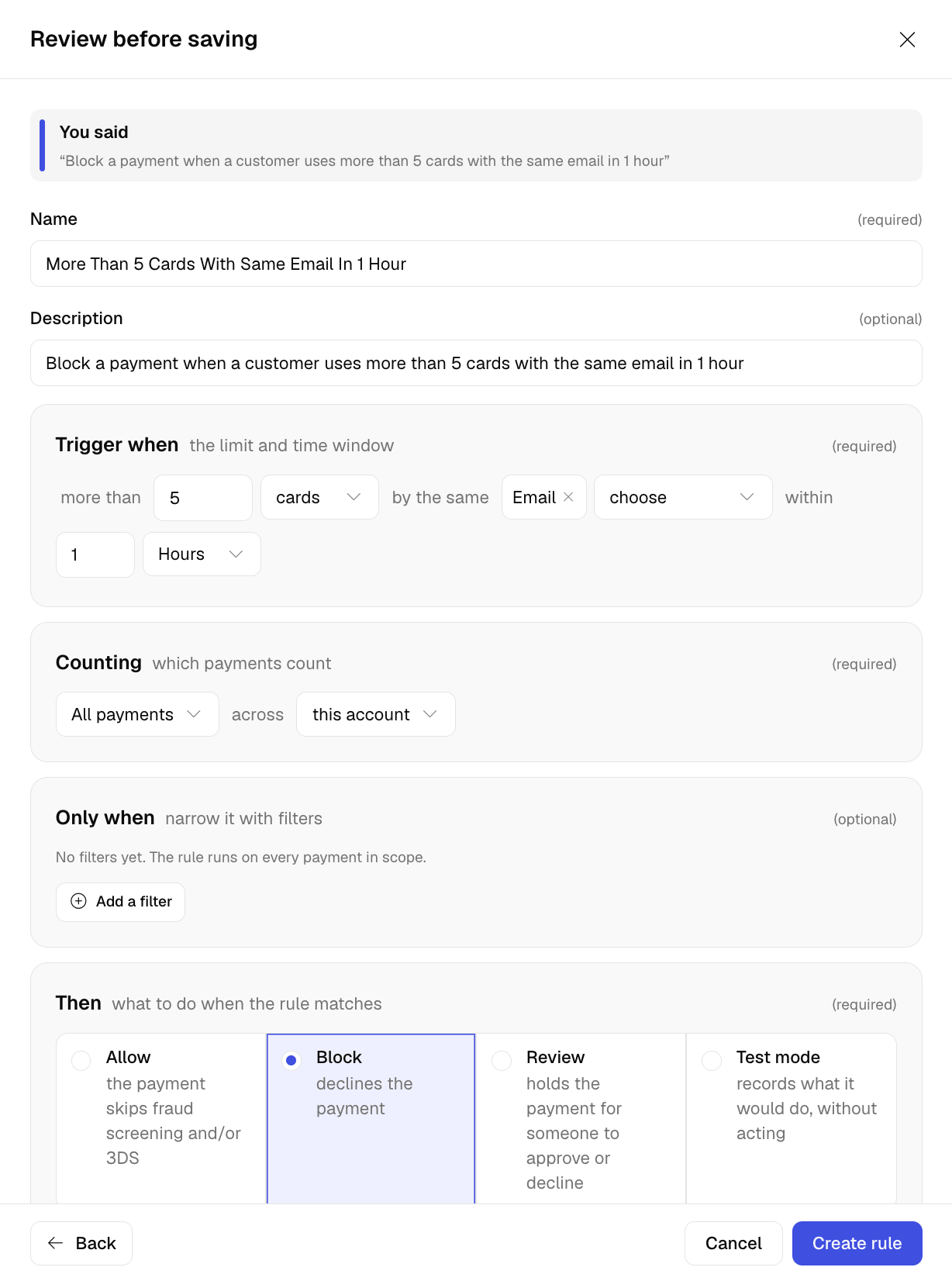
A rule counts payments over a time window and acts when the count goes over a limit. For example: hold a payment for review when a customer uses more than 5 cards from the same email in 1 hour.Use a list, not a rule, when you want to match one fixed value on a single payment, such as a known bad email. See Lists.
Create a rule
In the Rules tab, click Create rule. The fastest way to start is to describe the rule in plain English, for example “Hold a payment when a customer uses more than 5 cards from one email in 1 hour”, and click Generate. Yuno drafts the rule and shows it under Review before saving, next to what you wrote, so you can check and adjust it before you create it. If what you describe is a single value with no limit over time, Yuno suggests a blocklist entry instead. You can also start from a template, copy an existing rule, or start blank. The templates are:- Card testing: one card tried too many times in a short window.
- High-value first order: a new customer’s first payment is over a threshold.
- Prior chargebacks: hold customers whose payments already had a chargeback recently.
- Repeated charges on the same card: block multiple charges made on the same card within an hour.
As you build, the Rule summary reads the rule back in plain English, so you can check it does what you meant.
- Same across payments: the same card BIN, card number, cardholder name, payment method, IP address, shipping address, device ID, or amount across the payments you count.
- Amount: a single payment’s amount, or the running total in the window.
- Card & response codes: card brand, the response code, or the Merchant Advice Code an issuer returns after a decline.
- Chargeback history: whether the customer had chargebacks in the last number of days you set.
- Verification: whether the counted payments include a $0 card-verification check.
- Metadata: your own custom fields sent to Yuno.
Outcomes
Once a rule is enforcing, its outcome is fixed. To try a different outcome, copy the rule.
Rule statuses
Every rule has one status:
The Rules tab lists every rule with what it screens for, its account, its outcome, and its status. Filter by status to find the rules that need you.
Rule detail
Open a rule to see whether it is working:- Health: how many payments it matched since the last edit, and what share of the account’s traffic that is.
- Where it runs: the same numbers, per route.
- What it did: for Block, what it stopped. For Allow, how the allowed payments turned out. For Review, what’s waiting and what was approved or declined. For Test mode, what it would have done.
- What it caught: the matched payments, newest first, with the reason each one matched.
- Change history: who created, edited, promoted, or published the rule, and when.
Protection hole. If a Block rule sits on a screening step that runs after the bank, it can match payments that still succeed, because a block at that point can’t reverse the charge. The rule detail shows how many payments slipped through, and the rule is marked Needs you. To stop a payment before it is charged, the screening step has to run before the provider.
Add a rule to a route
From the rule list or the rule detail, click Add to a route. Choose the route, then the screening check to add it to, or add a new one. The rule goes into the route’s draft. Open Routing to review and publish the draft.Delete a rule
You can delete a rule only when it isn’t live. If a route uses it, remove it from the route first. Deleting can’t be undone.Lists
A list matches one value on a payment, such as an email, a card BIN, or a device. There are three types:
A list can match on any of these:
- Email or email domain
- Phone number
- Card BIN
- Card BIN + last 4 digits
- IP address or IP address range
- Merchant customer ID
- Customer ID
- Document number
- Card/bank account holder name
- Device ID
- Fingerprint
- Shipping address
- Metadata
Create a list
In the Lists tab, click Create list and fill in:- Name: a clear, descriptive name.
- Type: Blocklist, Allowlist, or Review list.
- Match on: the value to match, such as email or card BIN. For card BIN, choose whether an entry matches every card that starts with it or only that exact BIN.
- Outcome (allowlists only): skip fraud screening, skip 3DS, or skip both.
- Entries: type values separated by commas or tabs, or upload a CSV file. Optionally, remove entries automatically after a period you set.
- Accounts: the list applies to the current account by default. Select other accounts to apply it there too.
Blocklists
A blocklist declines any payment that matches one of its entries. Use it for customers, cards, or devices you never want to accept.Allowlists
An allowlist lets trusted customers through with less friction. When you create one, choose its outcome: skip fraud screening, skip 3DS, or skip both. An allowlist match wins over every other list and every rule, so keep allowlists for customers you have verified.Review lists
A review list works like a blocklist, but instead of declining the payment Yuno holds it for a person to decide. Use it for customers, cards, or devices you want someone to look at without losing the sale. When a payment matches a review list on a screening step before the provider:- Yuno holds the payment before it reaches the provider. The payment shows status
PENDINGwith sub-statusPENDING_FRAUD_REVIEW, and the customer is not charged while it waits. - The payment appears in Held payments, where someone on your team approves or declines it.
You can’t delete a list. Yuno keeps it so you always have the history of the payments it matched. To stop using a list, remove it from your routes and presets.
Protection presets
A protection preset is a named bundle of allowlists, blocklists, review lists, and rules. You build it once and apply it to any route, instead of picking the same rules and lists route by route. A route follows the preset rather than copying it. When you edit a preset, every route using it changes right away, without republishing each route. The dashboard warns you before you save an edit that reaches live routes.Create a preset
In the Protection presets tab, click Create preset:- Give it a name and, optionally, a description.
- Choose its scope: This account, or Entire organization.
- Add allowlists, blocklists, review lists, and rules. A preset needs at least one. Rules run top to bottom and evaluation stops at the first match, so the order matters.
Apply a preset to a route
In Routing, open the route’s Set rules and lists step and choose Use a Protection Preset. Then publish the route.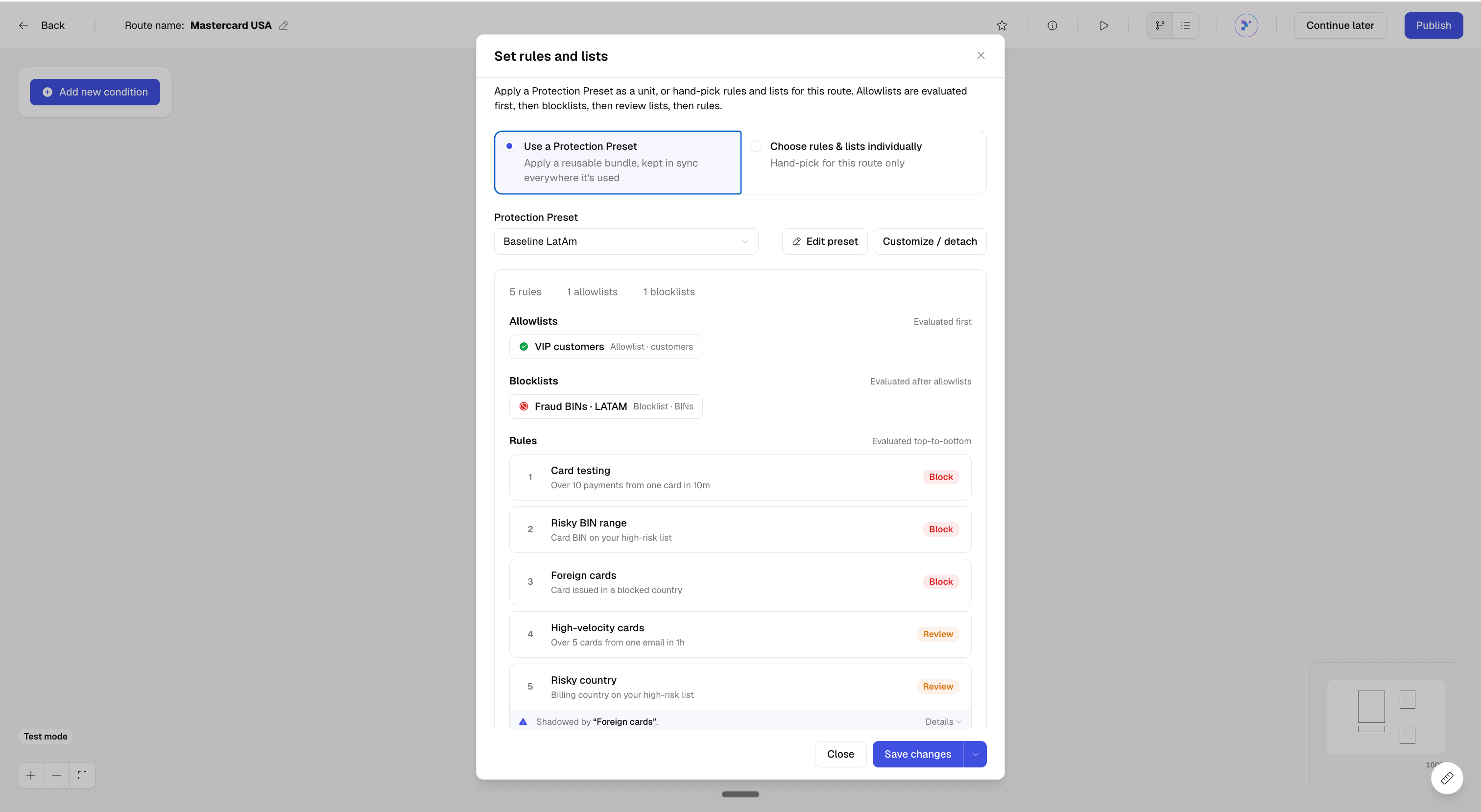
- To add rules or lists to one route only, on top of the preset, add them under Also on this route only. They are evaluated before the preset.
- To change a route without changing the preset, click Customize / detach. The preset’s rules and lists are copied into the route, and later edits to the preset no longer reach it.
Preset detail
Open a preset to see what’s inside it, the routes that use it, whether any of its rules need you, and its change history.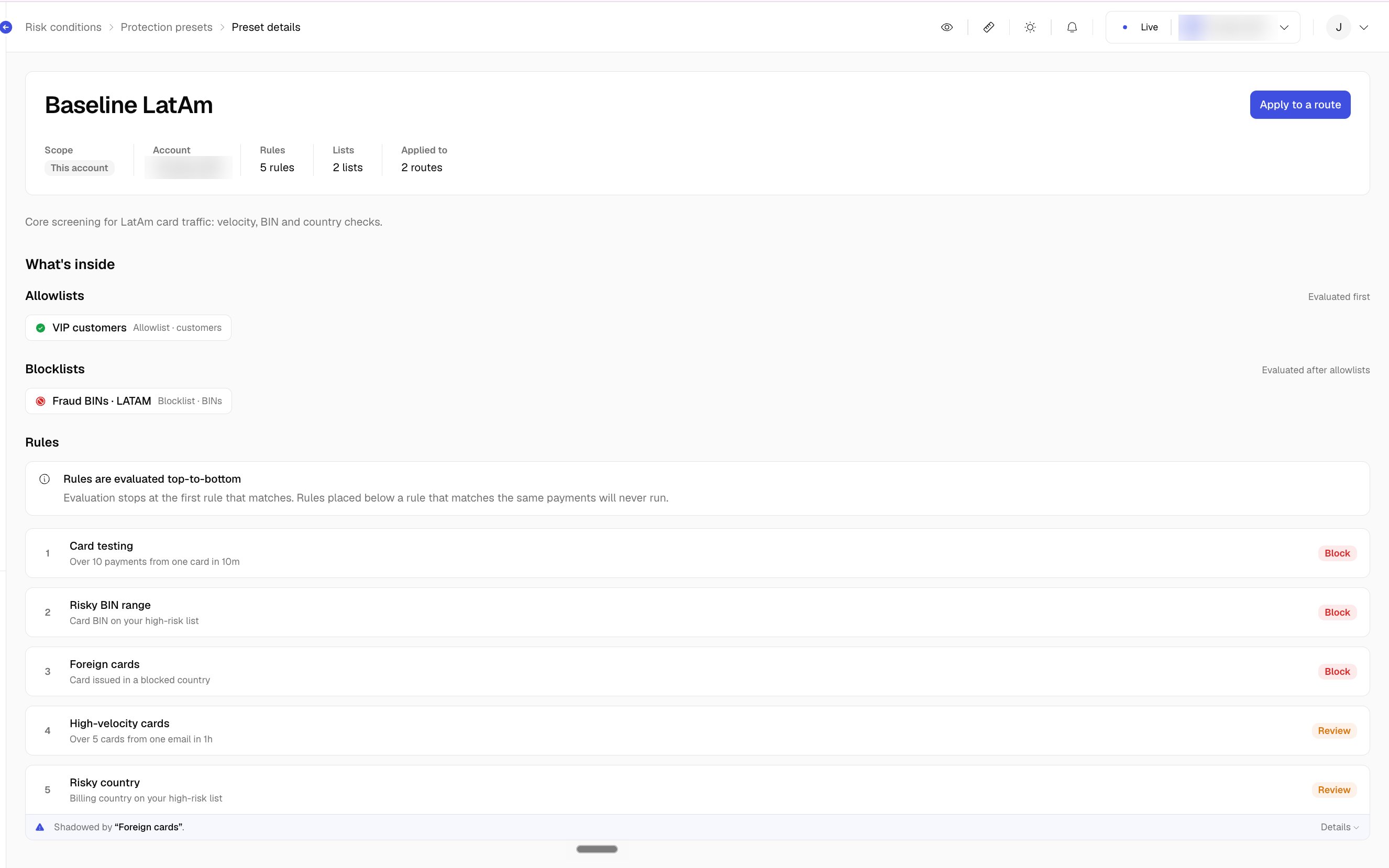
Held payments
Held payments lists every payment that a review list or a Review rule is holding, oldest first. The tab shows a count badge, so you know when something is waiting. The table shows the payment, amount, the rule or list that held it, how long it has been held, and why. For each held payment, choose:- Approve: tells screening the fraud check passed. The payment continues along its route. That is not the same as marking it successful: the provider still has to approve it.
- Decline: stops the payment. It does not continue along its route.
A payment that screening held after the provider already approved it is listed so you can see it, but it can’t be approved or declined from the dashboard, because the money was already charged.