
This page documents a legacy SDK. Starting a new integration? Use the Yuno SDK. Already on a legacy SDK? Follow the migration guide.The new Yuno SDK (Web v2.x, iOS v3.x, Android v3.x) replaces the Full, Lite, Seamless, Render, Headless, and Secure Fields SDKs with one API across every platform. Legacy SDKs remain supported side by side during the transition and are scheduled for deprecation in 2027. Contact your Account Manager for migration planning.
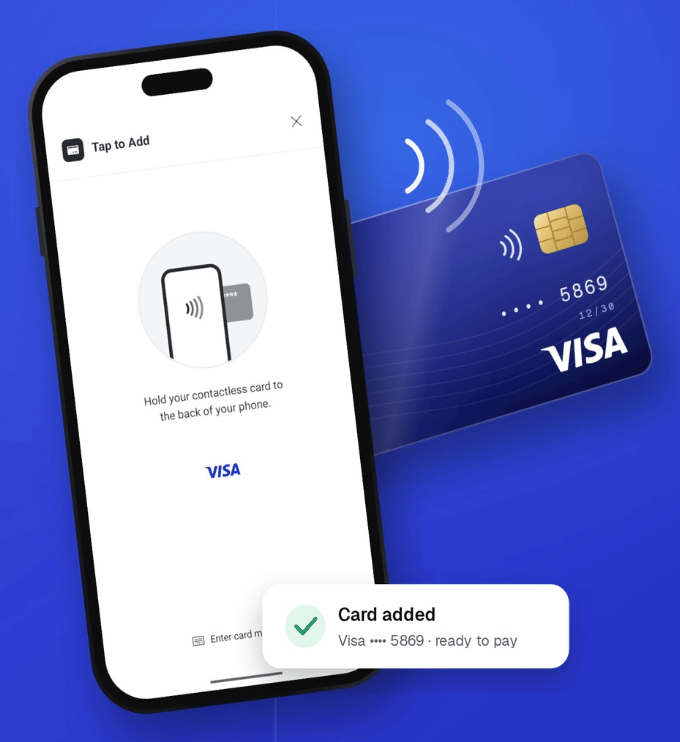
Prerequisites & Requirements
Your Android project must meet the following hardware, system, and toolchain requirements:- Hardware & OS: Android 11.0 (API level 30) or higher with an active NFC antenna and Host Card Emulation (HCE) support.
- Services: Google Play Services must be available on the device.
- Architecture: 64-bit (
arm64-v8a) or 32-bit (armeabi-v7a) ARM architecture. (x86 / x86_64 emulators are not supported for contactless NFC operations). - Toolchain Requirements:
- Compile SDK:
compileSdk 35 - Java: Java 17
- Kotlin: 2.1.0 or higher
- Android Gradle Plugin (AGP): 8.6.0 or higher
- Gradle: 8.7 or higher
- Hilt: 2.56 or higher (if using dependency injection)
- Room: 2.7.0-alpha13 or higher (if using Room in your project)
- Compile SDK:
Supported Brands: Currently, Tap to Add is powered by Visa’s Tap SDK. Support for Mastercard and other card schemes will be introduced in subsequent releases.
Integration Paths
You can integrate Tap to Add in one of two ways:- Path A: Automatic Enrollment via Yuno Android SDK 3.x (Recommended): If you already use Yuno’s Full Checkout SDK for Android, adding the
yuno-tapdependency automatically enables the Tap to Add entrypoint on the enrollment form with zero UI code. - Path B: Standalone Yuno Tap SDK: If you build custom enrollment screens or headless UI, integrate
com.yuno.payments:yuno-tapdirectly with either the pre-builtYunoTapToAddButtonor the headlessYunoTapController.
Path A: Automatic Full Checkout Enrollment
When integrating with the Yuno Android Universal SDK (3.0.0 or later), the SDK automatically inspects whether yuno-tap is present on the runtime classpath. If found and the device supports NFC, the SDK displays the Tap to Add option directly within the card enrollment form.
1. Add Dependencies
Add the Yuno Android SDK and Yuno Tap artifact to your module’sbuild.gradle.kts:
2. Configure Manifest for Devices below API 30
The Yuno Tap SDK enforcesminSdk = 30. If your main application targets a lower minSdkVersion (for example, minSdk = 24), allow the manifest merger to proceed by adding a tools:overrideLibrary declaration in your AndroidManifest.xml:
Visual Flow
1
Enrollment Form Entrypoint
When
yuno-tap is included in the project, the card enrollment form displays the Tap to add entrypoint above manual card entry.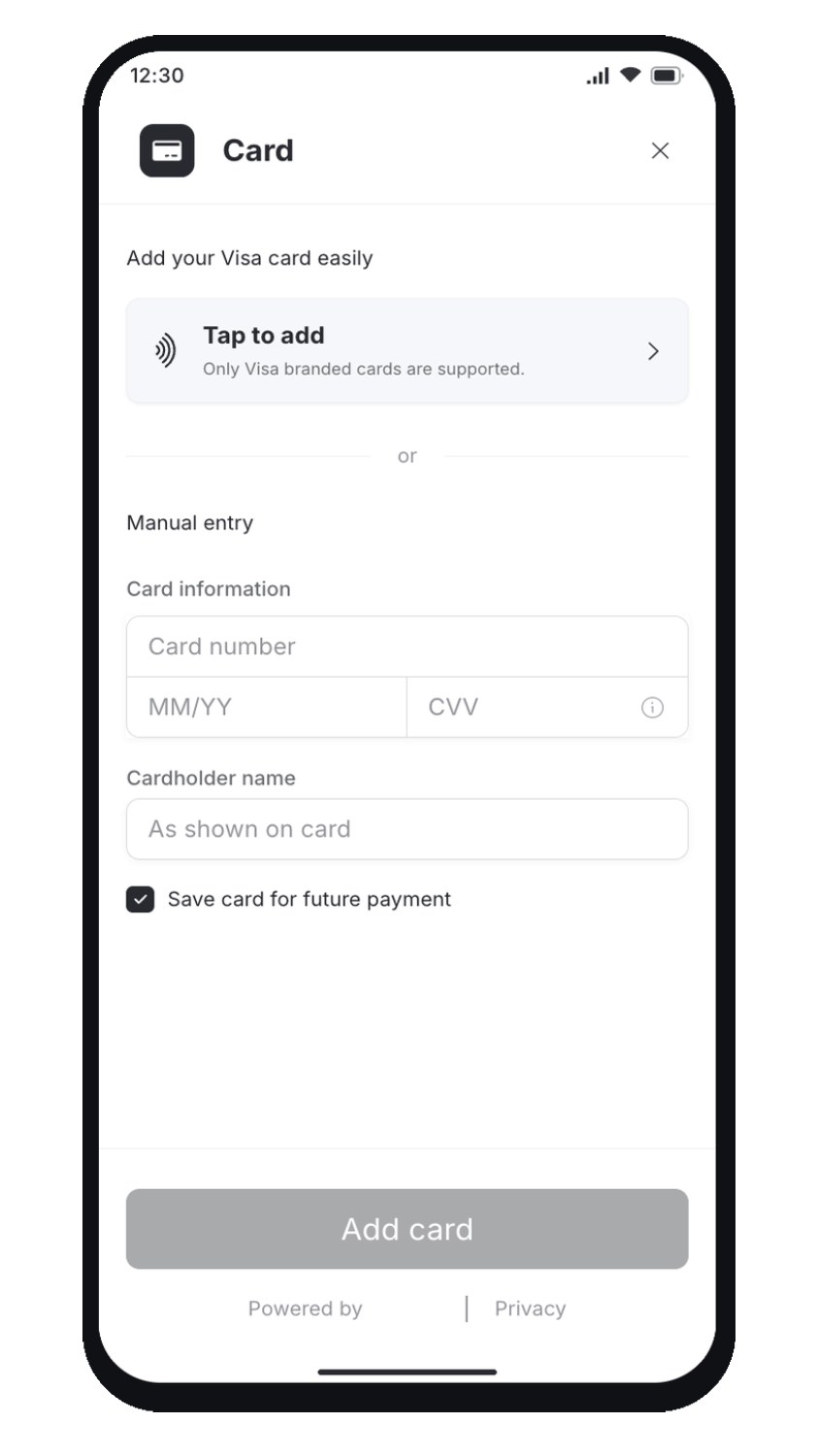
2
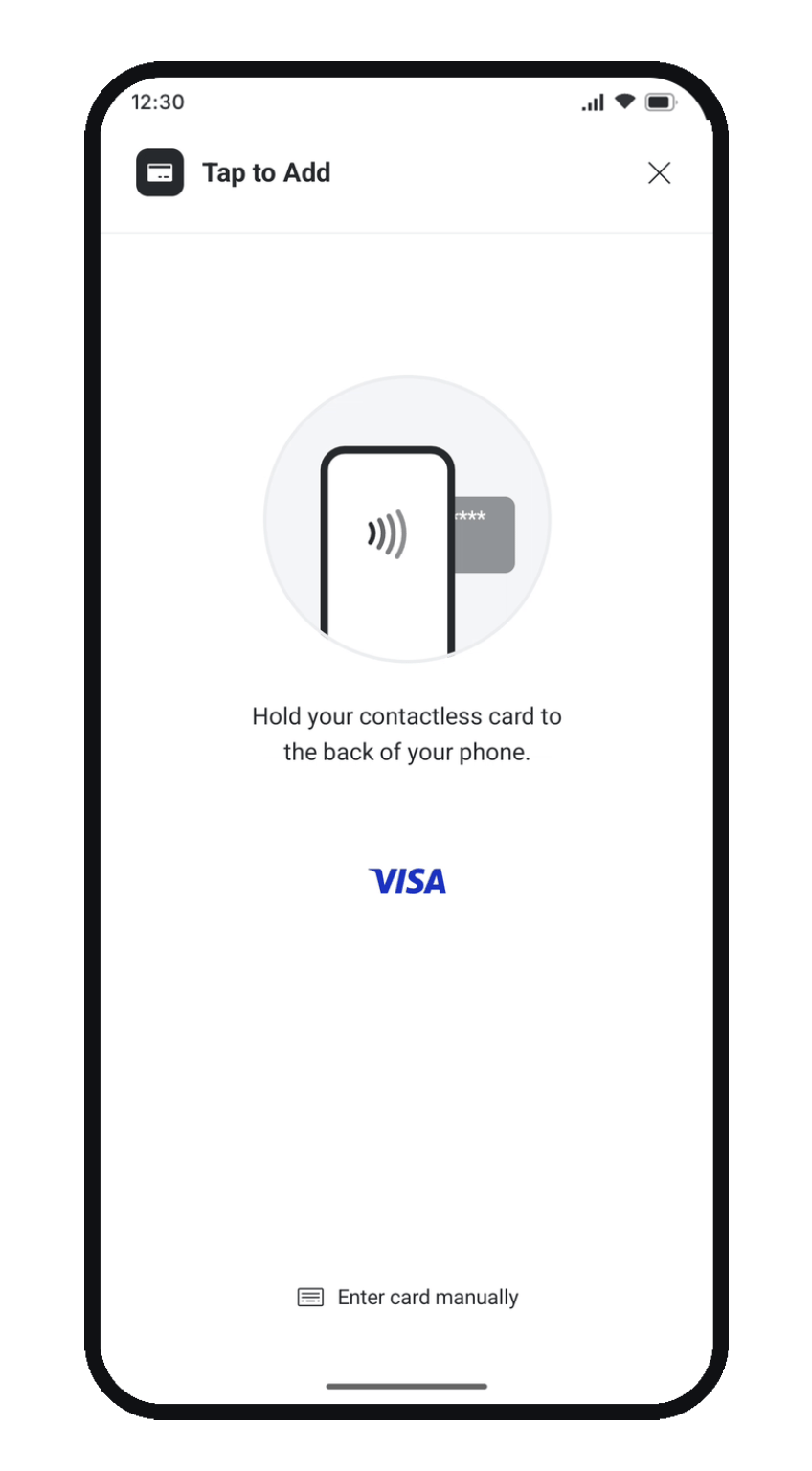
Contactless NFC Prompt
Selecting Tap to add launches the animated NFC tap interface prompting the customer to hold their contactless card to the back of the device.
3
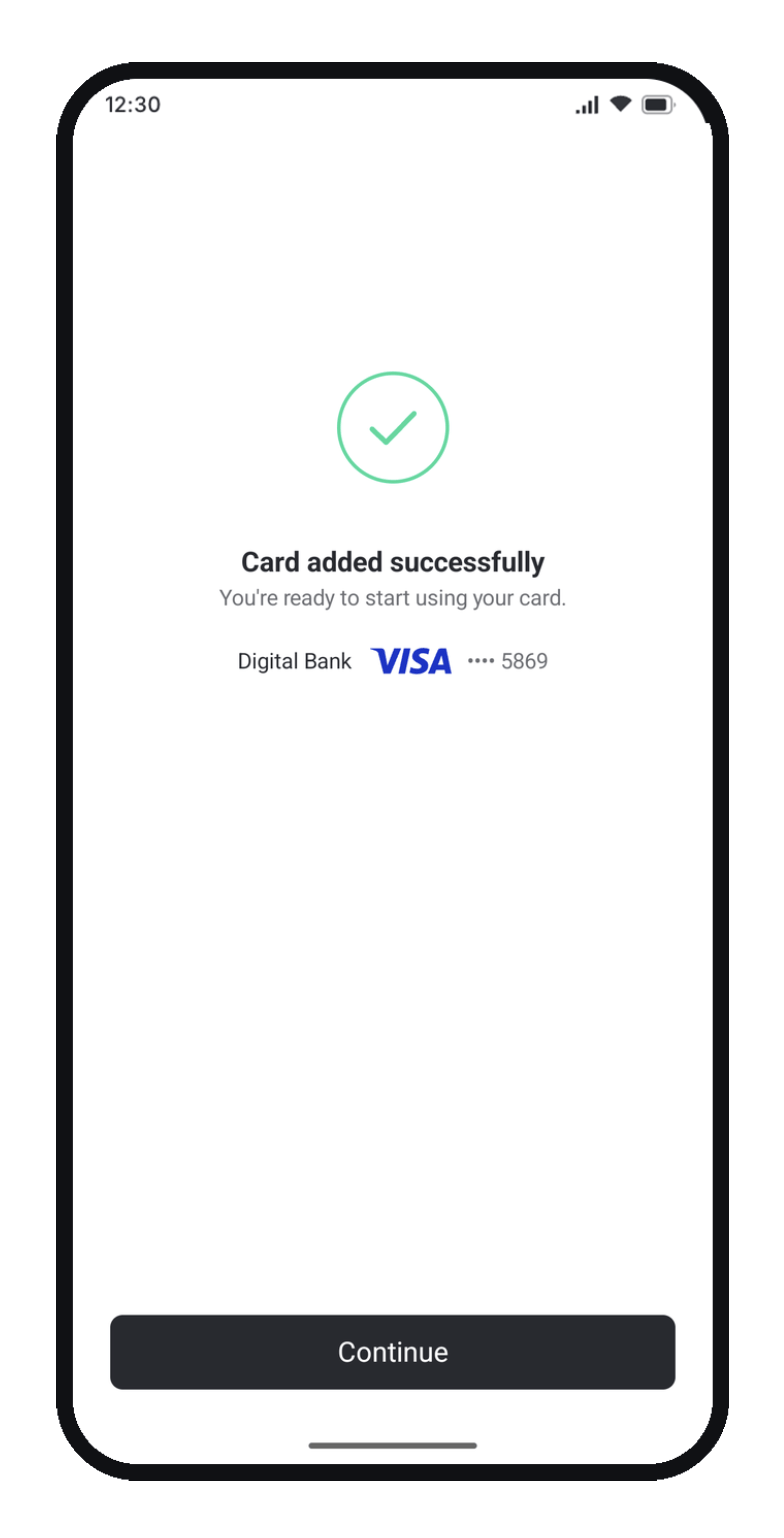
Success Confirmation
Once the card data is read and encrypted on device, Yuno securely completes the enrollment and returns a success confirmation.
Path B: Standalone Yuno Tap SDK
If you manage your own card capture UI or want custom placement of the Tap to Add action, use the standaloneyuno-tap library.
1. Add Dependency
Addyuno-tap to your build.gradle.kts:
2. Obtain Customer Session
Before starting the tap flow, your backend must create a customer session using Yuno’s server-to-server API:customer_session ID and a session_token. Pass both values to your Android application.
3. Initialize YunoTapConfig
Initialize the SDK in yourApplication class or main activity:
4. Option 1: Drop-in YunoTapToAddButton
The simplest standalone UI integration usesYunoTapToAddButton. Place it directly in your layout or Composable tree:
4. Option 2: Programmatic YunoTapController
For custom UI or button designs, trigger the tap flow programmatically usingYunoTapController:
Result Handling & Outcomes
The callback returns a sealedTapOutcome object:
Error Codes
WhenTapOutcome.Error is returned, examine outcome.code to handle specific failure scenarios:
ProGuard & R8 Configuration
If your build has code shrinking enabled (minifyEnabled = true), include the following ProGuard rules in your proguard-rules.pro file:
Upcoming Features
- Tap to Confirm: Support for contactless card authentication during checkout transactions is planned for future SDK releases. Currently, only Tap to Add (
TapFlow.Add) for card enrollment is active.