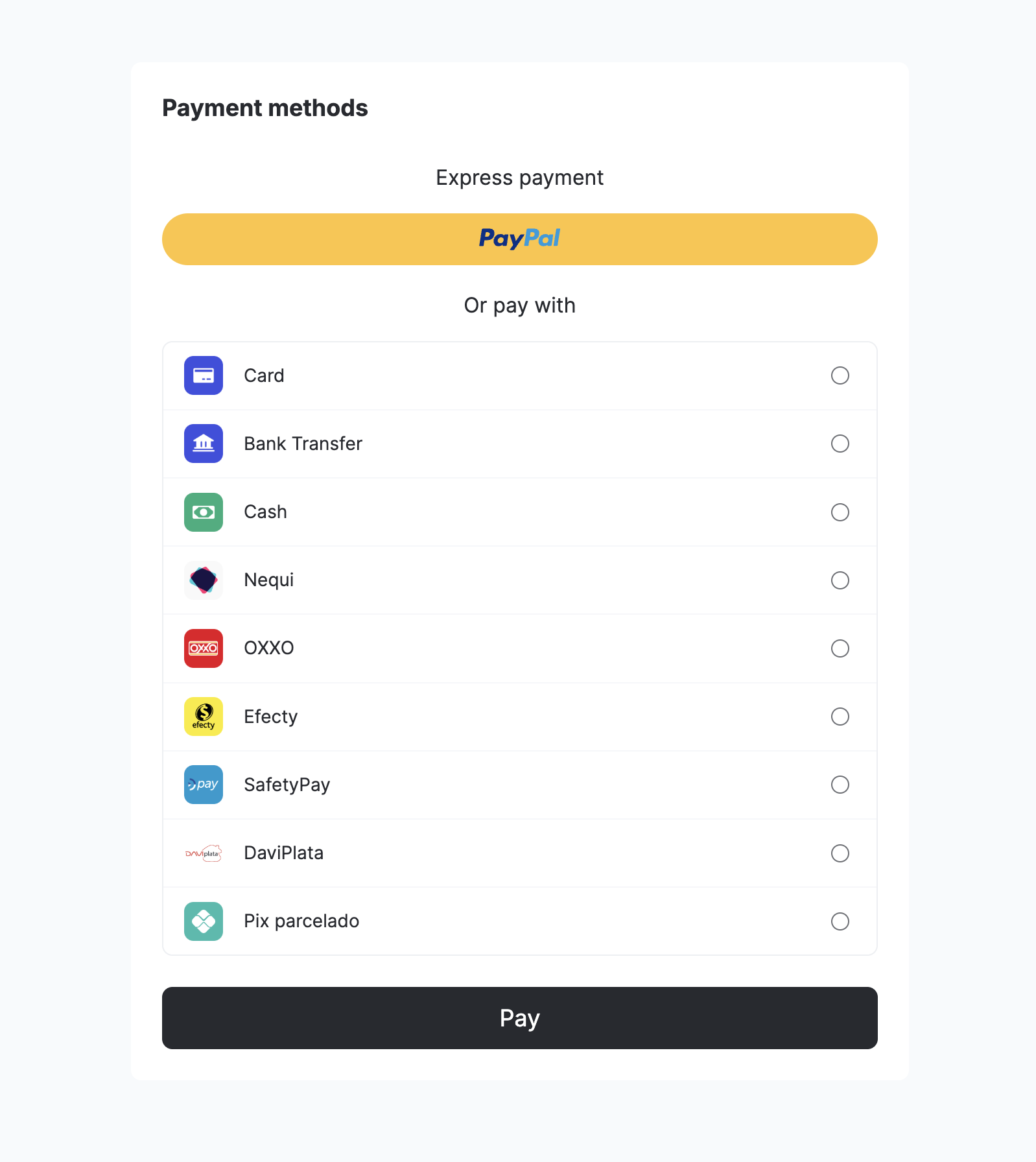
On this page, you will find all the steps to add, configure, and use the Seamless iOS SDK to make payments in your iOS project.
Recommended SDKWe recommend using the iOS Seamless SDK for a smooth integration experience. This option provides a flexible payment solution with pre-built UI components and customization options.
Seamless SDK iOS Overview

Step 1: Include the library in your project

You can add the library using CocoaPods or Swift Package Manager.

CocoaPods

To add the Yuno SDK to your iOS project, you need to install the Yuno SDK. If you do not have a Podfile, follow the CocoaPods guide to create one. After creating the Podfile, you will integrate the Yuno SDK with Cocoapods by adding the line below to your Podfile.
pod 'YunoSDK', '~> 1.19.0'
After, you need to run the installation:
pod install

Swift Package Manager

If you are using the Swift Package Manager, add Yuno SDK as a dependency, as presented in the following code block:
dependencies: [
    .package(url: "https://github.com/yuno-payments/yuno-sdk-ios.git", .upToNextMajor(from: "1.1.17"))
]

Step 2: Initialize SDK with the public key

To start running the Yuno iOS Seamless checkout, you first need to get your Yuno app ID and Public API key. Then, import and initialize Yuno as presented in the following code snippet:
import YunoSDK

Yuno.initialize(
    apiKey: "PUBLIC_API_KEY",
    config: YunoConfig(),
    callback: { (value: Bool) in }
)
UISceneDelegateEnsure that if your app uses a UISceneDelegate, the Yuno initialization code is placed within your SceneDelegate.
The Seamless checkout enables you to configure the appearance of the SDK. It is an optional step that you configure through the class YunoConfig. To set up configurations, use the following code block to configure the available elements:
final class YunoConfig {
    let appearance: Yuno.Appearance,
    let saveCardEnabled: Bool,
    let keepLoader: Bool
}
Configure the SDK with the following options:
ParameterDescription
appearanceThis optional field defines the appearance of the checkout. By default, it uses Yuno styles. See SDK customizations for more information.
saveCardEnabledThis optional field lets you choose whether the Save Card checkbox is shown on card flows. It is false by default.
keepLoaderThis optional field provides control over when to hide the loader. If set to true, the hideLoader() function must be called to hide the loader. By default, it is set to false.
hideCardholderNameThis optional field allows you to hide the cardholder name field in the card form. When set to true, the cardholder name field is not rendered.
Accessing Your API KeyYou can retrieve your API Key from the Developers section in the Yuno Dashboard.

Create a checkout session

Before starting the payment process, you need to create a checkout_session using the Create checkout session endpoint. This session initializes the payment flow and will be used in the next step.
Control auth vs capture by sending payment_method.detail.card.capture in the checkout session: false = authorize only, true = capture immediately.

Key Parameters

ParameterRequiredDescription
amountYesThe primary transaction amount object containing currency (ISO 4217 code) and value (numeric amount in that currency).
workflowYesSet the value to SDK_SEAMLESS so the SDK can complete the payment flow correctly.
alternative_amountNoAn alternative currency representation of the transaction amount with the same structure as amount (currency and value). Useful for multi-currency scenarios, such as displaying prices to customers in their preferred currency (e.g., USD) while processing the payment in the local currency (e.g., COP).

Step 3: Start the checkout and payment process

The seamless checkout and payment process is initiated with a single method startPaymentSeamlessLite. In the ViewController, where Yuno will be displayed, call the Yuno.startPaymentSeamlessLite() method. You can use the method with async/await or using callbacks:
Swift (async/await)
func startPaymentSeamlessLite(
    with params: SeamlessParams,
    paymentSelected: PaymentMethodSelected,
    showPaymentStatus: Bool = true
) async -> Result
Swift (with callbacks)
func startPaymentSeamlessLite(
    with params: SeamlessParams,
    paymentSelected: PaymentMethodSelected,
    showPaymentStatus: Bool = true,
    callback: @escaping ((Result) -> Void)
)
Additional parameters are required for the seamless version. These include:
  • PaymentMethodSelected: The vaulted token and/or the payment method the customer will use to make the payment.
protocol PaymentMethodSelected {
    var vaultedToken: String? { get }
    var paymentMethodType: String { get }
}
  • SeamlessParams
class SeamlessParams {
    var checkoutSession: String
    var countryCode: String
    var language: String?
    var viewController: UIViewController?
}
Parameters The following table describes each parameter from SeamlessParams:
ParameterDescription
checkoutSessionRefers to the current payment’s checkout session.
countryCodeThis parameter determines the country for which the payment process is being configured. The complete list of supported countries and their codes is available on the Country coverage page.
languageDefines the language to be used in the payment forms. See Supported languages for options.
viewControllerThis property represents the UIViewController used to present the payment flow. Even though the property remains optional for backward compatibility, you must supply a visible controller so the SDK can present its UI correctly.
Swift 6 Concurrency RequirementsIf you’re using Swift 6, you’ll need to implement the YunoPaymentDelegate protocol with specific concurrency considerations. See the Swift 6 Concurrency guide for detailed implementation options and best practices.

Step 4: Handle payment status (Optional)

Deep Links and Mercado Pago Checkout ProThis step is only required if you’re using a payment method that relies on deep links or Mercado Pago Checkout Pro. If your payment methods don’t use deep links, you can skip this step.
Some payment methods take users out of your app to complete the transaction. Once the payment is finished, the user is redirected back to your app using a deep link. The SDK uses this deep link to check what happened, checking if the payment was successful, failed, or canceled, and can show a status screen to the user. To handle this, you need to update your AppDelegate to pass the incoming URL back to the Yuno SDK. This lets the SDK read the result and optionally display the payment status. The following code snippet shows how you can add it to your app:
func application(_ app: UIApplication,
                 open url: URL,
                 options: [UIApplication.OpenURLOptionsKey : Any] = [:]) -> Bool {

  guard url.scheme == "yunoexample" else { return false }

  return Yuno.receiveDeeplink(url, showStatusView: true)
}
This code listens for deep links that open your app. When a URL is received, it checks if the scheme matches the one you used in the callback_url during checkout session setup. If it matches, the URL is passed to the Yuno SDK using Yuno.receiveDeeplink(...). The SDK then reads the payment result and, if showStatusView is set to true, shows the appropriate status screen to the user. Make sure the url.scheme in this code matches the callback_url you provided when creating the checkout_session.

Transaction state

After the payment is completed, the SDK can return different transaction states. The list of all possible states and their descriptions are presented in the following table:
Transaction stateDescription
successIndicates that the transaction or payment process has been completed successfully.
failThis state indicates that the transaction or payment process has failed. It means that there was an error or issue during the payment process that prevented it from being completed successfully.
processingIndicates that the transaction or payment process is currently being processed. It is typically used when there is a delay in payment processing, such as waiting for approval from a third-party service or financial institution.
rejectThis state indicates that the transaction has been rejected. The rejection can occur for various reasons, such as insufficient funds, fraudulent activity, or requests that violate specific rules or policies.
internalErrorIt means that an unexpected error occurred within the system or infrastructure handling the payment process. This state suggests a problem on the server or backend side rather than an issue with the user’s input or request.
userCancellThis state indicates that the user has voluntarily canceled or aborted the transaction or payment process. It is typically used when the user has the option to cancel or abandon the payment process.

Payment status validation

This section explains how the SDK handles payment status when users cancel or leave payment flows, and how the SDK status relates to the backend payment status in these scenarios.

Sync payment methods (Apple Pay)

For synchronous payment methods like Apple Pay, when a user cancels or closes the wallet UI before a payment service provider (PSP) response is received:
  • SDK Status: Returns userCancell (CANCELLED_BY_USER)
  • Backend payment status: Remains PENDING until PSP timeout or merchant cancellation
  • Important: The SDK will not return reject or processing in this scenario
This ensures that the backend payment remains in a pending state and can be properly handled by the merchant’s system.

Async payment methods (PIX and QR-based methods)

For asynchronous payment methods like PIX, when a user closes the QR code window (clicks X) before completing the payment:
  • SDK Status: Returns PENDING, optionally with a sub-status such as CLOSED_BY_USER
  • Backend payment status: Remains PENDING and the QR code remains valid until expiry
  • Checkout session reuse: Re-opening the same checkout session can display the same valid QR code
  • No Automatic Cancellation: The PIX payment is not automatically cancelled when the user closes the QR window
This behavior allows users to return to the payment flow and complete the transaction using the same QR code before it expires.

Expired async payments

If a PIX QR code expires naturally:
  • Backend Status: Updated to EXPIRED
  • SDK Status: SDK callbacks and polling endpoints return EXPIRED consistently
This ensures merchants receive accurate status information when a payment method has expired. The transaction state can be handled in two ways when using the startPaymentSeamlessLite method:
  • Async/Await: Use the async/await approach for a more streamlined flow. This method returns a Result asynchronously, making the code easier to read and manage.
  • Callback: You can handle the transaction state via a callback function, allowing immediate execution once the result is available.
Both options provide flexibility depending on your preferred approach to asynchronous code.
enum Result {
    case reject, success, fail, processing, internalError, userCancell
}

Complementary features

Yuno iOS SDK provides additional services and configurations you can use to improve customers’ experience. Use the SDK Customizations to change the SDK appearance to match your brand or to configure the loader.
  • Loader: Control the use of the loader through the SDK configuration options.
  • Save card for future payments: In addition, you can display a checkbox for save or enroll cards using cardSaveEnable: true. Below, you can find examples of the checkbox for both card form renders.
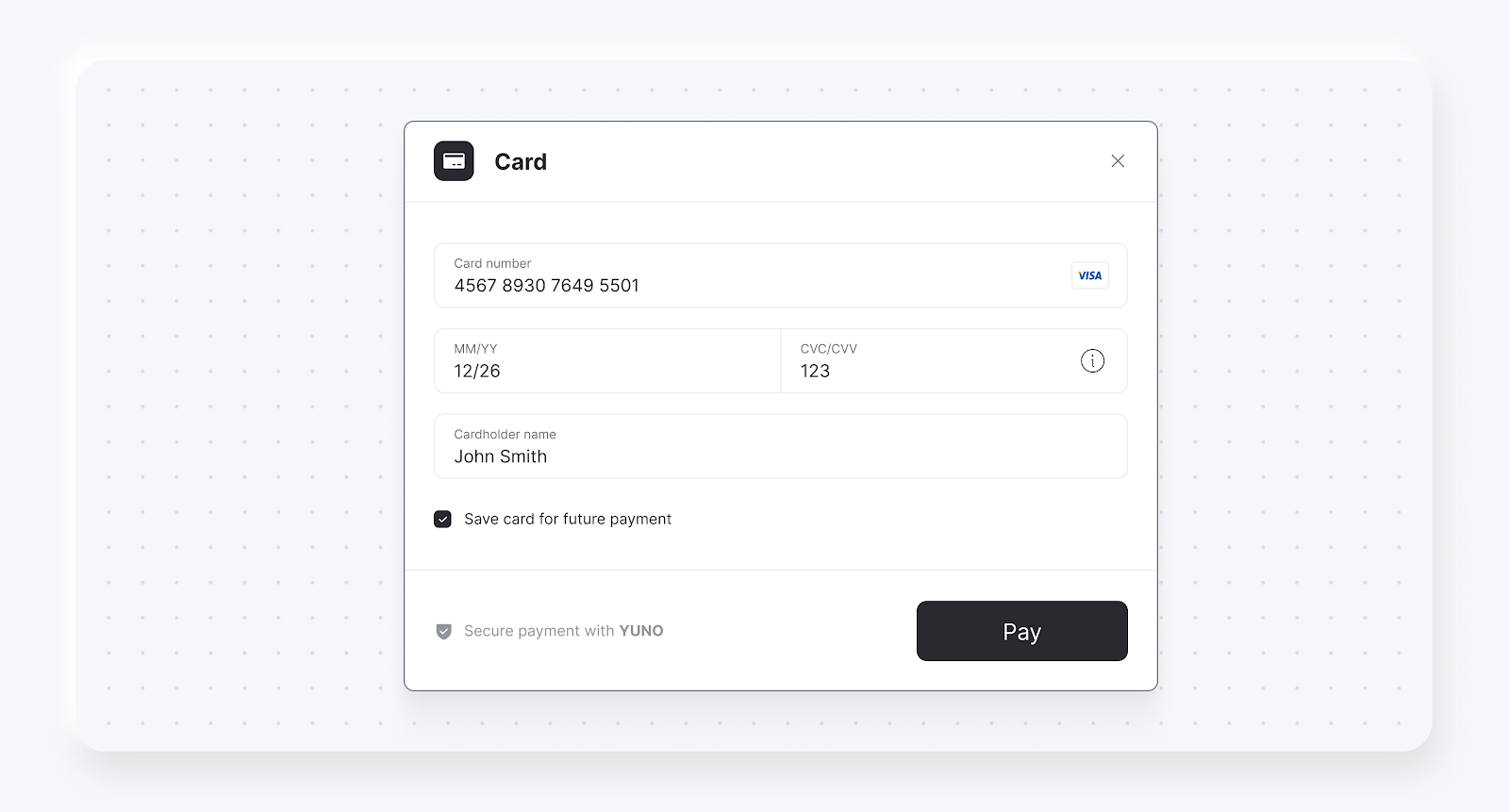
Save Card for Future Payments
  • You can choose between one-step and step-by-step card form render options. Below are screenshots for ONE_STEP and STEP_BY_STEP.
Render Options

Error handling

Handle errors returned by the SDK in your app (e.g. failed payments, validation errors). For HTTP status and response codes, see Status and response codes in the API reference.