> ## Documentation Index
> Fetch the complete documentation index at: https://docs.y.uno/llms.txt
> Use this file to discover all available pages before exploring further.
# Postman Collections
Postman is an API platform to help developers design and test APIs. Postman is an alternative to run Yuno API requests using Readme.io. You can download Postman [here](https://www.postman.com/downloads/) for Linux, Windows, or Mac or use it through your web browser.
Here, you find how to import the Yuno Collection and Environment. All endpoints on the [API Reference](/reference/getting-started/api-reference-overview) are available on the Postman collection provided so that you can test Yuno services on your machine.
**Postman Collection**
Access the Yuno APIs Postman collection [here](https://documenter.getpostman.com/view/25083296/2sBXikpXDZ?utm_source=slack\&utm_medium=link_preview\&utm_campaign=other\&utm_content=link\&utm_term=other#173ba2dd-1dbb-466c-934c-19a4308d9d80).
## Step 1: Fork the Yuno Postman collection
Before testing the endpoints, you need to fork the Yuno collection to your Postman account.
1. Access the [Yuno Postman collection](https://documenter.getpostman.com/view/25083296/2sBXikpXDZ?utm_source=slack\&utm_medium=link_preview\&utm_campaign=other\&utm_content=link\&utm_term=other#173ba2dd-1dbb-466c-934c-19a4308d9d80).
2. Select the following **Run in Postman** button.
3. Select if you want to run Postman on your Browser or using the Postman app.
4. Sign up or log in to a Postman account.
5. Select a workspace to import the collection and environment into.
**Collections and Environment**
The collections provided configured endpoint requests. The environments provide a list of variables used by the endpoints. Instead of defining values for each parameter each time you perform a request, you can use the environment variables.
## Step 2: Configure the environment variables
Before start testing the endpoint, you need to configure the environment variables. Otherwise, the requests will fail.
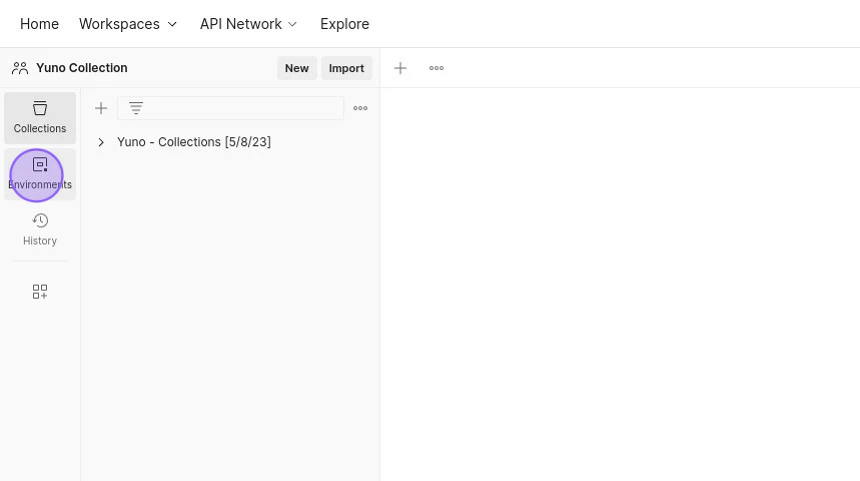
1. Access **Environments** on the left panel.
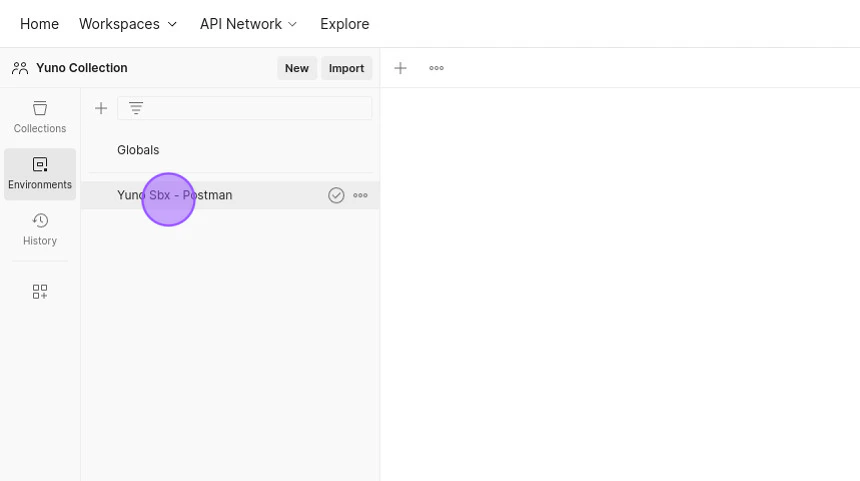
 2. Select the **Yuno Sbx - Postman** environment provided by yuno.
 3. Update the variable's values. To start testing, you need to update at least the `api-key`, `secret-key`, and `account-code`.
4. Define **Yuno Sbx - Postman** as the environment using the **No Environment** selector at the top right corner.
3. Update the variable's values. To start testing, you need to update at least the `api-key`, `secret-key`, and `account-code`.
4. Define **Yuno Sbx - Postman** as the environment using the **No Environment** selector at the top right corner.
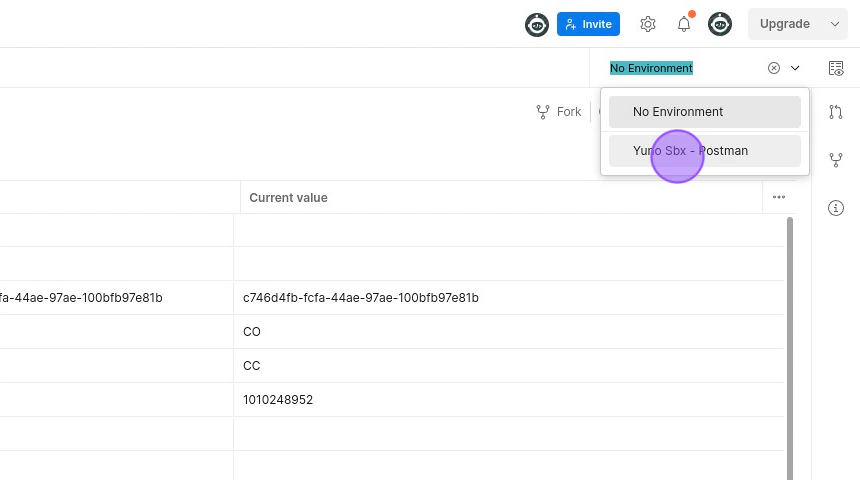 The **Yuno Sbx - Postman** environment has an extensive list of variables used on all requests inside the collection. You can define their values as you try new endpoints.
## Step 3: Run in Postman
After selecting the environment and defining the variable values, you can start testing the endpoint.
1. Select the **Yuno - Collection** on the Collections tab.
2. Choose an endpoint.
The **Yuno Sbx - Postman** environment has an extensive list of variables used on all requests inside the collection. You can define their values as you try new endpoints.
## Step 3: Run in Postman
After selecting the environment and defining the variable values, you can start testing the endpoint.
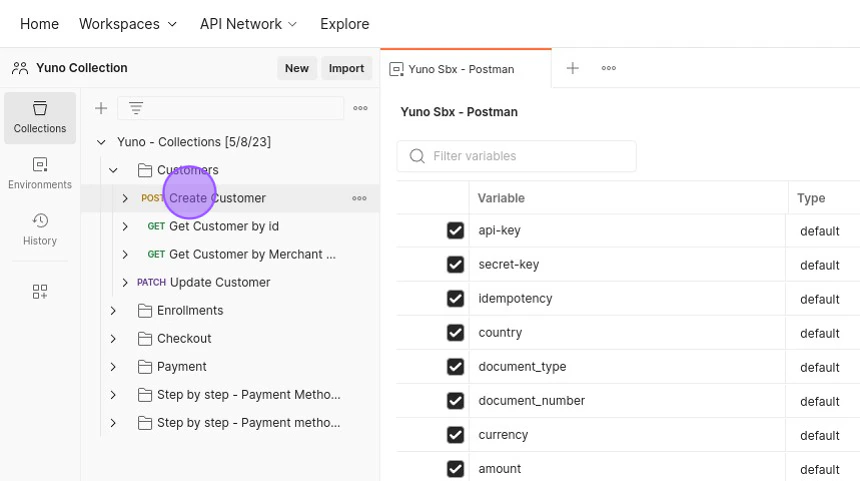
1. Select the **Yuno - Collection** on the Collections tab.
2. Choose an endpoint.
 3. Provide the necessary values to the parameters available on the **Headers** and **Body** tabs.
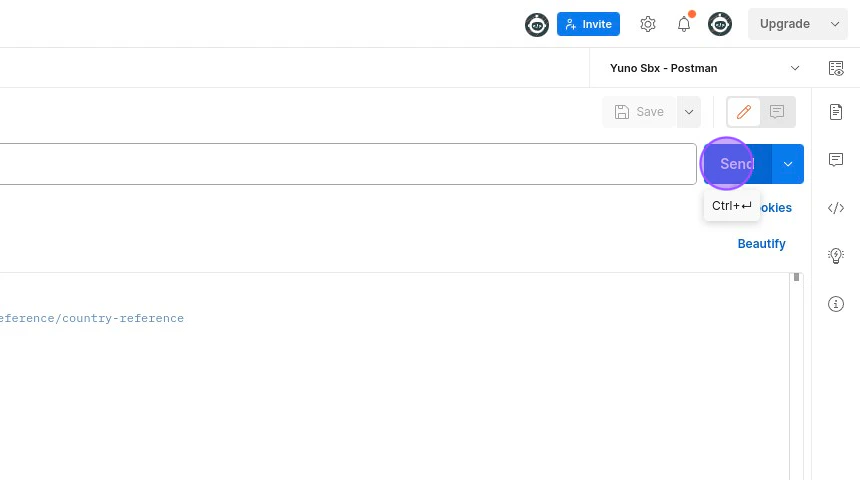
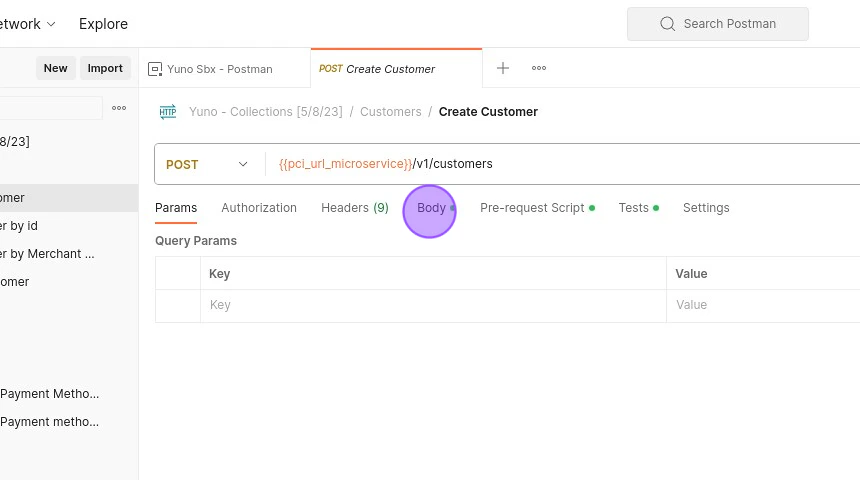 4. Use the **Send** button to perform the request to Yuno's server.
 **Postman Variables**
In the Yuno Collection, various parameters are considered as variables. These values can be defined in the environment or upon receiving a response from the server. Postman variables aid in testing different endpoints in a sequence as the values received fill in the body parameters for the subsequent request.
**Postman Variables**
In the Yuno Collection, various parameters are considered as variables. These values can be defined in the environment or upon receiving a response from the server. Postman variables aid in testing different endpoints in a sequence as the values received fill in the body parameters for the subsequent request.