> ## Documentation Index
> Fetch the complete documentation index at: https://docs.y.uno/llms.txt
> Use this file to discover all available pages before exploring further.
# Click to Pay
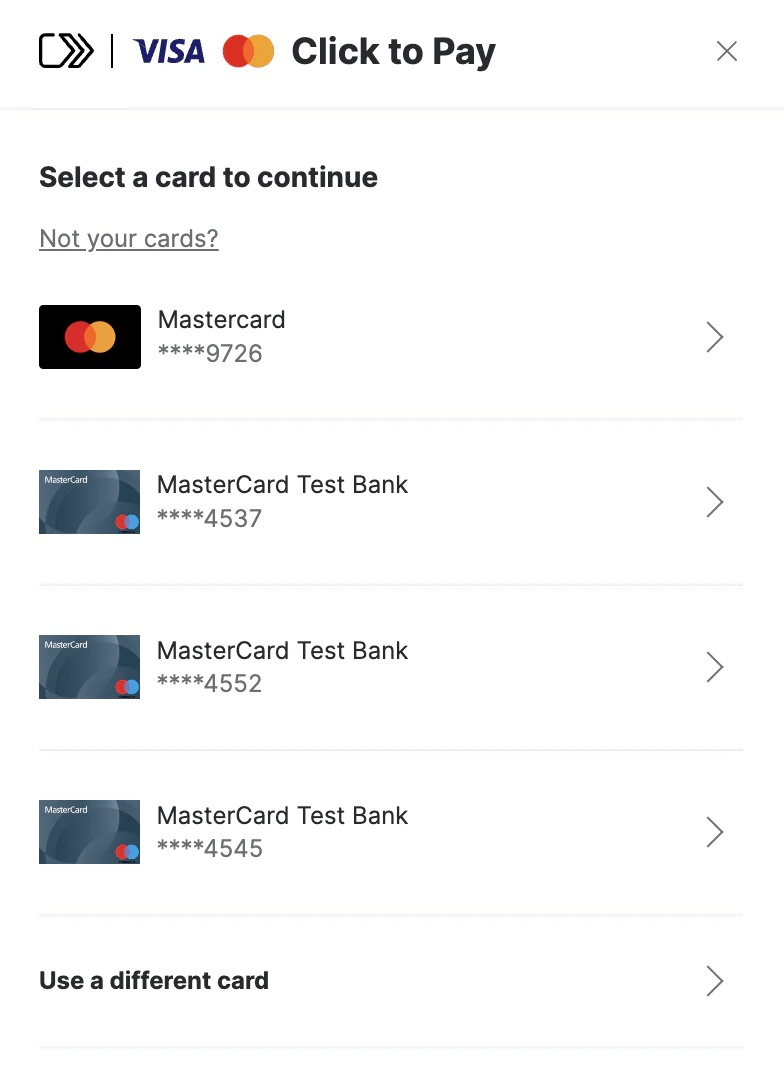
Click to Pay is an online payment solution designed to streamline and secure online transactions. It's based on the EMVCo secure payment standard, a global consortium comprising major card companies like Visa, MasterCard, American Express, and Discover.
*Networks available in Yuno*: [MasterCard](https://www.mastercard.us/en-us/personal/ways-to-pay/click-to-pay.html)
## Key features and benefits
* **Ease of Use**: It enables consumers to make online purchases with a single click, eliminating the need to enter credit card details for each purchase manually.
* **Enhanced Security**: Utilizes modern authentication standards to minimize fraud risk. This may include methods such as two-factor authentication or payment tokens.
* **Consistent Across Various Sites**: Offers a similar payment experience across all websites that support this technology, meaning consumers don’t have to learn different processes for each online store.
* **Integration with Card Brands**: Being backed by major card brands, "Click to Pay" is widely accepted and trusted.
* **Mobile and Desktop Compatibility**: Designed to work across various devices, it facilitates online shopping on both desktops and mobile devices.
This feature enhances the customer experience and aligns with modern digital payment trends, potentially increasing conversion rates and customer loyalty. By incorporating "Click to Pay," you can offer a seamless checkout experience, reducing friction and addressing security concerns in online transactions.
**Network Tokens Requirement**
Network tokens support is required for Click to Pay in all flows (Golden Flow and APM, both with and without passkeys). Merchants must configure network tokens in their **Routing** rules to ensure successful processing.
## Integration
To integrate and start offering Click to Pay to your customers, follow these 4 simple steps:
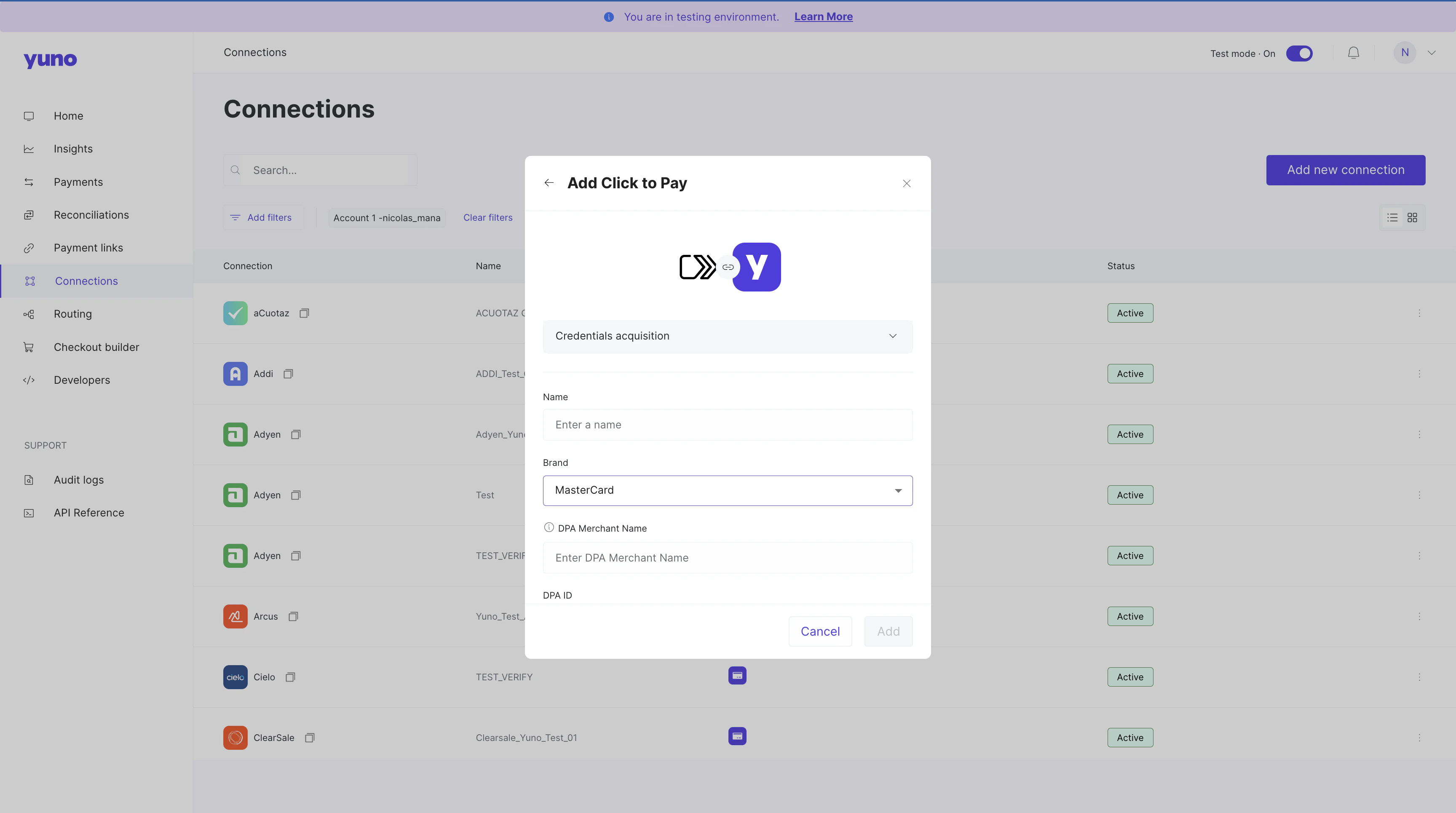
1. Create a [connection](https://dashboard.y.uno/connections) in the Yuno dashboard using your Click to Pay credentials.
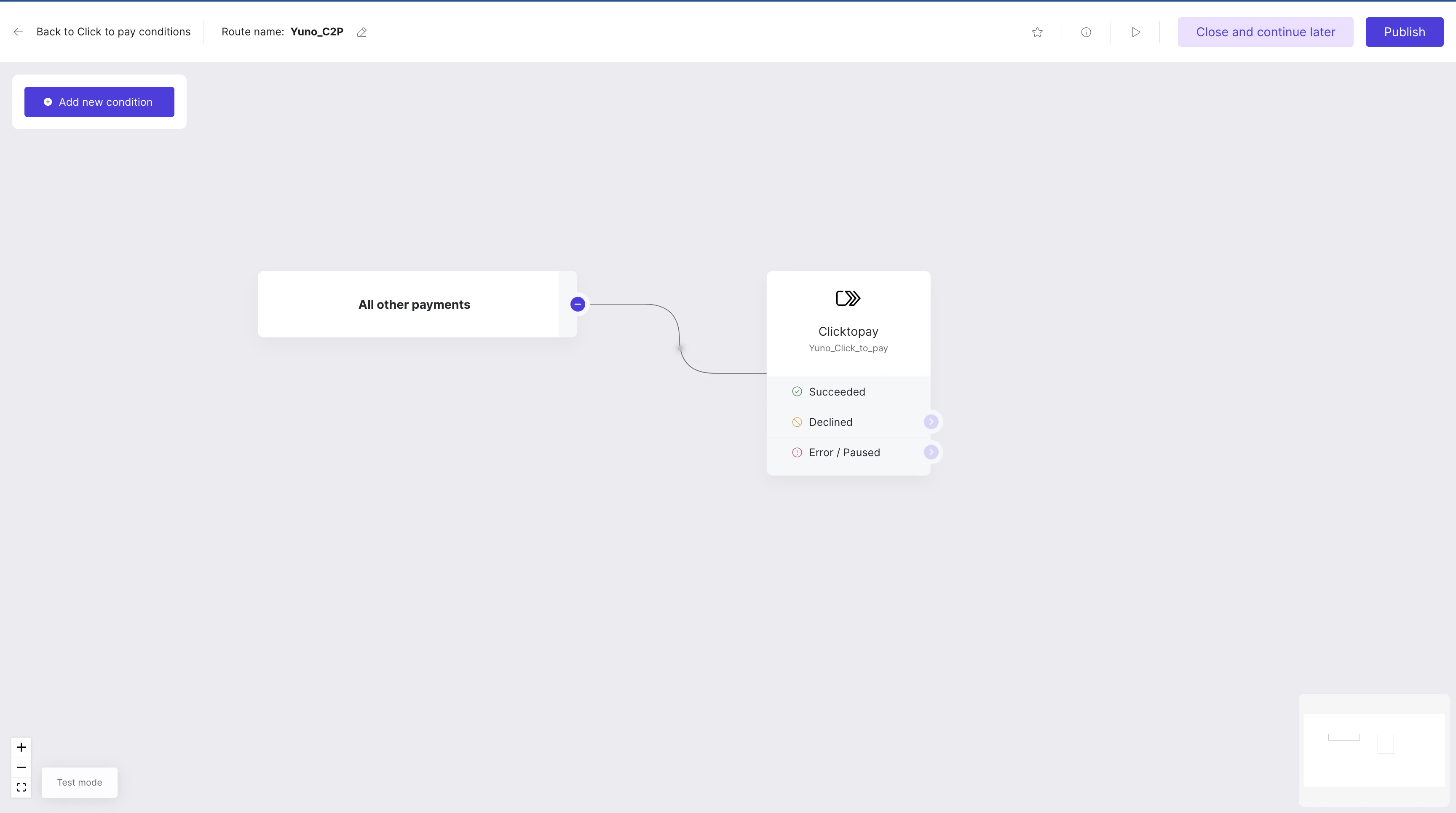
 2. Define the payment method route in the [Routing](https://dashboard.y.uno/routing) section in order to be able to enable it in the Checkout Builder.
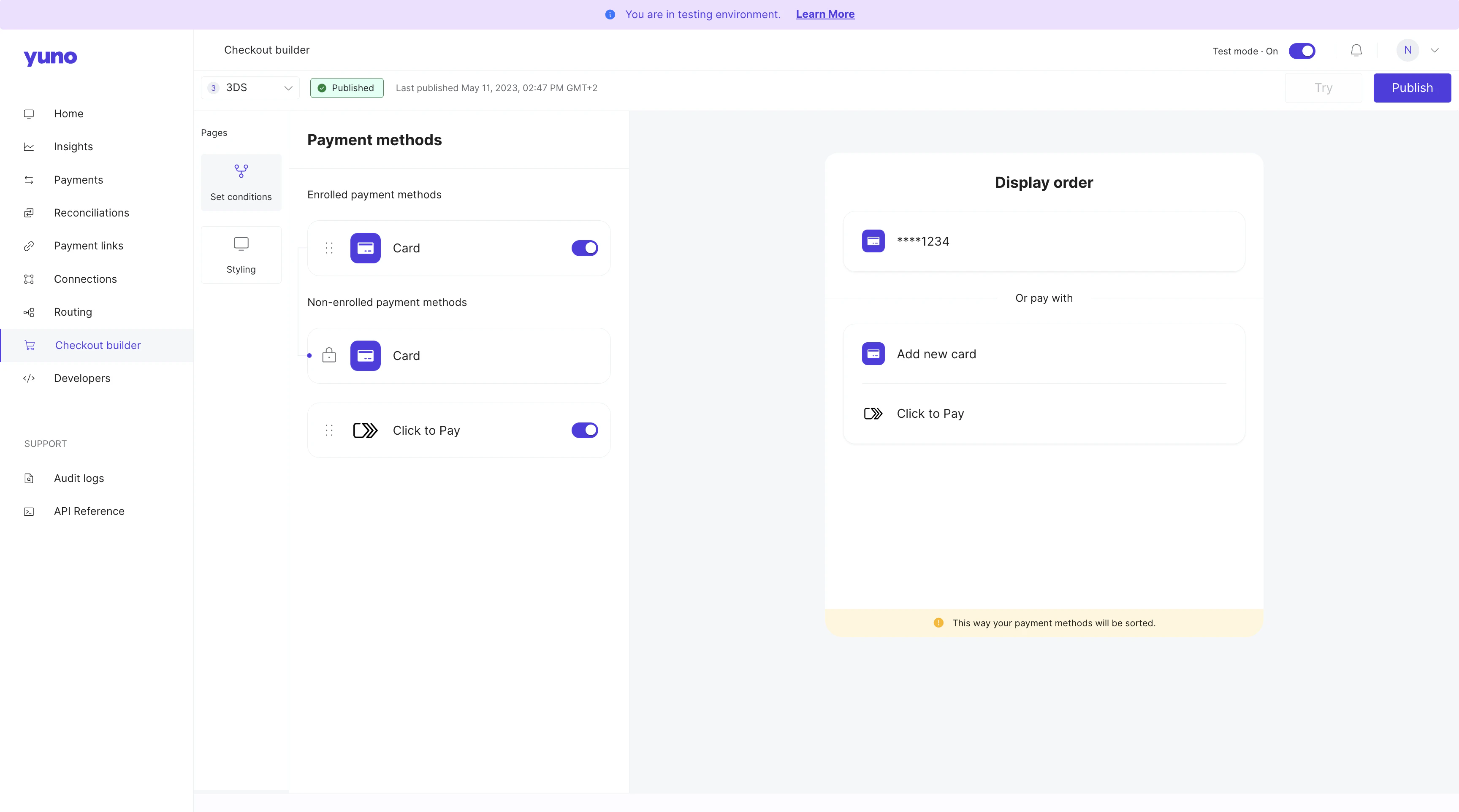
 3. Enable Click to Pay in the [Checkout builder](https://dashboard.y.uno/checkout-builder).
 4. Define the Card route: Taking in consideration that Click to Pay is a wallet that stores credit card information, the **route** where you will need to define the providers for each scenario is the same as the **'Card' payment method**.
## Checkout Flows
Merchants can choose how Click to Pay appears at checkout. Both experiences support passkeys across web and mobile platforms.
### 1. Standalone Payment Method (APM Flow)
Click to Pay appears as a separate payment button alongside cards and other methods.
* **Mandatory Enrollment**: Account creation is mandatory for all users.
* **Payload Requirement**: Requires a C2P-specific payload.
* **Visibility**: Best for merchants who want Click to Pay prominently featured.
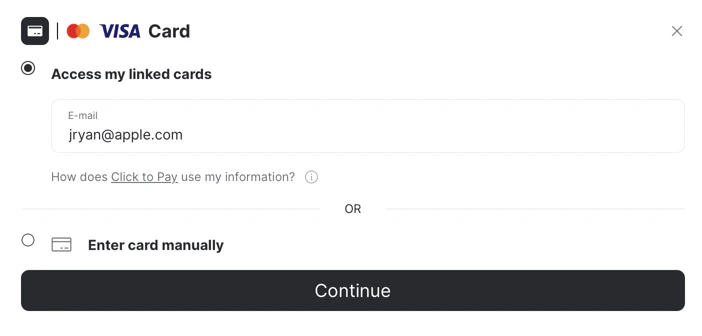
### 2. Embedded in Card (Golden Flow)
Click to Pay is embedded within the card payment method and is invisible until the user selects "Card."
* **Optional Enrollment**: Enrollment is via a checkbox. If declined, the user proceeds with manual card entry (the transaction still shows `CLICK_TO_PAY` in the one-time token (OTT)).
* **Visibility**: Best for low-friction UX where enrollment feels optional.
**Certification Note**
The golden flow with passkeys in Mobile is currently in certification.
4. Define the Card route: Taking in consideration that Click to Pay is a wallet that stores credit card information, the **route** where you will need to define the providers for each scenario is the same as the **'Card' payment method**.
## Checkout Flows
Merchants can choose how Click to Pay appears at checkout. Both experiences support passkeys across web and mobile platforms.
### 1. Standalone Payment Method (APM Flow)
Click to Pay appears as a separate payment button alongside cards and other methods.
* **Mandatory Enrollment**: Account creation is mandatory for all users.
* **Payload Requirement**: Requires a C2P-specific payload.
* **Visibility**: Best for merchants who want Click to Pay prominently featured.
### 2. Embedded in Card (Golden Flow)
Click to Pay is embedded within the card payment method and is invisible until the user selects "Card."
* **Optional Enrollment**: Enrollment is via a checkbox. If declined, the user proceeds with manual card entry (the transaction still shows `CLICK_TO_PAY` in the one-time token (OTT)).
* **Visibility**: Best for low-friction UX where enrollment feels optional.
**Certification Note**
The golden flow with passkeys in Mobile is currently in certification.
 ## Activation Guide
Follow the steps below based on your desired configuration:
### Option 1: Click to Pay Only (APM)
1. Request the **DPA ID** from the card network (e.g., Mastercard).
2. Add the **Click to Pay connection** in the Yuno dashboard using the DPA ID.
3. Add the **card connection** that will process these cards.
4. Define the payment method route in **Routing** and enable Click to Pay in the **Checkout Builder**.
### Option 2: Click to Pay + Passkey
*Supported on web browsers only (not supported in WebView).*
1. Request the **DPA ID**.
2. Add the **Click to Pay connection** using the DPA ID.
3. Add the **card connection** and configure the **Acquirer BIN**.
4. Request the Yuno backend team to enable the **Passkey** and **Dual Payload** flags.
5. Create checkout sessions with a `price` for Passkey to work correctly.
### Option 3: Click to Pay + Golden Flow
1. Request the **DPA ID**.
2. Add the **Click to Pay connection** using the DPA ID.
3. Add the **card connection** that will process these cards.
4. Request the Yuno backend team to enable the **Golden Flow** flag.
### Option 4: Click to Pay + Golden Flow + Passkey
*Supported on web browsers only (not supported in WebView).*
1. Request the **DPA ID**.
2. Add the **Click to Pay connection**.
3. Add the **card connection** and configure the **Acquirer BIN**.
4. Request the Yuno backend team to enable **Passkey**, **Dual Payload**, and **Golden Flow** flags.
5. Create checkout sessions with a `price` for Passkey to work correctly.
## SDK integration (Click to Pay Passkey)
**Important**
Standard Click to Pay card flows use the existing SDK callbacks, but Passkey users must include a `callback_url` that matches the app’s deeplink scheme so the shopper returns to the app after authentication (on Android this must match the scheme configured in `AndroidManifest.xml`). For example:
```json theme={"theme":{"light":"github-dark","dark":"github-dark"}}
{
"callback_url": "myapp://pay/ctp"
}
```
For Passkey transactions, the one-time token (OTT) never reaches the usual SDK callbacks (including `callbackOTT` on Android). Always read it from the deeplink parameters before continuing the flow.
For full implementation details, see [Android Full Checkout](/docs/sdks/full-checkout/android-payments) and [iOS Full Checkout](/docs/sdks/full-checkout/ios-payments).
## Activation Guide
Follow the steps below based on your desired configuration:
### Option 1: Click to Pay Only (APM)
1. Request the **DPA ID** from the card network (e.g., Mastercard).
2. Add the **Click to Pay connection** in the Yuno dashboard using the DPA ID.
3. Add the **card connection** that will process these cards.
4. Define the payment method route in **Routing** and enable Click to Pay in the **Checkout Builder**.
### Option 2: Click to Pay + Passkey
*Supported on web browsers only (not supported in WebView).*
1. Request the **DPA ID**.
2. Add the **Click to Pay connection** using the DPA ID.
3. Add the **card connection** and configure the **Acquirer BIN**.
4. Request the Yuno backend team to enable the **Passkey** and **Dual Payload** flags.
5. Create checkout sessions with a `price` for Passkey to work correctly.
### Option 3: Click to Pay + Golden Flow
1. Request the **DPA ID**.
2. Add the **Click to Pay connection** using the DPA ID.
3. Add the **card connection** that will process these cards.
4. Request the Yuno backend team to enable the **Golden Flow** flag.
### Option 4: Click to Pay + Golden Flow + Passkey
*Supported on web browsers only (not supported in WebView).*
1. Request the **DPA ID**.
2. Add the **Click to Pay connection**.
3. Add the **card connection** and configure the **Acquirer BIN**.
4. Request the Yuno backend team to enable **Passkey**, **Dual Payload**, and **Golden Flow** flags.
5. Create checkout sessions with a `price` for Passkey to work correctly.
## SDK integration (Click to Pay Passkey)
**Important**
Standard Click to Pay card flows use the existing SDK callbacks, but Passkey users must include a `callback_url` that matches the app’s deeplink scheme so the shopper returns to the app after authentication (on Android this must match the scheme configured in `AndroidManifest.xml`). For example:
```json theme={"theme":{"light":"github-dark","dark":"github-dark"}}
{
"callback_url": "myapp://pay/ctp"
}
```
For Passkey transactions, the one-time token (OTT) never reaches the usual SDK callbacks (including `callbackOTT` on Android). Always read it from the deeplink parameters before continuing the flow.
For full implementation details, see [Android Full Checkout](/docs/sdks/full-checkout/android-payments) and [iOS Full Checkout](/docs/sdks/full-checkout/ios-payments).