> ## Documentation Index
> Fetch the complete documentation index at: https://docs.y.uno/llms.txt
> Use this file to discover all available pages before exploring further.
# Prerequisites (Apple Pay)
Apple Pay supports third-party browsers such as Google Chrome for users with iOS 18 or higher.
Use this guide to prepare and configure Apple Pay with Yuno.
* [**Apple Developer prerequisites**](#step-1-register-a-merchant-identifier): Create a merchant ID, generate and convert the required certificates/keys, and verify your merchant domains.
* [**Yuno Dashboard setup**](#step-11-apple-pay-dashboard-connection): Add the Apple Pay connection, set up routing, and enable Apple Pay in Checkout Builder.
When finished, you'll be ready to [choose your integration path](#next-steps) (SDK or Direct) for one-time and recurring payments.
## Apple Pay certificate options
In the Yuno Dashboard, you will find three options for Apple Pay certificates:
* **Yuno**: This option is for merchants who do not have an Apple Developer account or a mobile app (i.e., they are web-only). In these cases, you must register your domain via the API in order to use Yuno's certificates. Use the following endpoints to manage your domain registration:
* [Register domain](/reference/domains/register-domain)
* [Get domain](/reference/domains/get-domain)
* [Delete domain](/reference/domains/delete-domain)
* [Domain webhooks](/reference/domains/webhooks-domains)
* **Own**: This option is for merchants who have an Apple Developer account and prefer to manage their own private keys. You generate and convert the certificates manually using Keychain Access and OpenSSL (Steps 2–9), then paste the PEM values into the Yuno Dashboard.
* **Own — Yuno generates the CSRs**: This option is for merchants who have an Apple Developer account but don't want to generate private keys or run OpenSSL commands. Yuno generates the Certificate Signing Requests for you — you upload them to Apple and return the signed certificates.
## Step 1: Register a merchant identifier
If you're using VTEX as your e-commerce platform, you'll need to configure your Apple Pay Merchant ID. For detailed instructions, check out the [official VTEX documentation](https://developers.vtex.com/docs/guides/setting-up-merchant-id-in-apple-pay).
In the Apple Developer dashboard:
1. Log in to [Apple Developer](https://idmsa.apple.com/IDMSWebAuth/signin?appIdKey=891bd3417a7776362562d2197f89480a8547b108fd934911bcbea0110d07f757\&path=%2Faccount%2F\&rv=1), go to **Certificates, Identifiers & Profiles**, then select **Register a new identifier**.
2. Choose **Merchant IDs**.
3. Enter a **Description** (e.g., `Apple Pay Integration`) and an **Identifier** in the format `merchant.com.y.uno.YourBusinessName`.
## Own certificates (manual)
The following steps (2–9) apply if you selected the **Own** option and want to generate and manage your certificates manually using Keychain Access and OpenSSL.
## Step 2: Generate a payment processing certificate
1. Create a new directory (e.g., `Downloads/ApplePayFiles`) to store the certificate files.
2. Open **Keychain Access** on your Mac.
3. Go to **Keychain Access > Certificate Assistant > Request a Certificate From a Certificate Authority**.
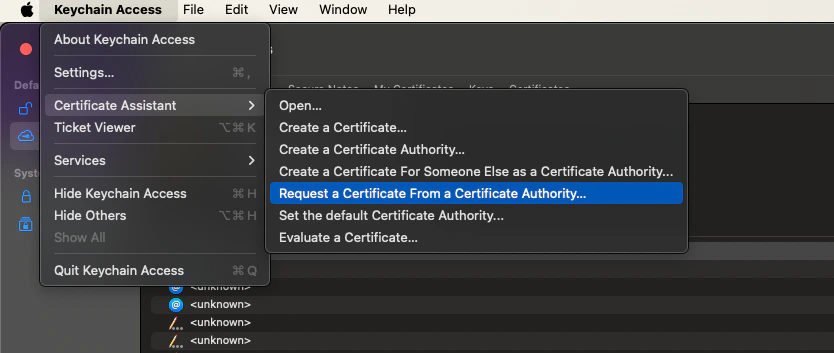 4. Fill out the form:
* **Email Address**: your email address
* **Common Name**: a name for the certificate (e.g., `John Doe ProcessingCertificate`)
* **CA Email Address**: leave blank
* Select **Saved to disk**
* Check **Let me specify key pair information**
5. Click **Continue**, then save the file as `CertificateSigningRequestPaymentProcessingCertificate.certSigningRequest` in your working directory.
6. When prompted for key pair settings, use:
* **Key Type**: Elliptic Curve (EC)
* **Key Size**: 256-bit
* **Algorithm**: ECDSA
## Step 3: Retrieve and convert the payment processing certificate
1. Go to the [Apple Developer Merchant ID list](https://developer.apple.com/account/resources/identifiers/list/merchant).
2. Select your Merchant ID and click **Create Certificate** under **Apple Pay Payment Processing Certificate**.
3. When prompted, answer **No** to "Will payments... be processed exclusively in China mainland?"
4. Upload the file `CertificateSigningRequestPaymentProcessingCertificate.certSigningRequest`.
5. Download the signed certificate as `apple_pay.cer` and save it to your directory.
6. Convert the certificate to PEM format:
```bash theme={"theme":{"light":"github-dark","dark":"github-dark"}}
openssl x509 -inform DER -in apple_pay.cer -out apple_pay.pem
```
## Step 4: Export the private key
1. In **Keychain Access**, find the key you created (e.g., `John Doe ProcessingCertificate`).
2. Right-click and choose **Export**.
3. Export the key as a `.p12` file (e.g., `JohnDoeProcessingCertificate.p12`) and save it to your working directory.
4. Set a strong password (you’ll use it in the next step).
5. Convert the `.p12` to a PEM-format private key:
```bash theme={"theme":{"light":"github-dark","dark":"github-dark"}}
openssl pkcs12 -in JohnDoeProcessingCertificate.p12 -nocerts -nodes | sed -ne '/-BEGIN PRIVATE KEY-/,/-END PRIVATE KEY-/p' > ProcessingCertificatePrivateKey.pem
```
The private key will be stored in `ProcessingCertificatePrivateKey.pem`.
## Step 5: Upload the certificate and key to Yuno
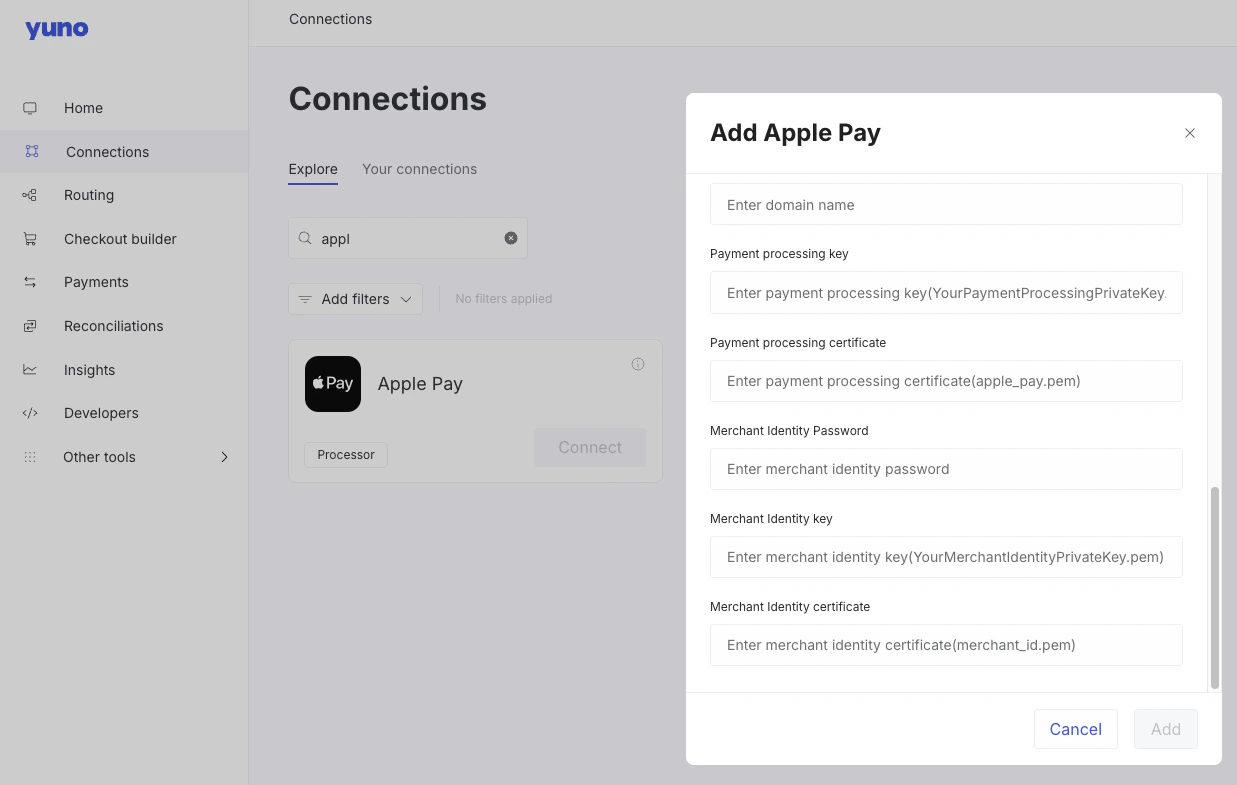
1. Open the [Yuno Dashboard](https://dashboard.y.uno/auth/login) **> Connections > Apple Pay > Connect**
2. Enter the contents of `ProcessingCertificatePrivateKey.pem` to the **Payment processing key** field.
3. Enter the contents of `apple_pay.pem` into the **Payment processing certificate** field.
4. Fill out the form:
* **Email Address**: your email address
* **Common Name**: a name for the certificate (e.g., `John Doe ProcessingCertificate`)
* **CA Email Address**: leave blank
* Select **Saved to disk**
* Check **Let me specify key pair information**
5. Click **Continue**, then save the file as `CertificateSigningRequestPaymentProcessingCertificate.certSigningRequest` in your working directory.
6. When prompted for key pair settings, use:
* **Key Type**: Elliptic Curve (EC)
* **Key Size**: 256-bit
* **Algorithm**: ECDSA
## Step 3: Retrieve and convert the payment processing certificate
1. Go to the [Apple Developer Merchant ID list](https://developer.apple.com/account/resources/identifiers/list/merchant).
2. Select your Merchant ID and click **Create Certificate** under **Apple Pay Payment Processing Certificate**.
3. When prompted, answer **No** to "Will payments... be processed exclusively in China mainland?"
4. Upload the file `CertificateSigningRequestPaymentProcessingCertificate.certSigningRequest`.
5. Download the signed certificate as `apple_pay.cer` and save it to your directory.
6. Convert the certificate to PEM format:
```bash theme={"theme":{"light":"github-dark","dark":"github-dark"}}
openssl x509 -inform DER -in apple_pay.cer -out apple_pay.pem
```
## Step 4: Export the private key
1. In **Keychain Access**, find the key you created (e.g., `John Doe ProcessingCertificate`).
2. Right-click and choose **Export**.
3. Export the key as a `.p12` file (e.g., `JohnDoeProcessingCertificate.p12`) and save it to your working directory.
4. Set a strong password (you’ll use it in the next step).
5. Convert the `.p12` to a PEM-format private key:
```bash theme={"theme":{"light":"github-dark","dark":"github-dark"}}
openssl pkcs12 -in JohnDoeProcessingCertificate.p12 -nocerts -nodes | sed -ne '/-BEGIN PRIVATE KEY-/,/-END PRIVATE KEY-/p' > ProcessingCertificatePrivateKey.pem
```
The private key will be stored in `ProcessingCertificatePrivateKey.pem`.
## Step 5: Upload the certificate and key to Yuno
1. Open the [Yuno Dashboard](https://dashboard.y.uno/auth/login) **> Connections > Apple Pay > Connect**
2. Enter the contents of `ProcessingCertificatePrivateKey.pem` to the **Payment processing key** field.
3. Enter the contents of `apple_pay.pem` into the **Payment processing certificate** field.
 ## Step 6: Generate a merchant identity certificate
1. Open **Keychain Access**, navigate to **Certificate Assistant > Request a Certificate From a Certificate Authority**, and enter:
* **Email Address**: your email
* **Common Name**: e.g., `John Doe MerchantIdentityCertificate`
* Leave **CA Email Address** blank
* Select **Saved to disk**
2. Save as `CertificateSigningRequestMerchantIdentityCertificate.certSigningRequest`.
## Step 7: Retrieve and convert the merchant identity certificate
1. Go to the [Apple Developer Merchant ID list](https://developer.apple.com/account/resources/identifiers/list/merchant).
2. Select your Merchant ID and click **Create Certificate** under **Apple Pay Merchant Identity Certificate**.
3. Upload the `CertificateSigningRequestMerchantIdentityCertificate.certSigningRequest` file.
4. Download the signed certificate as `merchant_id.cer` and save it.
5. Convert it to PEM:
```bash theme={"theme":{"light":"github-dark","dark":"github-dark"}}
openssl x509 -inform DER -in merchant_id.cer -out merchant_id.pem
```
## Step 8: Export the merchant identity private key
1. In **Keychain Access**, find the certificate created in step 6, e.g. `John Doe MerchantIdentityCertificate`.
2. Right-click and export as `JohnDoeMerchantIdentityCertificate.p12`.
3. Set a strong password.
4. Convert the private key to PEM:
```bash theme={"theme":{"light":"github-dark","dark":"github-dark"}}
openssl pkcs12 -in JohnDoeMerchantIdentityCertificate.p12 -nocerts -nodes | sed -ne '/-BEGIN PRIVATE KEY-/,/-END PRIVATE KEY-/p' > MerchantIdentityCertificatePrivateKey.pem
```
The private key will be available as `MerchantIdentityCertificatePrivateKey.pem`.
## Step 9: Upload the merchant identity certificate and key
1. Return to your Apple Pay connection in the [Yuno Dashboard](https://dashboard.y.uno/auth/login).
2. Copy the contents of `MerchantIdentityCertificatePrivateKey.pem` and paste them into the **Merchant Identity key** field.
3. Paste the contents of `merchant_id.pem` into the **Merchant Identity certificate** field.
## Step 6: Generate a merchant identity certificate
1. Open **Keychain Access**, navigate to **Certificate Assistant > Request a Certificate From a Certificate Authority**, and enter:
* **Email Address**: your email
* **Common Name**: e.g., `John Doe MerchantIdentityCertificate`
* Leave **CA Email Address** blank
* Select **Saved to disk**
2. Save as `CertificateSigningRequestMerchantIdentityCertificate.certSigningRequest`.
## Step 7: Retrieve and convert the merchant identity certificate
1. Go to the [Apple Developer Merchant ID list](https://developer.apple.com/account/resources/identifiers/list/merchant).
2. Select your Merchant ID and click **Create Certificate** under **Apple Pay Merchant Identity Certificate**.
3. Upload the `CertificateSigningRequestMerchantIdentityCertificate.certSigningRequest` file.
4. Download the signed certificate as `merchant_id.cer` and save it.
5. Convert it to PEM:
```bash theme={"theme":{"light":"github-dark","dark":"github-dark"}}
openssl x509 -inform DER -in merchant_id.cer -out merchant_id.pem
```
## Step 8: Export the merchant identity private key
1. In **Keychain Access**, find the certificate created in step 6, e.g. `John Doe MerchantIdentityCertificate`.
2. Right-click and export as `JohnDoeMerchantIdentityCertificate.p12`.
3. Set a strong password.
4. Convert the private key to PEM:
```bash theme={"theme":{"light":"github-dark","dark":"github-dark"}}
openssl pkcs12 -in JohnDoeMerchantIdentityCertificate.p12 -nocerts -nodes | sed -ne '/-BEGIN PRIVATE KEY-/,/-END PRIVATE KEY-/p' > MerchantIdentityCertificatePrivateKey.pem
```
The private key will be available as `MerchantIdentityCertificatePrivateKey.pem`.
## Step 9: Upload the merchant identity certificate and key
1. Return to your Apple Pay connection in the [Yuno Dashboard](https://dashboard.y.uno/auth/login).
2. Copy the contents of `MerchantIdentityCertificatePrivateKey.pem` and paste them into the **Merchant Identity key** field.
3. Paste the contents of `merchant_id.pem` into the **Merchant Identity certificate** field.
 ## Own certificates with Yuno-generated CSRs
This option is for merchants who have an Apple Developer account but don't want to generate private keys, run OpenSSL commands, or paste PEM values into the Dashboard. Yuno generates both Certificate Signing Requests (Payment Processing and Merchant Identity) for you. You upload them to Apple, download the signed .cer files Apple returns, and upload those .cer files back to Yuno from the Apple Pay connection form.
**Where to find it:** In the Yuno Dashboard, open **Connections** → **Certificates & Domains** → **Apple Pay** → **Certificate Signing Request**.
### Step 1: Enter your Apple Merchant ID
In the **Your Apple Merchant ID** field, enter the Merchant ID you registered in the Apple Developer Portal (for example, `merchant.com.example.app`).
Find your Apple Merchant ID in your Apple Developer Portal → Certificates, Identifiers & Profiles → Merchant IDs.
### Step 2: Generate the Payment Processing CSR
Apple Pay requires two separate certificates. The Payment Processing Certificate is an ECC P-256 certificate used by Apple to encrypt the payment token your store receives.
Apple allows only one active Payment Processing certificate per Merchant ID.
Click **Generate Payment Processing CSR**. Yuno generates the signing request. Click **Download .csr file** to save it locally.
### Step 3: Generate the Merchant Identity CSR
The Merchant Identity Certificate is an RSA 2048 certificate used to authenticate your server to Apple via mTLS when starting an Apple Pay session on the Web.
Multiple active Merchant Identity certificates per Merchant ID are allowed.
Click **Generate Merchant Identity CSR**. Click **Download .csr file** to save the second .csr locally.
### Step 4: Upload each .csr to Apple
Repeat these steps twice — once for the Payment Processing CSR, and once for the Merchant Identity CSR.
1. Go to [developer.apple.com](https://developer.apple.com) → **Certificates, Identifiers & Profiles**.
2. Select your Merchant ID.
3. Under **Apple Pay Payment Processing Certificate** (first pass) or **Apple Pay Merchant Identity Certificate** (second pass), click **Create Certificate**.
4. When prompted, answer **No** to "Will payments… be processed exclusively in China mainland?"
5. Upload the .csr file when prompted.
6. Download the .cer file Apple gives you.
You will end up with two .cer files — one for Payment Processing and one for Merchant Identity.
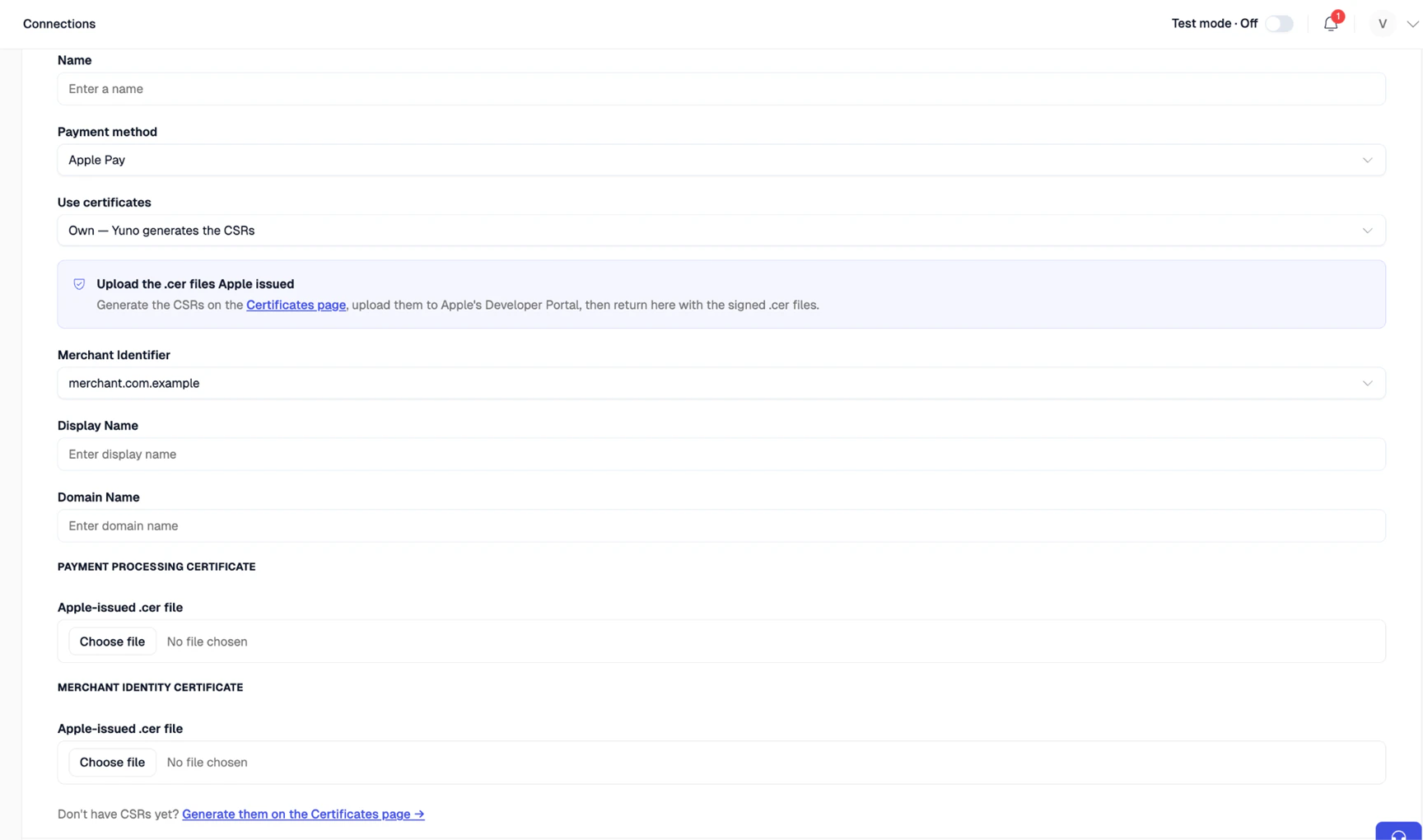
### Step 5: Set up the Apple Pay connection
1. In **Use certificates**, select **Own — Yuno generates the CSRs**.
2. Pick your **Merchant Identifier** from the dropdown — pre-populated with the CSRs you generated.
3. Fill in **Display Name** and **Domain Name**.
4. Under **Payment Processing Certificate** → **Apple-issued .cer file**, click **Choose file** and select the .cer Apple issued for Payment Processing.
5. Under **Merchant Identity Certificate** → **Apple-issued .cer file**, click **Choose file** and select the .cer Apple issued for Merchant Identity.
## Own certificates with Yuno-generated CSRs
This option is for merchants who have an Apple Developer account but don't want to generate private keys, run OpenSSL commands, or paste PEM values into the Dashboard. Yuno generates both Certificate Signing Requests (Payment Processing and Merchant Identity) for you. You upload them to Apple, download the signed .cer files Apple returns, and upload those .cer files back to Yuno from the Apple Pay connection form.
**Where to find it:** In the Yuno Dashboard, open **Connections** → **Certificates & Domains** → **Apple Pay** → **Certificate Signing Request**.
### Step 1: Enter your Apple Merchant ID
In the **Your Apple Merchant ID** field, enter the Merchant ID you registered in the Apple Developer Portal (for example, `merchant.com.example.app`).
Find your Apple Merchant ID in your Apple Developer Portal → Certificates, Identifiers & Profiles → Merchant IDs.
### Step 2: Generate the Payment Processing CSR
Apple Pay requires two separate certificates. The Payment Processing Certificate is an ECC P-256 certificate used by Apple to encrypt the payment token your store receives.
Apple allows only one active Payment Processing certificate per Merchant ID.
Click **Generate Payment Processing CSR**. Yuno generates the signing request. Click **Download .csr file** to save it locally.
### Step 3: Generate the Merchant Identity CSR
The Merchant Identity Certificate is an RSA 2048 certificate used to authenticate your server to Apple via mTLS when starting an Apple Pay session on the Web.
Multiple active Merchant Identity certificates per Merchant ID are allowed.
Click **Generate Merchant Identity CSR**. Click **Download .csr file** to save the second .csr locally.
### Step 4: Upload each .csr to Apple
Repeat these steps twice — once for the Payment Processing CSR, and once for the Merchant Identity CSR.
1. Go to [developer.apple.com](https://developer.apple.com) → **Certificates, Identifiers & Profiles**.
2. Select your Merchant ID.
3. Under **Apple Pay Payment Processing Certificate** (first pass) or **Apple Pay Merchant Identity Certificate** (second pass), click **Create Certificate**.
4. When prompted, answer **No** to "Will payments… be processed exclusively in China mainland?"
5. Upload the .csr file when prompted.
6. Download the .cer file Apple gives you.
You will end up with two .cer files — one for Payment Processing and one for Merchant Identity.
### Step 5: Set up the Apple Pay connection
1. In **Use certificates**, select **Own — Yuno generates the CSRs**.
2. Pick your **Merchant Identifier** from the dropdown — pre-populated with the CSRs you generated.
3. Fill in **Display Name** and **Domain Name**.
4. Under **Payment Processing Certificate** → **Apple-issued .cer file**, click **Choose file** and select the .cer Apple issued for Payment Processing.
5. Under **Merchant Identity Certificate** → **Apple-issued .cer file**, click **Choose file** and select the .cer Apple issued for Merchant Identity.
 ## Step 10: Register your merchant domains
Before the Apple Pay button can appear on your website, every domain that displays it must be registered. With Yuno you do this directly in the Dashboard — Yuno registers each domain with Apple on your behalf, so **you don't need to add domains in the Apple Developer Portal or host a domain-association file.**
**To register your domains:**
1. In the Dashboard, go to **Connections › Certificates & Domains › Apple Pay** and open the **Domains** tab.
2. Click **Add domain**.
3. Enter the domains where the Apple Pay button will appear, **one per line** (up to 10 at a time).
4. Click **Add**. Each domain appears in the table with a status of **Verifying** while Yuno completes registration with Apple.
5. When registration succeeds, the status changes to **Active** — the domain is ready to show Apple Pay.
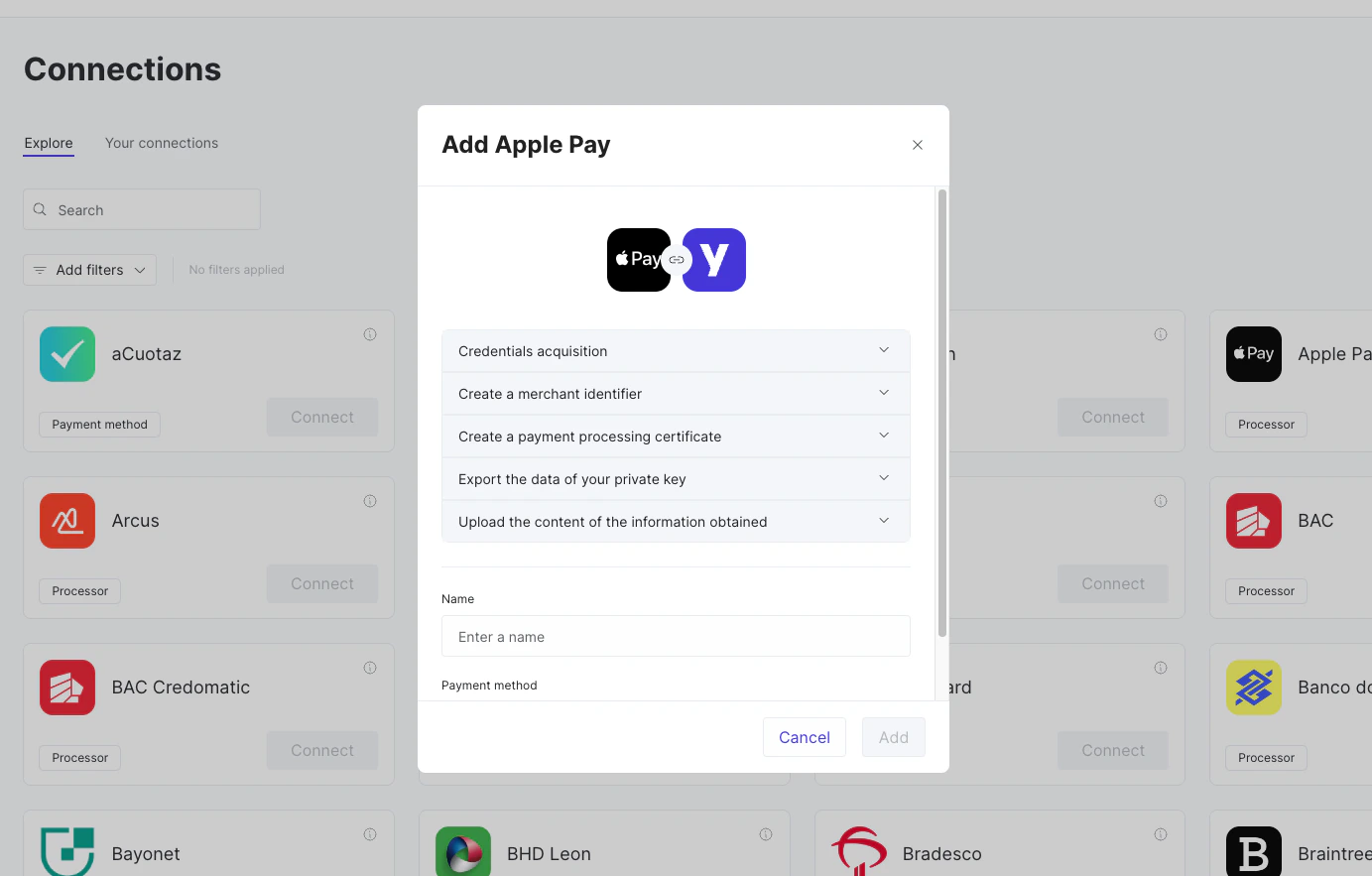
## Step 11: Apple Pay Dashboard connection
1. Log in to your [Yuno Dashboard](https://dashboard.y.uno/connections).
2. Navigate to the **Connections** section.
3. Locate and select the **Apple Pay** option and click **Connect**.
4. Provide a **Name** for the connection, select **Apple Pay** as **Payment method**, and in the **Use certificates** dropdown, select the option that matches your setup:
* **Yuno** or **Own** (manual): paste the PEM values you generated in the previous steps.
* **Own — Yuno generates the CSRs**: select this option and upload the `.cer` files issued by Apple as described in the [Own certificates with Yuno-generated CSRs](#own-certificates-with-yuno-generated-csrs) section.
5. Click **Next**, configure set up costs (optional) and accounts in the following two steps.
6. Click **Save**. Apple Pay will be added to your connections.
## Step 10: Register your merchant domains
Before the Apple Pay button can appear on your website, every domain that displays it must be registered. With Yuno you do this directly in the Dashboard — Yuno registers each domain with Apple on your behalf, so **you don't need to add domains in the Apple Developer Portal or host a domain-association file.**
**To register your domains:**
1. In the Dashboard, go to **Connections › Certificates & Domains › Apple Pay** and open the **Domains** tab.
2. Click **Add domain**.
3. Enter the domains where the Apple Pay button will appear, **one per line** (up to 10 at a time).
4. Click **Add**. Each domain appears in the table with a status of **Verifying** while Yuno completes registration with Apple.
5. When registration succeeds, the status changes to **Active** — the domain is ready to show Apple Pay.
## Step 11: Apple Pay Dashboard connection
1. Log in to your [Yuno Dashboard](https://dashboard.y.uno/connections).
2. Navigate to the **Connections** section.
3. Locate and select the **Apple Pay** option and click **Connect**.
4. Provide a **Name** for the connection, select **Apple Pay** as **Payment method**, and in the **Use certificates** dropdown, select the option that matches your setup:
* **Yuno** or **Own** (manual): paste the PEM values you generated in the previous steps.
* **Own — Yuno generates the CSRs**: select this option and upload the `.cer` files issued by Apple as described in the [Own certificates with Yuno-generated CSRs](#own-certificates-with-yuno-generated-csrs) section.
5. Click **Next**, configure set up costs (optional) and accounts in the following two steps.
6. Click **Save**. Apple Pay will be added to your connections.
 ## Step 12: Configure Dashboard routing
Set up a new route to control how payments are processed through Apple Pay.
Visit the [Routing](/docs/routing) page for additional information on this step.
1. In the [Yuno Dashboard](https://dashboard.y.uno/), navigate to the **Routing** section.
2. Find the **Apple Pay** connection. If you have not created a route for Apple Pay yet, it will be on the **Not published** tab.
3. Set up a new route by pressing **Setup** on your **Apple Pay** module (or **View** if the route is published) and then clicking on **Create new route**. Give the connection a name and click **Save**.
4. Add conditions to specify how payments should be routed through Apple Pay.
5. Add Apple Pay as the payment processor for this route to ensure that payments meeting the defined conditions are processed through Apple Pay.
6. **Publish** the route once all configurations are defined.
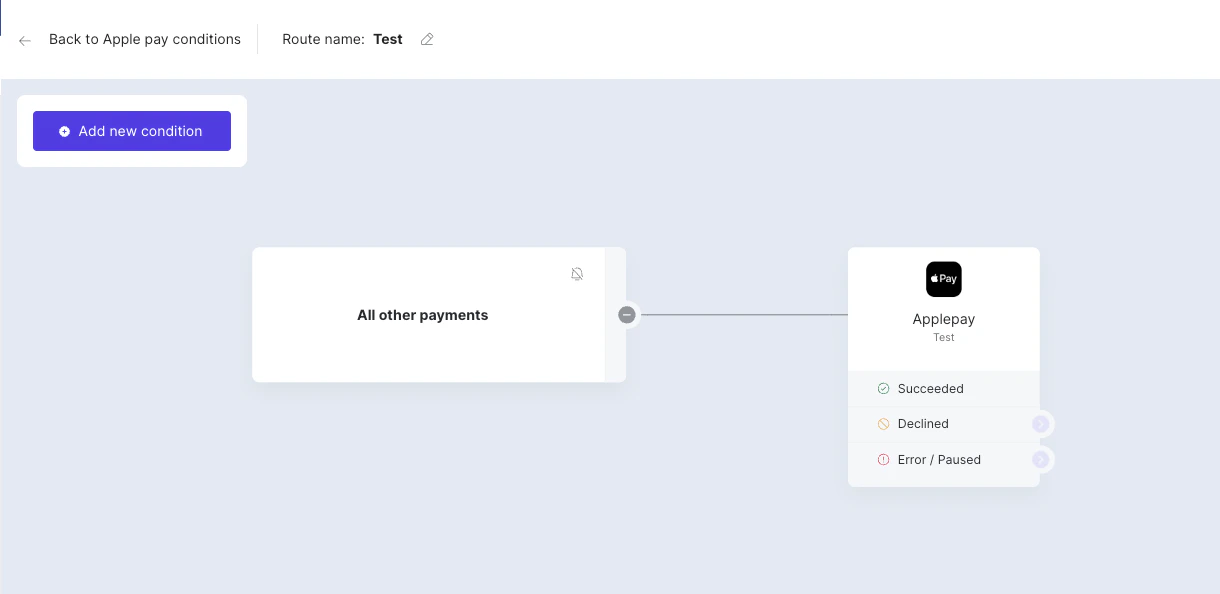
Here's a simple route processing all payments through Apple Pay.
## Step 12: Configure Dashboard routing
Set up a new route to control how payments are processed through Apple Pay.
Visit the [Routing](/docs/routing) page for additional information on this step.
1. In the [Yuno Dashboard](https://dashboard.y.uno/), navigate to the **Routing** section.
2. Find the **Apple Pay** connection. If you have not created a route for Apple Pay yet, it will be on the **Not published** tab.
3. Set up a new route by pressing **Setup** on your **Apple Pay** module (or **View** if the route is published) and then clicking on **Create new route**. Give the connection a name and click **Save**.
4. Add conditions to specify how payments should be routed through Apple Pay.
5. Add Apple Pay as the payment processor for this route to ensure that payments meeting the defined conditions are processed through Apple Pay.
6. **Publish** the route once all configurations are defined.
Here's a simple route processing all payments through Apple Pay.
 ## Step 13: Enable Apple Pay in Checkout Builder
Visit the [Checkout Builder](/docs/checkout-builder) page for additional information on this step.
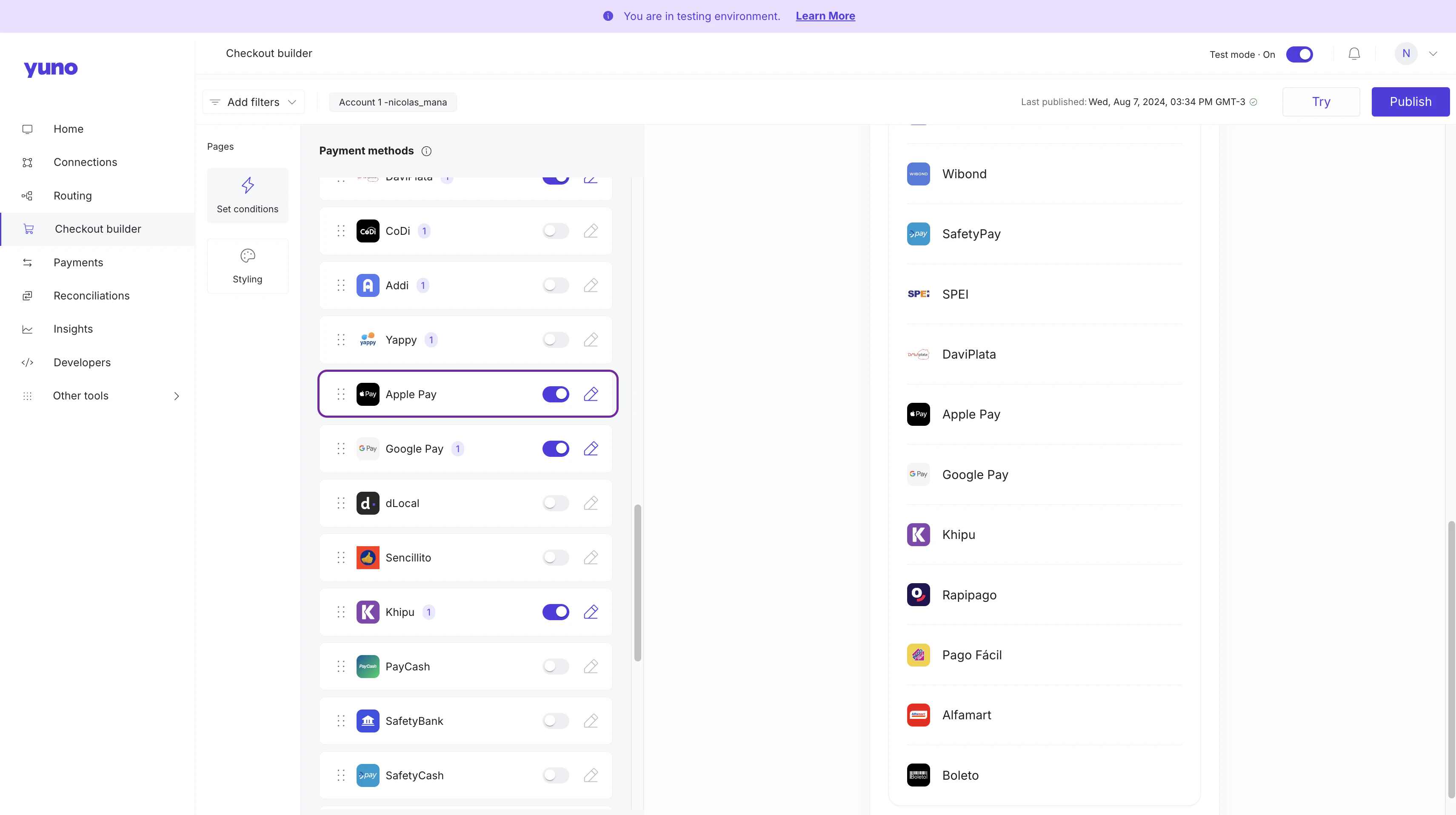
To make Apple Pay available to your end users, you have to enable it on the Checkout Builder:
1. In the [Yuno Dashboard](https://dashboard.y.uno/), navigate to the **Checkout Builder** section.
2. Locate the available **Payment methods** and enable **Apple Pay**. Click the three dots next to each method for additional options.
3. Click **Publish settings** to make Apple Pay available as a payment option for all transactions that meet the defined routing criteria.
## Step 13: Enable Apple Pay in Checkout Builder
Visit the [Checkout Builder](/docs/checkout-builder) page for additional information on this step.
To make Apple Pay available to your end users, you have to enable it on the Checkout Builder:
1. In the [Yuno Dashboard](https://dashboard.y.uno/), navigate to the **Checkout Builder** section.
2. Locate the available **Payment methods** and enable **Apple Pay**. Click the three dots next to each method for additional options.
3. Click **Publish settings** to make Apple Pay available as a payment option for all transactions that meet the defined routing criteria.
 If you plan to implement recurring payments, you will need to configure an additional URL in your Apple Pay connection where customers can manage their subscriptions (cancel, modify, etc.). This URL must be created and hosted by your merchant platform.
## Next steps
After completing the Dashboard setup, choose your path to integrate via SDK or Direct:
* **SDK Integration**: [one-time](/docs/apple-pay-sdk-integration#one-time-payments-with-sdk) and [recurring](/docs/apple-pay-sdk-integration#recurring-payments-with-sdk)
* **Direct integration**: [one-time](/docs/apple-pay-direct-integration#one-time-payments-with-direct-api) and [recurring](/docs/apple-pay-direct-integration#recurring-payments-with-direct-api)
If you plan to implement recurring payments, you will need to configure an additional URL in your Apple Pay connection where customers can manage their subscriptions (cancel, modify, etc.). This URL must be created and hosted by your merchant platform.
## Next steps
After completing the Dashboard setup, choose your path to integrate via SDK or Direct:
* **SDK Integration**: [one-time](/docs/apple-pay-sdk-integration#one-time-payments-with-sdk) and [recurring](/docs/apple-pay-sdk-integration#recurring-payments-with-sdk)
* **Direct integration**: [one-time](/docs/apple-pay-direct-integration#one-time-payments-with-direct-api) and [recurring](/docs/apple-pay-direct-integration#recurring-payments-with-direct-api)