> ## Documentation Index
> Fetch the complete documentation index at: https://docs.y.uno/llms.txt
> Use this file to discover all available pages before exploring further.
# Payments
export const Video = ({src}) => {
return
;
};
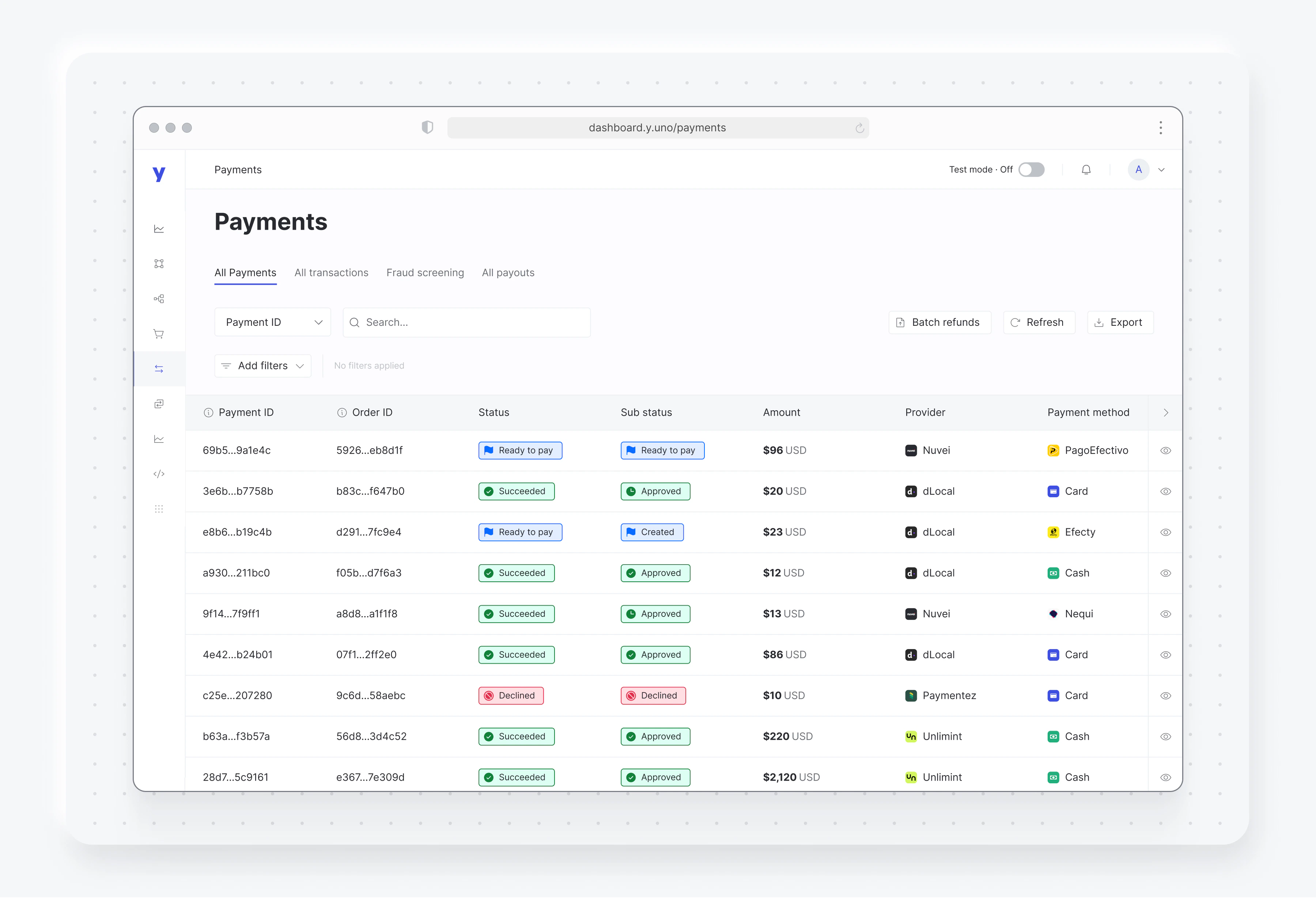
The Payments dashboard section shows all payments, transactions, fraud screening, and payout data. In addition, you can use filters to refine your searches and enjoy extensive configuration of exports and reports.
## Payments section breakdown
Default view showing all payments regardless of their status.
Process multiple refunds by uploading a CSV file.
Detailed view of all transactions related to your payments.
Verify potential fraudulent transactions in a dedicated view.
Access and filter all payouts to find specific transactions.
Export customized data and schedule recurring email reports.
The Payments section is a powerful tool to simplify payment-related tasks and help you manage your payments more effectively. Take some time to explore the section and see how it can help you.
 ## Batch refunds
The batch refund feature allows you to process refunds for several transactions simultaneously, saving time and effort. You can refund up to 1000 payments at once.
To execute batch refunds, access the **All payments** tab and select **Batch refunds → Upload**. From here, upload a CSV file with your refunds. You can download a sample file to help with the formatting. For each payment to refund, you should inform:
* Payment ID
* Transaction ID
* Amount to refund
* Currency
* Merchant reference
* Reason (`DUPLICATE`, `FRAUDULENT`, or `REQUESTED_BY_CUSTOMER`)
The sample file is also available [here](https://dashboard-assets.y.uno/samples-files/Batch_refunds_sample_file.xlsx).
After uploading the file, you can track the refund status of each payment by accessing **All payments** and selecting **Batch refunds → Overview**.
## Exporting Data
Click the **Export** button to see three tabs, each giving you specialized control over your data exports:
**Quick export**: Select a specific date range and customize the columns visible in the export.\
**Scheduled reports**: Configure a report to send periodically to your email address. You may also set the columns to export.
**Downloads**: Previous reports are saved in this tab for easy download.
## Batch refunds
The batch refund feature allows you to process refunds for several transactions simultaneously, saving time and effort. You can refund up to 1000 payments at once.
To execute batch refunds, access the **All payments** tab and select **Batch refunds → Upload**. From here, upload a CSV file with your refunds. You can download a sample file to help with the formatting. For each payment to refund, you should inform:
* Payment ID
* Transaction ID
* Amount to refund
* Currency
* Merchant reference
* Reason (`DUPLICATE`, `FRAUDULENT`, or `REQUESTED_BY_CUSTOMER`)
The sample file is also available [here](https://dashboard-assets.y.uno/samples-files/Batch_refunds_sample_file.xlsx).
After uploading the file, you can track the refund status of each payment by accessing **All payments** and selecting **Batch refunds → Overview**.
## Exporting Data
Click the **Export** button to see three tabs, each giving you specialized control over your data exports:
**Quick export**: Select a specific date range and customize the columns visible in the export.\
**Scheduled reports**: Configure a report to send periodically to your email address. You may also set the columns to export.
**Downloads**: Previous reports are saved in this tab for easy download.