> ## Documentation Index
> Fetch the complete documentation index at: https://docs.y.uno/llms.txt
> Use this file to discover all available pages before exploring further.
# Seamless SDK (Payment Web)
> Step-by-step guide on integrating Yuno's Seamless Web SDK for a flexible payment experience with pre-built UI components.
Follow this step-by-step guide to implement and enable Yuno's Seamless Web SDK payment functionality in your application.
**Recommended SDK**
We recommend using the **Web Seamless SDK** for a smooth integration experience. This option provides a flexible payment solution with pre-built UI components and customization options.
**Should I use Lite or Full Seamless SDK?**
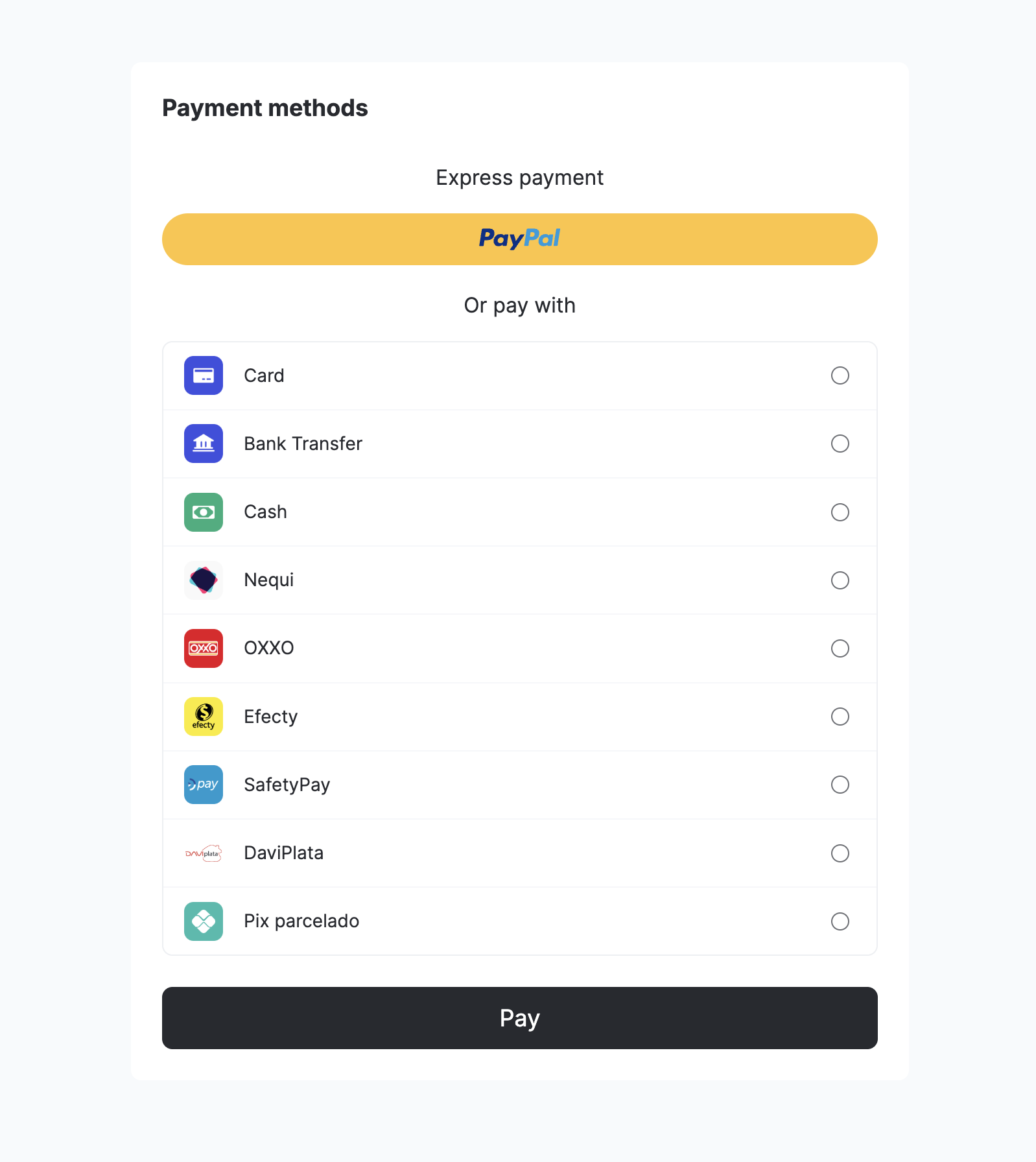
Use the Full Seamless SDK for automatic payment method listing and separate display of payment buttons (like PayPal). The Lite Seamless SDK gives you more control over how payment methods are displayed and organized.
 ## Step 1: Include the library in your project
The integration guide provides [three flexible methods](/docs/sdks/overview/quickstart):
1. Direct HTML script inclusion
2. Dynamic JavaScript injection
3. NPM module installation
Choose the integration method that best suits your development workflow and technical requirements. After completing the SDK integration, you can proceed with the following steps to implement the Seamless functionality.
**TypeScript Library**
If you are using TypeScript, Yuno offers a [library](https://www.npmjs.com/package/@yuno-payments/sdk-web-types) that provides access to all available methods in the Yuno Web SDK.
## Step 2: Initialize SDK with the public key
Initialize the Yuno SDK in your JavaScript application by providing a valid `PUBLIC_API_KEY`:
```javascript theme={"theme":{"light":"github-dark","dark":"github-dark"}}
const yuno = await Yuno.initialize(PUBLIC_API_KEY);
```
**Credentials**
See the credentials page for more information: [Authentication](/reference/getting-started/authentication)
## Step 3: Create a checkout session
If your workflow requires sending the `additional_data` object, it can be sent as part of the checkout session.
To initialize the payment flow, create a new `checkout_session` using the [Create checkout session](/reference/checkout-sessions/create-checkout-session) endpoint.
* First, [create a customer](/reference/customers/create-customer) or retrieve an existing customer ID
* Include it when creating the `checkout_session`
To control authorization and capture with cards, include `payment_method.detail.card.capture` in the checkout session: set `false` to authorize only, `true` to capture immediately.
### Key parameters
| Parameter | Required | Description |
| -------------------- | -------- | ------------------------------------------------------------------------------------------------------------------------------------------------------------------------------------------------------------------------------------------------------------------------------------------------------------------ |
| `amount` | Yes | The primary transaction amount object containing `currency` (ISO 4217 code) and `value` (numeric amount in that currency). |
| `alternative_amount` | No | An alternative currency representation of the transaction amount with the same structure as `amount` (`currency` and `value`). Useful for multi-currency scenarios, such as displaying prices to customers in their preferred currency (e.g., USD) while processing the payment in the local currency (e.g., COP). |
**`onPaymentMethodSelect` Event**
For all APMs, including Google Pay, Apple Pay, and PayPal, `onPaymentMethodSelected` is triggered as soon as the customer chooses the payment method (before the payment flow begins). Define `onPaymentMethodSelected` in `startSeamlessCheckout` before `mountSeamlessCheckout`.
**Google Pay and Apple Pay Display**
From SDK version 1.5, Google Pay and Apple Pay appear as direct buttons instead of radio buttons in the payment methods list. They are displayed separately from other payment methods.
## Step 4: Start the checkout process
Use the configuration below to provide a seamless and user-friendly payment experience for your customers:
```javascript theme={"theme":{"light":"github-dark","dark":"github-dark"}}
await yuno.startSeamlessCheckout({
checkoutSession: "438413b7-4921-41e4-b8f3-28a5a0141638",
elementSelector: "#root",
countryCode: "US",
language: "en-US",
showLoading: true,
issuersFormEnable: true,
showPaymentStatus: true,
onLoading: (args) => console.log(args),
renderMode: {
type: "modal",
elementSelector: {
apmForm: "#form-element",
actionForm: "#action-form-element",
},
},
card: {
type: "extends",
styles: "",
cardSaveEnable: false,
texts: {},
hideCardholderName: false, // Optional: Set to true to hide cardholder name field
},
texts: {},
async yunoCreatePayment(oneTimeToken, tokenWithInformation) {
await createPayment({
oneTimeToken,
checkoutSession,
vault_on_success: true
});
await yuno.continuePayment({ showPaymentStatus: true });
},
onPaymentMethodSelected(data) {
console.log("Payment method selected:", data);
},
yunoPaymentResult(data) {
console.log("Payment result:", data);
await yuno.hideLoader();
},
yunoError(error, data) {
console.error("An error occurred:", error);
await yuno.hideLoader();
},
});
```
When using `startSeamlessCheckout`, specify the callbacks to handle payments. You can also customize the checkout interface using the `texts` objects.
### Parameters
Configure the seamless checkout with the following options:
| Parameter | Description |
| ------------------------- | -------------------------------------------------------------------------------------------------------------------------------------------------------------------------------------------------------------------------------------------------------------------------------------------------------------------------------------------------------------------------------------------------------------------------------------------------------------------------- |
| `checkoutSession` | Refers to the current payment's [checkout session](/reference/checkout-sessions/the-checkout-session-object). Example: `438413b7-4921-41e4-b8f3-28a5a0141638`. |
| `elementSelector` | The HTML element where the checkout will be rendered. |
| `countryCode` | This parameter specifies the country for which the payment process is being set up. Use an `ENUM` value representing the desired country code. You can find the full list of supported countries and their corresponding codes on the [Country Coverage](/docs/sdks/resources/country-coverage) page. |
| `language` | Language for payment forms. Use any code listed in [Supported languages](/docs/sdks/resources/languages-supported). Example: `en-US`. Defaults to browser language when available. |
| `showLoading` | Controls the visibility of the Yuno loading/spinner page during the payment process. Default: `true`. |
| `onLoading` | Required to receive notifications about server calls or loading events during the payment process. |
| `issuersFormEnable` | Enables the issuer's form (e.g., a list of banks). Default: `true`. |
| `showPaymentStatus` | Shows the Yuno Payment Status page, which is useful when continuing a payment. Default: `true`. |
| `showPayButton` | Controls the visibility of the pay button in the customer or card form. Default: `true`. |
| `renderMode` | Specify how and where the forms will be rendered. The options available are: |
| | ▪️ `type: modal` (default) |
| | ▪️ `type: element` - If you select `element`, you must inform the `elementSelector` to specify where the form should be rendered. |
| `card` | Defines the configuration for the card form. It contains settings like custom styles, save card option, and optional `hideCardholderName` to hide the cardholder name field. When `hideCardholderName` is set to `true`, the cardholder name field is not rendered. When not specified or set to `false`, the cardholder name field is displayed (default behavior). Hiding the field does not affect PAN, expiry, CVV collection, BIN logic, or 3DS/provider validations. |
| `texts` | Allows you to set custom button texts for card and non-card payment forms. |
| `yunoCreatePayment` | Placeholder function for creating a payment. This function will not be called but should be implemented. When creating the payment, you can include `vault_on_success: true` to enroll the payment method after a successful payment. See [Enrolling payment methods](#enrolling-payment-methods-in-seamless-flow) for more details. |
| `onPaymentMethodSelected` | Callback invoked when a payment method is selected, along with the method's type and name. |
| `yunoPaymentResult` | Callback called after the payment is completed, with the payment status (e.g., `SUCCEEDED`, `ERROR`, `CANCELED_BY_USER`). |
| `yunoError` | Callback invoked when there is an error in the payment process. Receives error type and optional additional data. |
**Customer and Merchant-Initiated Transactions**
Payments can be initiated by the customer (CIT) or by the merchant (MIT). You find more information about their characteristics in [Stored credentials](/docs/payment-features/stored-credentials).
The step-by-step on this page refers to a customer-initiated transaction without the recurrence option. Typically, it's used in one-time online purchases, in-store purchases, ATM withdrawals, etc.
## Step 5: Mount the SDK
To present the checkout process based on the selected payment method, use the `await yuno.mountSeamlessCheckout()` function. This step ensures the SDK is properly mounted on your chosen HTML element.
```javascript theme={"theme":{"light":"github-dark","dark":"github-dark"}}
await yuno.mountSeamlessCheckout({
paymentMethodType: PAYMENT_METHOD_TYPE,
vaultedToken: VAULTED_TOKEN,
});
```
See the [Payment type](/reference/payment-type-list) page to view the complete list of payment method types you can use when mounting the SDK.
The `vaultedToken` is optional. It represents a previously enrolled payment method. If you provide the `vaultedToken`, the user will not be required to provide the payment information again since it was provided in a previous transaction.
After mounting, you must start the checkout flow by calling `await yuno.startPayment()`. If you skip this call, the payment form will not open.
## Step 6: Start the payment flow (Required)
Call `await yuno.startPayment()` immediately after `await yuno.mountSeamlessCheckout()` to open the selected payment method UI:
```javascript theme={"theme":{"light":"github-dark","dark":"github-dark"}}
await yuno.mountSeamlessCheckout({
paymentMethodType: PAYMENT_METHOD_TYPE,
vaultedToken: VAULTED_TOKEN,
});
await yuno.startPayment();
```
Alternatively, you can trigger the start from a user action such as a button click:
```javascript theme={"theme":{"light":"github-dark","dark":"github-dark"}}
const payButton = document.querySelector('#button-pay');
payButton.addEventListener('click', async () => {
await yuno.startPayment();
});
```
**Demo App**
In addition to the code examples provided, you can access the [Demo App](https://github.com/yuno-payments/yuno-sdk-web) for a complete implementation of Yuno SDKs (clone from the repository).
## Mount external buttons
You can use the `mountExternalButtons` method to render Google Pay and Apple Pay buttons in custom locations within your UI. This gives you control over where these buttons are displayed.
```javascript theme={"theme":{"light":"github-dark","dark":"github-dark"}}
await yuno.mountExternalButtons([
{
paymentMethodType: 'APPLE_PAY',
elementSelector: '#apple-pay',
},
{
paymentMethodType: 'GOOGLE_PAY',
elementSelector: '#google-pay',
},
]);
```
### Parameters
| Parameter | Description |
| :------------------ | :------------------------------------------------------------------------------------------------------------- |
| `paymentMethodType` | The payment method type. Must be either `'APPLE_PAY'` or `'GOOGLE_PAY'`. |
| `elementSelector` | The CSS selector for the HTML element where the button should be rendered (e.g., `'#apple-pay'`, `'.button'`). |
### Unmounting buttons
You can unmount a single external button by payment method type:
```javascript theme={"theme":{"light":"github-dark","dark":"github-dark"}}
await yuno.unmountExternalButton('APPLE_PAY');
```
Or unmount all external buttons at once:
```javascript theme={"theme":{"light":"github-dark","dark":"github-dark"}}
await yuno.unmountAllExternalButtons();
```
### Unmounting the SDK
For explicit cleanup of the Yuno SDK (e.g., when a user cancels the flow or you need to remove the SDK from the DOM), use the `unmountSdk()` method:
```javascript theme={"theme":{"light":"github-dark","dark":"github-dark"}}
await yuno.unmountSdk();
```
## Revolut Pay
There are two ways to render the Revolut Pay button:
1. **Full checkout** — the button shows up inside the payment method list rendered by the SDK.
2. **External buttons** (`mountExternalButtons`) — the merchant decides which container on their page the button mounts into.
In both cases, the button configuration goes in `externalButtons.revolutPay` inside `startCheckout`. Unlike other buttons, the widget is rendered by Revolut's own SDK — the configuration maps directly to Revolut's button options.
### External buttons integration
The merchant defines a container in their HTML and mounts the button there:
```html theme={"theme":{"light":"github-dark","dark":"github-dark"}}
```
```javascript theme={"theme":{"light":"github-dark","dark":"github-dark"}}
const yuno = await window.Yuno.initialize(PUBLIC_API_KEY);
await yuno.startCheckout({
checkoutSession,
elementSelector: '#root',
countryCode,
language,
// Receives the one-time token when the buyer confirms in the Revolut widget.
// IMPORTANT: create the payment in your backend RIGHT AWAY and call
// continuePayment() — the Revolut widget stays open waiting for the order
// to be completed with the created payment.
async yunoCreatePayment(oneTimeToken, tokenWithInformation) {
await createPaymentInYourBackend({ oneTimeToken, checkoutSession });
yuno.continuePayment();
},
yunoPaymentResult(data) { /* final payment status */ },
yunoError: (error) => { /* flow errors (including widget cancellation) */ },
// Receives { isLoading, type } — Revolut Pay emits type: 'OTT' while the
// token is generated and type: 'CREATE_PAYMENT' in the SDK-driven flow.
onLoading: (data) => { /* show/hide your loader */ },
// Button configuration (see Configuration section below)
externalButtons: {
revolutPay: {
variant: 'dark',
size: 'large',
radius: 'round',
action: 'pay',
locale: 'es',
},
},
});
await yuno.mountExternalButtons([
{
paymentMethodType: 'REVOLUT_PAY',
elementSelector: '#revolut-pay-element',
},
]);
```
To unmount the Revolut Pay button, use the same methods described in [Unmounting buttons](#unmounting-buttons):
```javascript theme={"theme":{"light":"github-dark","dark":"github-dark"}}
yuno.unmountExternalButton('REVOLUT_PAY'); // this button only
yuno.unmountAllExternalButtons(); // all external buttons
```
### Checkout session requirements
For Revolut Pay to work, the checkout session the merchant creates (backend to backend) must include these fields — the SDK reads them from the session, nothing is configured on the frontend:
* `amount.value` and `amount.currency` — required; used to create the Revolut order shown in the widget.
* `callback_url` — required; used as the mobile redirect URL to return to the merchant page (see [Mobile redirects](#mobile-redirects-callback_url) below).
### Configuration (`externalButtons.revolutPay`)
All configuration is optional. The button is rendered by Revolut, so the options map to Revolut's official button styles:
| Option | Values | Default | What it does |
| :-------- | :------------------------------------------------------ | :--------------------- | :--------------------------------------------------------------------- |
| `variant` | `'dark'` \| `'light'` \| `'light-outlined'` | Revolut decides | Button color scheme |
| `size` | `'large'` \| `'small'` | `'large'` (full-width) | Button size (`small` renders inline) |
| `radius` | `'none'` \| `'small'` \| `'large'` \| `'round'` | Revolut decides | Corner radius (`none` 0px / `small` 4px / `large` 16px / `round` pill) |
| `action` | `'pay'` \| `'buy'` \| `'donate'` \| `'subscribe'` | `'pay'` | Button label |
| `locale` | ISO locale (e.g. `'en'`, `'es'`, `'pt-BR'`) or `'auto'` | `'auto'` | Button language. Invalid values fall back to `'auto'` |
### Mobile redirects (`callback_url`)
On mobile, the Revolut flow can jump to the Revolut app (or an in-app browser) instead of staying in the popup. To come back to the merchant's page, the SDK needs redirect URLs — it resolves them automatically from the `callback_url` the merchant already sends when creating the checkout session (backend to backend):
* The session's `callback_url` is used for the three outcomes: `success`, `failure`, and `cancel`.
* Nothing extra is needed in the SDK configuration — if the session has a `callback_url`, mobile redirects work; if it doesn't, the flow stays web-only.
* When the buyer returns from the Revolut app, the URL includes a `_rp_fr` query parameter appended by Revolut — harmless, but merchants parsing the return URL strictly should be aware of it.
**Desktop vs. mobile redirects**
Only *mobile* redirect URLs are configured by the SDK. Desktop flows always resolve inside the widget/popup — no redirect happens.
## PayPal REDIRECT Workflow
The Yuno SDK supports a `REDIRECT` workflow for PayPal. This workflow is useful when PayPal was not initialized at the start of the SDK or when using a pre-existing PayPal `orderId`.
* **PaypalButtonModal**: If PayPal is not initialized, the SDK can render the PayPal button inside a modal.
* **Workflow**: The `REDIRECT` workflow skips fraud detection and OTT creation, utilizing the provided `orderId`.
```javascript theme={"theme":{"light":"github-dark","dark":"github-dark"}}
// Example PayPal configuration
await yuno.startSeamlessCheckout({
// ... other config
paypal: {
workflow: 'REDIRECT',
orderId: 'PAYPAL_ORDER_ID',
}
});
```
## Enrolling payment methods in seamless flow
You can enroll payment methods (store cards for future use) directly during the seamless payment flow by setting `payment_method.vault_on_success = true` in the [checkout session creation](/reference/checkout-sessions/the-checkout-session-object).
When `vault_on_success` is set to `true`:
* The payment method will be automatically enrolled if the payment status is `SUCCEEDED`
* If the payment does not succeed, no vaulting will occur
* The payment response will include a `vaulted_token` that you can use for future transactions
**Example:**
```json theme={"theme":{"light":"github-dark","dark":"github-dark"}}
{
"account_id": "...",
...
"payment_method": {
"vault_on_success": true
}
}
```
**Vaulting Requirements**
To generate and receive a `vaulted_token` when `vault_on_success = true`, the payment must reference an existing Yuno customer through `customer_payer.id` in the checkout session. Creating or sending the customer data inline inside the payment request does not create the customer on our side, so no vaulting will occur.
For more information about enrolling payment methods, see [Enroll Payment Methods](/docs/payment-features/enrollment/enroll-payment-methods).
## Error handling
Handle errors returned by the SDK in your app (e.g. failed payments, validation errors). For HTTP status and response codes, see [Status and response codes](/reference/payments/status-and-response-codes/payment) in the API reference.
### Payment retry
When a **card** payment comes back `DECLINED` or `ERROR`, payment retry keeps the card form open so the shopper can correct their details and try again without restarting checkout — controlled by [`settings.card.enable_payment_retry`](/reference/checkout-builder/update-styling-settings).
In the **seamless** flow this is automatic — the SDK keeps the form open and drives the retry for you. In the Full Checkout, Lite, and Secure Fields flows you must call `continuePayment` on a declined/errored card payment to trigger it. See [Payment retry](/docs/sdks/resources/references/web#payment-retry) in the Web Reference for details.
## Stay updated
Visit the [changelog](/changelog/web#v1-6-0) for the latest SDK updates and version history.
## Step 1: Include the library in your project
The integration guide provides [three flexible methods](/docs/sdks/overview/quickstart):
1. Direct HTML script inclusion
2. Dynamic JavaScript injection
3. NPM module installation
Choose the integration method that best suits your development workflow and technical requirements. After completing the SDK integration, you can proceed with the following steps to implement the Seamless functionality.
**TypeScript Library**
If you are using TypeScript, Yuno offers a [library](https://www.npmjs.com/package/@yuno-payments/sdk-web-types) that provides access to all available methods in the Yuno Web SDK.
## Step 2: Initialize SDK with the public key
Initialize the Yuno SDK in your JavaScript application by providing a valid `PUBLIC_API_KEY`:
```javascript theme={"theme":{"light":"github-dark","dark":"github-dark"}}
const yuno = await Yuno.initialize(PUBLIC_API_KEY);
```
**Credentials**
See the credentials page for more information: [Authentication](/reference/getting-started/authentication)
## Step 3: Create a checkout session
If your workflow requires sending the `additional_data` object, it can be sent as part of the checkout session.
To initialize the payment flow, create a new `checkout_session` using the [Create checkout session](/reference/checkout-sessions/create-checkout-session) endpoint.
* First, [create a customer](/reference/customers/create-customer) or retrieve an existing customer ID
* Include it when creating the `checkout_session`
To control authorization and capture with cards, include `payment_method.detail.card.capture` in the checkout session: set `false` to authorize only, `true` to capture immediately.
### Key parameters
| Parameter | Required | Description |
| -------------------- | -------- | ------------------------------------------------------------------------------------------------------------------------------------------------------------------------------------------------------------------------------------------------------------------------------------------------------------------ |
| `amount` | Yes | The primary transaction amount object containing `currency` (ISO 4217 code) and `value` (numeric amount in that currency). |
| `alternative_amount` | No | An alternative currency representation of the transaction amount with the same structure as `amount` (`currency` and `value`). Useful for multi-currency scenarios, such as displaying prices to customers in their preferred currency (e.g., USD) while processing the payment in the local currency (e.g., COP). |
**`onPaymentMethodSelect` Event**
For all APMs, including Google Pay, Apple Pay, and PayPal, `onPaymentMethodSelected` is triggered as soon as the customer chooses the payment method (before the payment flow begins). Define `onPaymentMethodSelected` in `startSeamlessCheckout` before `mountSeamlessCheckout`.
**Google Pay and Apple Pay Display**
From SDK version 1.5, Google Pay and Apple Pay appear as direct buttons instead of radio buttons in the payment methods list. They are displayed separately from other payment methods.
## Step 4: Start the checkout process
Use the configuration below to provide a seamless and user-friendly payment experience for your customers:
```javascript theme={"theme":{"light":"github-dark","dark":"github-dark"}}
await yuno.startSeamlessCheckout({
checkoutSession: "438413b7-4921-41e4-b8f3-28a5a0141638",
elementSelector: "#root",
countryCode: "US",
language: "en-US",
showLoading: true,
issuersFormEnable: true,
showPaymentStatus: true,
onLoading: (args) => console.log(args),
renderMode: {
type: "modal",
elementSelector: {
apmForm: "#form-element",
actionForm: "#action-form-element",
},
},
card: {
type: "extends",
styles: "",
cardSaveEnable: false,
texts: {},
hideCardholderName: false, // Optional: Set to true to hide cardholder name field
},
texts: {},
async yunoCreatePayment(oneTimeToken, tokenWithInformation) {
await createPayment({
oneTimeToken,
checkoutSession,
vault_on_success: true
});
await yuno.continuePayment({ showPaymentStatus: true });
},
onPaymentMethodSelected(data) {
console.log("Payment method selected:", data);
},
yunoPaymentResult(data) {
console.log("Payment result:", data);
await yuno.hideLoader();
},
yunoError(error, data) {
console.error("An error occurred:", error);
await yuno.hideLoader();
},
});
```
When using `startSeamlessCheckout`, specify the callbacks to handle payments. You can also customize the checkout interface using the `texts` objects.
### Parameters
Configure the seamless checkout with the following options:
| Parameter | Description |
| ------------------------- | -------------------------------------------------------------------------------------------------------------------------------------------------------------------------------------------------------------------------------------------------------------------------------------------------------------------------------------------------------------------------------------------------------------------------------------------------------------------------- |
| `checkoutSession` | Refers to the current payment's [checkout session](/reference/checkout-sessions/the-checkout-session-object). Example: `438413b7-4921-41e4-b8f3-28a5a0141638`. |
| `elementSelector` | The HTML element where the checkout will be rendered. |
| `countryCode` | This parameter specifies the country for which the payment process is being set up. Use an `ENUM` value representing the desired country code. You can find the full list of supported countries and their corresponding codes on the [Country Coverage](/docs/sdks/resources/country-coverage) page. |
| `language` | Language for payment forms. Use any code listed in [Supported languages](/docs/sdks/resources/languages-supported). Example: `en-US`. Defaults to browser language when available. |
| `showLoading` | Controls the visibility of the Yuno loading/spinner page during the payment process. Default: `true`. |
| `onLoading` | Required to receive notifications about server calls or loading events during the payment process. |
| `issuersFormEnable` | Enables the issuer's form (e.g., a list of banks). Default: `true`. |
| `showPaymentStatus` | Shows the Yuno Payment Status page, which is useful when continuing a payment. Default: `true`. |
| `showPayButton` | Controls the visibility of the pay button in the customer or card form. Default: `true`. |
| `renderMode` | Specify how and where the forms will be rendered. The options available are: |
| | ▪️ `type: modal` (default) |
| | ▪️ `type: element` - If you select `element`, you must inform the `elementSelector` to specify where the form should be rendered. |
| `card` | Defines the configuration for the card form. It contains settings like custom styles, save card option, and optional `hideCardholderName` to hide the cardholder name field. When `hideCardholderName` is set to `true`, the cardholder name field is not rendered. When not specified or set to `false`, the cardholder name field is displayed (default behavior). Hiding the field does not affect PAN, expiry, CVV collection, BIN logic, or 3DS/provider validations. |
| `texts` | Allows you to set custom button texts for card and non-card payment forms. |
| `yunoCreatePayment` | Placeholder function for creating a payment. This function will not be called but should be implemented. When creating the payment, you can include `vault_on_success: true` to enroll the payment method after a successful payment. See [Enrolling payment methods](#enrolling-payment-methods-in-seamless-flow) for more details. |
| `onPaymentMethodSelected` | Callback invoked when a payment method is selected, along with the method's type and name. |
| `yunoPaymentResult` | Callback called after the payment is completed, with the payment status (e.g., `SUCCEEDED`, `ERROR`, `CANCELED_BY_USER`). |
| `yunoError` | Callback invoked when there is an error in the payment process. Receives error type and optional additional data. |
**Customer and Merchant-Initiated Transactions**
Payments can be initiated by the customer (CIT) or by the merchant (MIT). You find more information about their characteristics in [Stored credentials](/docs/payment-features/stored-credentials).
The step-by-step on this page refers to a customer-initiated transaction without the recurrence option. Typically, it's used in one-time online purchases, in-store purchases, ATM withdrawals, etc.
## Step 5: Mount the SDK
To present the checkout process based on the selected payment method, use the `await yuno.mountSeamlessCheckout()` function. This step ensures the SDK is properly mounted on your chosen HTML element.
```javascript theme={"theme":{"light":"github-dark","dark":"github-dark"}}
await yuno.mountSeamlessCheckout({
paymentMethodType: PAYMENT_METHOD_TYPE,
vaultedToken: VAULTED_TOKEN,
});
```
See the [Payment type](/reference/payment-type-list) page to view the complete list of payment method types you can use when mounting the SDK.
The `vaultedToken` is optional. It represents a previously enrolled payment method. If you provide the `vaultedToken`, the user will not be required to provide the payment information again since it was provided in a previous transaction.
After mounting, you must start the checkout flow by calling `await yuno.startPayment()`. If you skip this call, the payment form will not open.
## Step 6: Start the payment flow (Required)
Call `await yuno.startPayment()` immediately after `await yuno.mountSeamlessCheckout()` to open the selected payment method UI:
```javascript theme={"theme":{"light":"github-dark","dark":"github-dark"}}
await yuno.mountSeamlessCheckout({
paymentMethodType: PAYMENT_METHOD_TYPE,
vaultedToken: VAULTED_TOKEN,
});
await yuno.startPayment();
```
Alternatively, you can trigger the start from a user action such as a button click:
```javascript theme={"theme":{"light":"github-dark","dark":"github-dark"}}
const payButton = document.querySelector('#button-pay');
payButton.addEventListener('click', async () => {
await yuno.startPayment();
});
```
**Demo App**
In addition to the code examples provided, you can access the [Demo App](https://github.com/yuno-payments/yuno-sdk-web) for a complete implementation of Yuno SDKs (clone from the repository).
## Mount external buttons
You can use the `mountExternalButtons` method to render Google Pay and Apple Pay buttons in custom locations within your UI. This gives you control over where these buttons are displayed.
```javascript theme={"theme":{"light":"github-dark","dark":"github-dark"}}
await yuno.mountExternalButtons([
{
paymentMethodType: 'APPLE_PAY',
elementSelector: '#apple-pay',
},
{
paymentMethodType: 'GOOGLE_PAY',
elementSelector: '#google-pay',
},
]);
```
### Parameters
| Parameter | Description |
| :------------------ | :------------------------------------------------------------------------------------------------------------- |
| `paymentMethodType` | The payment method type. Must be either `'APPLE_PAY'` or `'GOOGLE_PAY'`. |
| `elementSelector` | The CSS selector for the HTML element where the button should be rendered (e.g., `'#apple-pay'`, `'.button'`). |
### Unmounting buttons
You can unmount a single external button by payment method type:
```javascript theme={"theme":{"light":"github-dark","dark":"github-dark"}}
await yuno.unmountExternalButton('APPLE_PAY');
```
Or unmount all external buttons at once:
```javascript theme={"theme":{"light":"github-dark","dark":"github-dark"}}
await yuno.unmountAllExternalButtons();
```
### Unmounting the SDK
For explicit cleanup of the Yuno SDK (e.g., when a user cancels the flow or you need to remove the SDK from the DOM), use the `unmountSdk()` method:
```javascript theme={"theme":{"light":"github-dark","dark":"github-dark"}}
await yuno.unmountSdk();
```
## Revolut Pay
There are two ways to render the Revolut Pay button:
1. **Full checkout** — the button shows up inside the payment method list rendered by the SDK.
2. **External buttons** (`mountExternalButtons`) — the merchant decides which container on their page the button mounts into.
In both cases, the button configuration goes in `externalButtons.revolutPay` inside `startCheckout`. Unlike other buttons, the widget is rendered by Revolut's own SDK — the configuration maps directly to Revolut's button options.
### External buttons integration
The merchant defines a container in their HTML and mounts the button there:
```html theme={"theme":{"light":"github-dark","dark":"github-dark"}}
```
```javascript theme={"theme":{"light":"github-dark","dark":"github-dark"}}
const yuno = await window.Yuno.initialize(PUBLIC_API_KEY);
await yuno.startCheckout({
checkoutSession,
elementSelector: '#root',
countryCode,
language,
// Receives the one-time token when the buyer confirms in the Revolut widget.
// IMPORTANT: create the payment in your backend RIGHT AWAY and call
// continuePayment() — the Revolut widget stays open waiting for the order
// to be completed with the created payment.
async yunoCreatePayment(oneTimeToken, tokenWithInformation) {
await createPaymentInYourBackend({ oneTimeToken, checkoutSession });
yuno.continuePayment();
},
yunoPaymentResult(data) { /* final payment status */ },
yunoError: (error) => { /* flow errors (including widget cancellation) */ },
// Receives { isLoading, type } — Revolut Pay emits type: 'OTT' while the
// token is generated and type: 'CREATE_PAYMENT' in the SDK-driven flow.
onLoading: (data) => { /* show/hide your loader */ },
// Button configuration (see Configuration section below)
externalButtons: {
revolutPay: {
variant: 'dark',
size: 'large',
radius: 'round',
action: 'pay',
locale: 'es',
},
},
});
await yuno.mountExternalButtons([
{
paymentMethodType: 'REVOLUT_PAY',
elementSelector: '#revolut-pay-element',
},
]);
```
To unmount the Revolut Pay button, use the same methods described in [Unmounting buttons](#unmounting-buttons):
```javascript theme={"theme":{"light":"github-dark","dark":"github-dark"}}
yuno.unmountExternalButton('REVOLUT_PAY'); // this button only
yuno.unmountAllExternalButtons(); // all external buttons
```
### Checkout session requirements
For Revolut Pay to work, the checkout session the merchant creates (backend to backend) must include these fields — the SDK reads them from the session, nothing is configured on the frontend:
* `amount.value` and `amount.currency` — required; used to create the Revolut order shown in the widget.
* `callback_url` — required; used as the mobile redirect URL to return to the merchant page (see [Mobile redirects](#mobile-redirects-callback_url) below).
### Configuration (`externalButtons.revolutPay`)
All configuration is optional. The button is rendered by Revolut, so the options map to Revolut's official button styles:
| Option | Values | Default | What it does |
| :-------- | :------------------------------------------------------ | :--------------------- | :--------------------------------------------------------------------- |
| `variant` | `'dark'` \| `'light'` \| `'light-outlined'` | Revolut decides | Button color scheme |
| `size` | `'large'` \| `'small'` | `'large'` (full-width) | Button size (`small` renders inline) |
| `radius` | `'none'` \| `'small'` \| `'large'` \| `'round'` | Revolut decides | Corner radius (`none` 0px / `small` 4px / `large` 16px / `round` pill) |
| `action` | `'pay'` \| `'buy'` \| `'donate'` \| `'subscribe'` | `'pay'` | Button label |
| `locale` | ISO locale (e.g. `'en'`, `'es'`, `'pt-BR'`) or `'auto'` | `'auto'` | Button language. Invalid values fall back to `'auto'` |
### Mobile redirects (`callback_url`)
On mobile, the Revolut flow can jump to the Revolut app (or an in-app browser) instead of staying in the popup. To come back to the merchant's page, the SDK needs redirect URLs — it resolves them automatically from the `callback_url` the merchant already sends when creating the checkout session (backend to backend):
* The session's `callback_url` is used for the three outcomes: `success`, `failure`, and `cancel`.
* Nothing extra is needed in the SDK configuration — if the session has a `callback_url`, mobile redirects work; if it doesn't, the flow stays web-only.
* When the buyer returns from the Revolut app, the URL includes a `_rp_fr` query parameter appended by Revolut — harmless, but merchants parsing the return URL strictly should be aware of it.
**Desktop vs. mobile redirects**
Only *mobile* redirect URLs are configured by the SDK. Desktop flows always resolve inside the widget/popup — no redirect happens.
## PayPal REDIRECT Workflow
The Yuno SDK supports a `REDIRECT` workflow for PayPal. This workflow is useful when PayPal was not initialized at the start of the SDK or when using a pre-existing PayPal `orderId`.
* **PaypalButtonModal**: If PayPal is not initialized, the SDK can render the PayPal button inside a modal.
* **Workflow**: The `REDIRECT` workflow skips fraud detection and OTT creation, utilizing the provided `orderId`.
```javascript theme={"theme":{"light":"github-dark","dark":"github-dark"}}
// Example PayPal configuration
await yuno.startSeamlessCheckout({
// ... other config
paypal: {
workflow: 'REDIRECT',
orderId: 'PAYPAL_ORDER_ID',
}
});
```
## Enrolling payment methods in seamless flow
You can enroll payment methods (store cards for future use) directly during the seamless payment flow by setting `payment_method.vault_on_success = true` in the [checkout session creation](/reference/checkout-sessions/the-checkout-session-object).
When `vault_on_success` is set to `true`:
* The payment method will be automatically enrolled if the payment status is `SUCCEEDED`
* If the payment does not succeed, no vaulting will occur
* The payment response will include a `vaulted_token` that you can use for future transactions
**Example:**
```json theme={"theme":{"light":"github-dark","dark":"github-dark"}}
{
"account_id": "...",
...
"payment_method": {
"vault_on_success": true
}
}
```
**Vaulting Requirements**
To generate and receive a `vaulted_token` when `vault_on_success = true`, the payment must reference an existing Yuno customer through `customer_payer.id` in the checkout session. Creating or sending the customer data inline inside the payment request does not create the customer on our side, so no vaulting will occur.
For more information about enrolling payment methods, see [Enroll Payment Methods](/docs/payment-features/enrollment/enroll-payment-methods).
## Error handling
Handle errors returned by the SDK in your app (e.g. failed payments, validation errors). For HTTP status and response codes, see [Status and response codes](/reference/payments/status-and-response-codes/payment) in the API reference.
### Payment retry
When a **card** payment comes back `DECLINED` or `ERROR`, payment retry keeps the card form open so the shopper can correct their details and try again without restarting checkout — controlled by [`settings.card.enable_payment_retry`](/reference/checkout-builder/update-styling-settings).
In the **seamless** flow this is automatic — the SDK keeps the form open and drives the retry for you. In the Full Checkout, Lite, and Secure Fields flows you must call `continuePayment` on a declined/errored card payment to trigger it. See [Payment retry](/docs/sdks/resources/references/web#payment-retry) in the Web Reference for details.
## Stay updated
Visit the [changelog](/changelog/web#v1-6-0) for the latest SDK updates and version history.