> ## Documentation Index
> Fetch the complete documentation index at: https://docs.y.uno/llms.txt
> Use this file to discover all available pages before exploring further.
# Seamless SDK (Payment Android)
> Step-by-step guide on integrating Yuno's Seamless Android SDK into your mobile application for a flexible payment experience.
This page provides a guide to the Yuno Seamless SDK for Android payments.
**Recommended SDK**
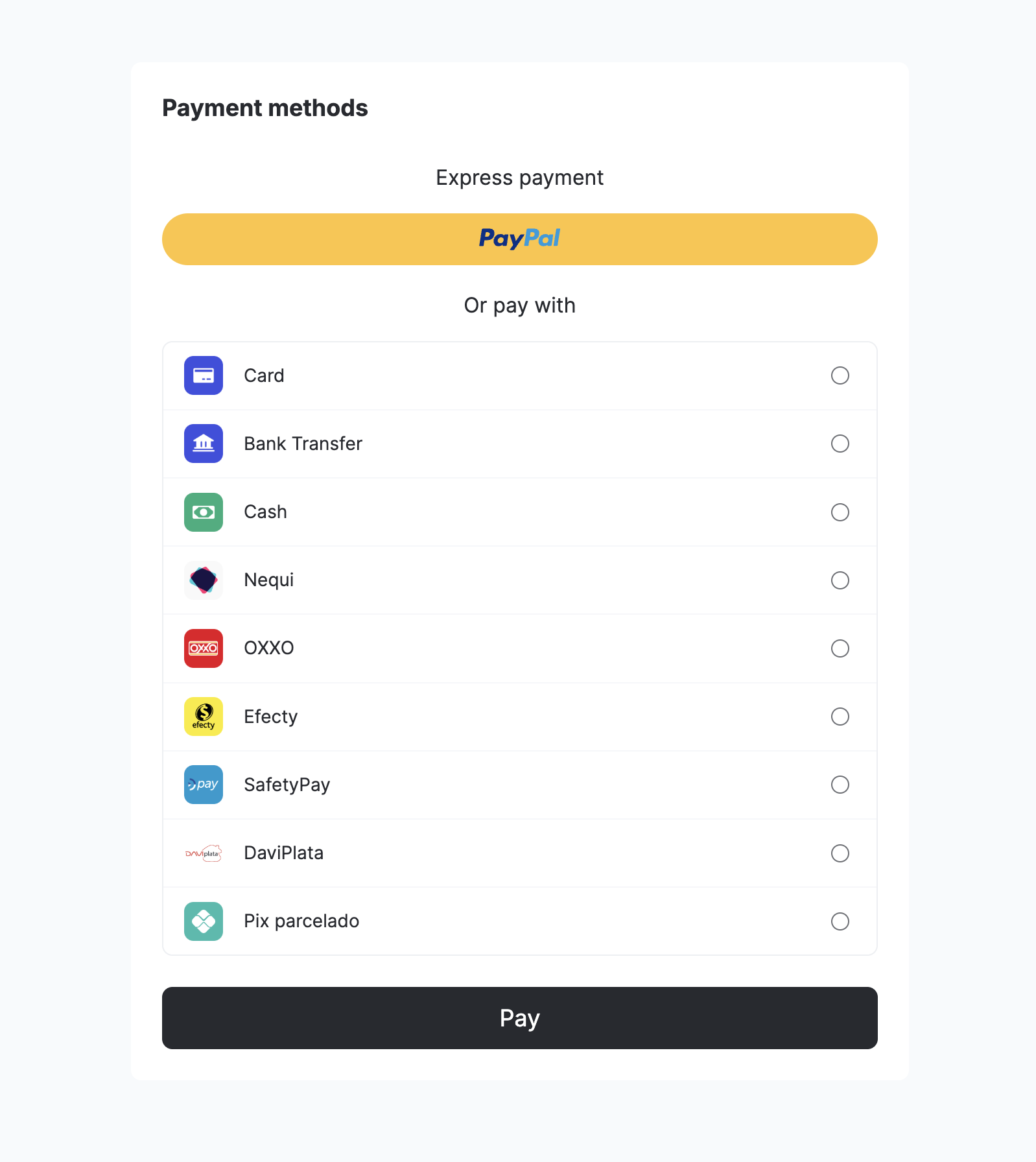
We recommend using the **Android Seamless SDK** for a smooth integration experience. This option provides a flexible payment solution with pre-built UI components and customization options.
This SDK is ideal for merchants who:
* Want control over the payment flow while leveraging pre-built UI components
* Need to customize the payment experience while maintaining PCI compliance
* Require a balance between implementation speed and customization
The Seamless SDK includes features like:
* Pre-built payment UI components with customization options
* Multiple payment method support
* Advanced payment status handling
* Comprehensive error management
For merchants requiring complete UI control or more advanced features, consider using our [Full SDK](/docs/sdks/full-checkout/android-payments) instead.
 ## Requirements
Before starting the Yuno Android SDK integration, ensure your project meets the technical requirements. Also, ensure the following prerequisites are in place:
* **Minimum SDK Version**: `minSdkVersion` 21 or above
* **Java**: Java 8 enabled
* **AndroidX**: Use AndroidX instead of older support libraries
* **Android Gradle Plugin**: 4.0.0 or above
* **Kotlin Gradle Plugin**: 1.4.0 or above
* **ProGuard**: 6.2.2 or above
### ProGuard / R8 Configuration
If your project has `minifyEnabled = true`, add these rules to your `proguard-rules.pro` file to ensure the SDK works correctly, especially with **AGP 8.x+ R8 full mode**.
```proguard theme={"theme":{"light":"github-dark","dark":"github-dark"}}
# Preserve generic type signatures and annotations
-keepattributes Signature
-keepattributes *Annotation*
# Yuno SDK
-keep class com.yuno.** { *; }
-dontwarn com.yuno.**
# Gson — R8 full mode compatibility
-keep class com.google.gson.** { *; }
-keep,allowobfuscation,allowshrinking,allowoptimization class * extends com.google.gson.reflect.TypeToken
-dontwarn com.google.gson.**
# Retrofit — R8 full mode compatibility
-keep,allowobfuscation,allowshrinking interface retrofit2.Call
-keep,allowobfuscation,allowshrinking class retrofit2.Response
-keep,allowobfuscation,allowshrinking class kotlin.coroutines.Continuation
-dontwarn retrofit2.**
# OkHttp + Okio — Suppress warnings
-dontwarn okhttp3.**
-dontwarn okio.**
```
### Why are these rules necessary?
AGP 8.x+ enables **R8 full mode** by default, which aggressively strips generic type signatures. Without `-keepattributes Signature`, Gson’s `TypeToken` can fail at runtime with `java.lang.Class cannot be cast to java.lang.reflect.ParameterizedType`.
**Verify SDK Version**
See the [Release notes](/changelog/android) or the [Yuno Android SDK repository](https://github.com/yuno-payments/yuno-sdk-android) to verify the current SDK version available.
## Step 1: Create a customer
Create a customer using the [Create customer endpoint](/reference/customers/create-customer) before initiating payments. This step is required to:
* Identify the person making the payment
* Enable saved card functionality (if enabled)
* Track payment history
The customer ID returned from this endpoint will be used when creating the `checkout_session`.
## Step 2: Create a checkout session
Create a new `checkout_session` using the [Create checkout session](/reference/checkout-sessions/create-checkout-session) endpoint to initialize the payment flow. Make sure to:
* Include the customer ID obtained from the previous step
* Store the returned `checkout_session` ID for use in Step 6 of the integration
Control auth vs capture by sending `payment_method.detail.card.capture` in the checkout session: `false` = authorize only, `true` = capture immediately.
### Key parameters
| Parameter | Required | Description |
| -------------------- | -------- | ------------------------------------------------------------------------------------------------------------------------------------------------------------------------------------------------------------------------------------------------------------------------------------------------------------------ |
| `amount` | Yes | The primary transaction amount object containing `currency` (ISO 4217 code) and `value` (numeric amount in that currency). |
| `alternative_amount` | No | An alternative currency representation of the transaction amount with the same structure as `amount` (`currency` and `value`). Useful for multi-currency scenarios, such as displaying prices to customers in their preferred currency (e.g., USD) while processing the payment in the local currency (e.g., COP). |
**Checkout session usage**
The `checkout_session` is unique for each payment attempt and cannot be reused.
## Step 3: Add SDK to your project
Add the repository source:
```groovy theme={"theme":{"light":"github-dark","dark":"github-dark"}}
maven { url "https://yunopayments.jfrog.io/artifactory/snapshots-libs-release" }
```
Include the following code in the `build.gradle` file to add the Yuno SDK dependency to the application:
```kotlin theme={"theme":{"light":"github-dark","dark":"github-dark"}}
dependencies {
implementation 'com.yuno.payments:android-sdk:{last_version}'
}
```
## Step 4: Configure permissions
The Yuno SDK requires network permissions. Ensure the `INTERNET` permission is included in your `AndroidManifest.xml`:
```xml theme={"theme":{"light":"github-dark","dark":"github-dark"}}
```
## Step 5: Initialize SDK
Retrieve your public API keys from the [Yuno dashboard](https://dashboard.y.uno/).
If you haven't implemented a custom application, create one. In the `onCreate()` method of your application class, call the initialize function (`Yuno.initialize`):
```kotlin theme={"theme":{"light":"github-dark","dark":"github-dark"}}
class CustomApplication : Application() {
override fun onCreate() {
super.onCreate()
Yuno.initialize(
this,
PUBLIC_API_KEY,
config = YunoConfig()
)
}
}
```
Use the `YunoConfig` data class to set additional configurations for the SDK. The following table lists and describes the customization options:
| Option | Description |
| ---------------------- | ------------------------------------------------------------------------------------------------------------------------------------------------------------------------------------------------------------------------------------------------ |
| **saveCardEnabled** | Enables the save card checkbox for card flows. Check the [Save card](#save-card-for-future-payments) section for more information. |
| **language** | Defines the language to be used in the payment forms. See [Supported languages](/docs/sdks/resources/languages-supported) for options. |
| **styles** | Enables SDK-wide UI customization. Use it to define global visual styles like font family and button appearance through a `YunoStyles` object. For more information, check the [styles](/docs/sdks/resources/references/android#styles) section. |
| **hideCardholderName** | This optional field allows you to hide the cardholder name field in the card form. When set to `true`, the cardholder name field is not rendered. |
The following code block shows an example of `YunoConfig`:
```kotlin theme={"theme":{"light":"github-dark","dark":"github-dark"}}
data class YunoConfig(
val saveCardEnabled: Boolean = false,
val keepLoader: Boolean = false, // Not applicable to Seamless SDK
val language: YunoLanguage? = null,
val styles: YunoStyles? = null,
val hideCardholderName: Boolean? = null // Optional: Set to true to hide cardholder name field
)
```
## Step 6: Start checkout
Call the `startCheckout` method in the `onCreate()` function of the activity that integrates the SDK to initiate a new payment process with the Seamless SDK:
```kotlin theme={"theme":{"light":"github-dark","dark":"github-dark"}}
startCheckout(
checkoutSession: "checkout_session",
countryCode: "US",
callbackPaymentState: ((String?) -> Unit)?,
merchantSessionId: String? = null
)
```
| Parameter | Description |
| :--------------------- | :--------------------------------------------------------------------------------------------------------------------------------------------------------------------- |
| `checkoutSession` | The `checkout_session` is related to the payment. |
| `countryCode` | Country code where the payment is performed. See [Country coverage](/docs/sdks/resources/country-coverage) for a complete list of supported countries and their codes. |
| `callbackPaymentState` | A function that returns the current payment process. Optional if you don't need the result. |
| `merchantSessionId` | Optional identifier for merchant session tracking. Default is null. |
The possible payment states returned by `callbackPaymentState` are:
```kotlin theme={"theme":{"light":"github-dark","dark":"github-dark"}}
const val PAYMENT_STATE_SUCCEEDED = "SUCCEEDED"
const val PAYMENT_STATE_FAIL = "FAIL"
const val PAYMENT_STATE_PROCESSING = "PROCESSING"
const val PAYMENT_STATE_REJECT = "REJECT"
const val PAYMENT_STATE_INTERNAL_ERROR = "INTERNAL_ERROR"
const val PAYMENT_STATE_STATE_CANCELED_BY_USER = "CANCELED"
```
The following table provides additional information about the possible states:
| **State** | **Description** | **Additional action required** |
| ---------------- | ------------------------------------------------------------------------------------------------------------------------------- | ------------------------------------------------------------------------------------------------------------- |
| `SUCCEEDED` | The transaction or payment process was successfully completed without any errors. | No. |
| `FAIL` | The transaction failed due to errors such as data validation issues, server connection failures, or technical/network problems. | Yes. Investigate the cause of failure (validation, network, server) and take corrective measures. |
| `PROCESSING` | The transaction is currently in progress, awaiting approval or verification. | No. |
| `REJECT` | The transaction was rejected due to reasons like insufficient funds or suspected fraudulent activity. | Yes. Inform the user of the rejection, provide the reason if possible, and suggest actions. |
| `INTERNAL_ERROR` | An unexpected internal error occurred within the system handling the payment process. | Yes. Requires technical intervention to review the system, fix internal issues, and retry or inform the user. |
| `CANCELED` | The user voluntarily canceled the transaction or abandoned the payment process. | No. |
### Payment status validation
This section explains how the SDK handles payment status when users cancel or leave payment flows, and how the SDK status relates to the backend payment status in these scenarios.
#### Sync payment methods (Google Pay)
For synchronous payment methods like Google Pay, when a user cancels or closes the wallet UI before a payment service provider (PSP) response is received:
* **SDK Status**: Returns `CANCELED` (CANCELLED\_BY\_USER)
* **Backend payment status**: Remains `PENDING` until PSP timeout or merchant cancellation
* **Important**: The SDK will not return `REJECT` or `PROCESSING` in this scenario
This ensures that the backend payment remains in a pending state and can be properly handled by the merchant's system.
#### Async payment methods (PIX and QR-based methods)
For asynchronous payment methods like PIX, when a user closes the QR code window (clicks X) before completing the payment:
* **SDK Status**: Returns `PROCESSING`, optionally with a sub-status such as `CLOSED_BY_USER`
* **Backend payment status**: Remains `PENDING` and the QR code remains valid until expiry
* **Checkout session reuse**: Re-opening the same checkout session can display the same valid QR code
* **No Automatic Cancellation**: The PIX payment is not automatically cancelled when the user closes the QR window
This behavior allows users to return to the payment flow and complete the transaction using the same QR code before it expires.
#### Expired async payments
If a PIX QR code expires naturally:
* **Backend Status**: Updated to `EXPIRED`
* **SDK Status**: SDK callbacks and polling endpoints return `EXPIRED` consistently
This ensures merchants receive accurate status information when a payment method has expired.
## Step 7: Get payment one-time token (OTT)
Call the method `startPaymentSeamlessLite` to start a payment process:
```kotlin theme={"theme":{"light":"github-dark","dark":"github-dark"}}
startPaymentSeamlessLite(
paymentSelected: PaymentSelected,
callbackPaymentState: ((String?) -> Unit)?,
showPaymentStatus: Boolean,
)
```
The following table describes the parameters to start the payment:
| Parameter | Description |
| :--------------------- | :--------------------------------------------------------------------------------------- |
| `paymentSelected` | Specifies the payment method, either through a vaulted token or a selected payment type. |
| `callbackPaymentState` | This is an optional parameter. This function handles the state updates. |
| `showPaymentStatus` | This is an optional parameter. When `true`, displays the SDK's default result screen. |
You will receive the payment status via `callbackPaymentState`, which will indicate whether the payment was successful or if an issue occurred.
## Step 8: Create payment
Call the method `startPaymentSeamlessLite` with the selected payment method to complete the payment process:
```kotlin theme={"theme":{"light":"github-dark","dark":"github-dark"}}
startPaymentSeamlessLite(
paymentSelected: PaymentSelected,
callbackPaymentState: ((String?) -> Unit)?,
showPaymentStatus: Boolean,
)
```
## Complementary features
Yuno Android SDK provides additional services and configurations you can use to improve customers' experience. Use the [SDK customization](/docs/sdks/customization/android) to change the SDK appearance to match your brand or to configure the loader.
### `styles`
With the `styles` customization option, you can define global visual styles through a `YunoStyles` object. It lets you apply consistent branding across the SDK by customizing button appearance and typography.
```kotlin theme={"theme":{"light":"github-dark","dark":"github-dark"}}
data class YunoStyles(
val buttonStyles: YunoButtonStyles? = null,
val fontFamily: FontFamily? = null
)
```
| Parameter | Description |
| :------------- | :------------------------------------------------------ |
| `buttonStyles` | Customizes the primary buttons displayed in the SDK. |
| `fontFamily` | Sets the font family used across all SDK text elements. |
The `YunoButtonStyles` object lets you define specific settings for button appearance:
```kotlin theme={"theme":{"light":"github-dark","dark":"github-dark"}}
data class YunoButtonStyles(
val backgroundColor: Color? = null,
val contentColor: Color? = null,
val cornerRadius: Dp? = null,
val elevation: Dp? = null,
val padding: Dp? = null,
val fontFamily: FontFamily? = null,
val fontSize: TextUnit? = null,
val fontStyle: FontStyle? = null
)
```
Use the `YunoConfig` data class, described in Step 5, to use the `styles` customization option.
### Loader
The loader functionality is controlled through the `keepLoader` parameter in the `YunoConfig` data class, which is documented inline in the SDK configuration section above.
### Save card for future payments
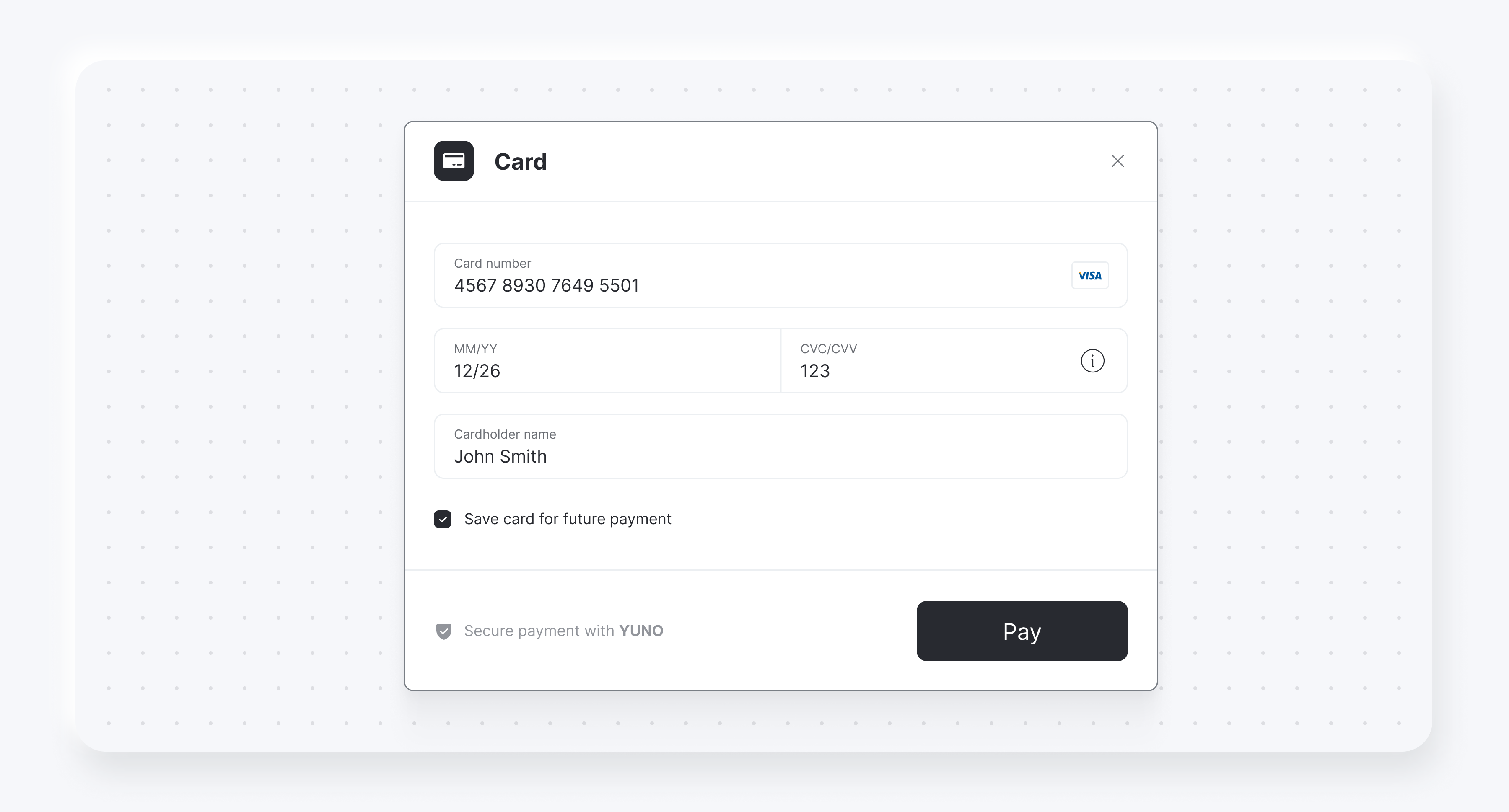
You can also display a checkbox to save or enroll cards using `cardSaveEnable: true`. The following examples show the checkbox for both card form renders:
## Requirements
Before starting the Yuno Android SDK integration, ensure your project meets the technical requirements. Also, ensure the following prerequisites are in place:
* **Minimum SDK Version**: `minSdkVersion` 21 or above
* **Java**: Java 8 enabled
* **AndroidX**: Use AndroidX instead of older support libraries
* **Android Gradle Plugin**: 4.0.0 or above
* **Kotlin Gradle Plugin**: 1.4.0 or above
* **ProGuard**: 6.2.2 or above
### ProGuard / R8 Configuration
If your project has `minifyEnabled = true`, add these rules to your `proguard-rules.pro` file to ensure the SDK works correctly, especially with **AGP 8.x+ R8 full mode**.
```proguard theme={"theme":{"light":"github-dark","dark":"github-dark"}}
# Preserve generic type signatures and annotations
-keepattributes Signature
-keepattributes *Annotation*
# Yuno SDK
-keep class com.yuno.** { *; }
-dontwarn com.yuno.**
# Gson — R8 full mode compatibility
-keep class com.google.gson.** { *; }
-keep,allowobfuscation,allowshrinking,allowoptimization class * extends com.google.gson.reflect.TypeToken
-dontwarn com.google.gson.**
# Retrofit — R8 full mode compatibility
-keep,allowobfuscation,allowshrinking interface retrofit2.Call
-keep,allowobfuscation,allowshrinking class retrofit2.Response
-keep,allowobfuscation,allowshrinking class kotlin.coroutines.Continuation
-dontwarn retrofit2.**
# OkHttp + Okio — Suppress warnings
-dontwarn okhttp3.**
-dontwarn okio.**
```
### Why are these rules necessary?
AGP 8.x+ enables **R8 full mode** by default, which aggressively strips generic type signatures. Without `-keepattributes Signature`, Gson’s `TypeToken` can fail at runtime with `java.lang.Class cannot be cast to java.lang.reflect.ParameterizedType`.
**Verify SDK Version**
See the [Release notes](/changelog/android) or the [Yuno Android SDK repository](https://github.com/yuno-payments/yuno-sdk-android) to verify the current SDK version available.
## Step 1: Create a customer
Create a customer using the [Create customer endpoint](/reference/customers/create-customer) before initiating payments. This step is required to:
* Identify the person making the payment
* Enable saved card functionality (if enabled)
* Track payment history
The customer ID returned from this endpoint will be used when creating the `checkout_session`.
## Step 2: Create a checkout session
Create a new `checkout_session` using the [Create checkout session](/reference/checkout-sessions/create-checkout-session) endpoint to initialize the payment flow. Make sure to:
* Include the customer ID obtained from the previous step
* Store the returned `checkout_session` ID for use in Step 6 of the integration
Control auth vs capture by sending `payment_method.detail.card.capture` in the checkout session: `false` = authorize only, `true` = capture immediately.
### Key parameters
| Parameter | Required | Description |
| -------------------- | -------- | ------------------------------------------------------------------------------------------------------------------------------------------------------------------------------------------------------------------------------------------------------------------------------------------------------------------ |
| `amount` | Yes | The primary transaction amount object containing `currency` (ISO 4217 code) and `value` (numeric amount in that currency). |
| `alternative_amount` | No | An alternative currency representation of the transaction amount with the same structure as `amount` (`currency` and `value`). Useful for multi-currency scenarios, such as displaying prices to customers in their preferred currency (e.g., USD) while processing the payment in the local currency (e.g., COP). |
**Checkout session usage**
The `checkout_session` is unique for each payment attempt and cannot be reused.
## Step 3: Add SDK to your project
Add the repository source:
```groovy theme={"theme":{"light":"github-dark","dark":"github-dark"}}
maven { url "https://yunopayments.jfrog.io/artifactory/snapshots-libs-release" }
```
Include the following code in the `build.gradle` file to add the Yuno SDK dependency to the application:
```kotlin theme={"theme":{"light":"github-dark","dark":"github-dark"}}
dependencies {
implementation 'com.yuno.payments:android-sdk:{last_version}'
}
```
## Step 4: Configure permissions
The Yuno SDK requires network permissions. Ensure the `INTERNET` permission is included in your `AndroidManifest.xml`:
```xml theme={"theme":{"light":"github-dark","dark":"github-dark"}}
```
## Step 5: Initialize SDK
Retrieve your public API keys from the [Yuno dashboard](https://dashboard.y.uno/).
If you haven't implemented a custom application, create one. In the `onCreate()` method of your application class, call the initialize function (`Yuno.initialize`):
```kotlin theme={"theme":{"light":"github-dark","dark":"github-dark"}}
class CustomApplication : Application() {
override fun onCreate() {
super.onCreate()
Yuno.initialize(
this,
PUBLIC_API_KEY,
config = YunoConfig()
)
}
}
```
Use the `YunoConfig` data class to set additional configurations for the SDK. The following table lists and describes the customization options:
| Option | Description |
| ---------------------- | ------------------------------------------------------------------------------------------------------------------------------------------------------------------------------------------------------------------------------------------------ |
| **saveCardEnabled** | Enables the save card checkbox for card flows. Check the [Save card](#save-card-for-future-payments) section for more information. |
| **language** | Defines the language to be used in the payment forms. See [Supported languages](/docs/sdks/resources/languages-supported) for options. |
| **styles** | Enables SDK-wide UI customization. Use it to define global visual styles like font family and button appearance through a `YunoStyles` object. For more information, check the [styles](/docs/sdks/resources/references/android#styles) section. |
| **hideCardholderName** | This optional field allows you to hide the cardholder name field in the card form. When set to `true`, the cardholder name field is not rendered. |
The following code block shows an example of `YunoConfig`:
```kotlin theme={"theme":{"light":"github-dark","dark":"github-dark"}}
data class YunoConfig(
val saveCardEnabled: Boolean = false,
val keepLoader: Boolean = false, // Not applicable to Seamless SDK
val language: YunoLanguage? = null,
val styles: YunoStyles? = null,
val hideCardholderName: Boolean? = null // Optional: Set to true to hide cardholder name field
)
```
## Step 6: Start checkout
Call the `startCheckout` method in the `onCreate()` function of the activity that integrates the SDK to initiate a new payment process with the Seamless SDK:
```kotlin theme={"theme":{"light":"github-dark","dark":"github-dark"}}
startCheckout(
checkoutSession: "checkout_session",
countryCode: "US",
callbackPaymentState: ((String?) -> Unit)?,
merchantSessionId: String? = null
)
```
| Parameter | Description |
| :--------------------- | :--------------------------------------------------------------------------------------------------------------------------------------------------------------------- |
| `checkoutSession` | The `checkout_session` is related to the payment. |
| `countryCode` | Country code where the payment is performed. See [Country coverage](/docs/sdks/resources/country-coverage) for a complete list of supported countries and their codes. |
| `callbackPaymentState` | A function that returns the current payment process. Optional if you don't need the result. |
| `merchantSessionId` | Optional identifier for merchant session tracking. Default is null. |
The possible payment states returned by `callbackPaymentState` are:
```kotlin theme={"theme":{"light":"github-dark","dark":"github-dark"}}
const val PAYMENT_STATE_SUCCEEDED = "SUCCEEDED"
const val PAYMENT_STATE_FAIL = "FAIL"
const val PAYMENT_STATE_PROCESSING = "PROCESSING"
const val PAYMENT_STATE_REJECT = "REJECT"
const val PAYMENT_STATE_INTERNAL_ERROR = "INTERNAL_ERROR"
const val PAYMENT_STATE_STATE_CANCELED_BY_USER = "CANCELED"
```
The following table provides additional information about the possible states:
| **State** | **Description** | **Additional action required** |
| ---------------- | ------------------------------------------------------------------------------------------------------------------------------- | ------------------------------------------------------------------------------------------------------------- |
| `SUCCEEDED` | The transaction or payment process was successfully completed without any errors. | No. |
| `FAIL` | The transaction failed due to errors such as data validation issues, server connection failures, or technical/network problems. | Yes. Investigate the cause of failure (validation, network, server) and take corrective measures. |
| `PROCESSING` | The transaction is currently in progress, awaiting approval or verification. | No. |
| `REJECT` | The transaction was rejected due to reasons like insufficient funds or suspected fraudulent activity. | Yes. Inform the user of the rejection, provide the reason if possible, and suggest actions. |
| `INTERNAL_ERROR` | An unexpected internal error occurred within the system handling the payment process. | Yes. Requires technical intervention to review the system, fix internal issues, and retry or inform the user. |
| `CANCELED` | The user voluntarily canceled the transaction or abandoned the payment process. | No. |
### Payment status validation
This section explains how the SDK handles payment status when users cancel or leave payment flows, and how the SDK status relates to the backend payment status in these scenarios.
#### Sync payment methods (Google Pay)
For synchronous payment methods like Google Pay, when a user cancels or closes the wallet UI before a payment service provider (PSP) response is received:
* **SDK Status**: Returns `CANCELED` (CANCELLED\_BY\_USER)
* **Backend payment status**: Remains `PENDING` until PSP timeout or merchant cancellation
* **Important**: The SDK will not return `REJECT` or `PROCESSING` in this scenario
This ensures that the backend payment remains in a pending state and can be properly handled by the merchant's system.
#### Async payment methods (PIX and QR-based methods)
For asynchronous payment methods like PIX, when a user closes the QR code window (clicks X) before completing the payment:
* **SDK Status**: Returns `PROCESSING`, optionally with a sub-status such as `CLOSED_BY_USER`
* **Backend payment status**: Remains `PENDING` and the QR code remains valid until expiry
* **Checkout session reuse**: Re-opening the same checkout session can display the same valid QR code
* **No Automatic Cancellation**: The PIX payment is not automatically cancelled when the user closes the QR window
This behavior allows users to return to the payment flow and complete the transaction using the same QR code before it expires.
#### Expired async payments
If a PIX QR code expires naturally:
* **Backend Status**: Updated to `EXPIRED`
* **SDK Status**: SDK callbacks and polling endpoints return `EXPIRED` consistently
This ensures merchants receive accurate status information when a payment method has expired.
## Step 7: Get payment one-time token (OTT)
Call the method `startPaymentSeamlessLite` to start a payment process:
```kotlin theme={"theme":{"light":"github-dark","dark":"github-dark"}}
startPaymentSeamlessLite(
paymentSelected: PaymentSelected,
callbackPaymentState: ((String?) -> Unit)?,
showPaymentStatus: Boolean,
)
```
The following table describes the parameters to start the payment:
| Parameter | Description |
| :--------------------- | :--------------------------------------------------------------------------------------- |
| `paymentSelected` | Specifies the payment method, either through a vaulted token or a selected payment type. |
| `callbackPaymentState` | This is an optional parameter. This function handles the state updates. |
| `showPaymentStatus` | This is an optional parameter. When `true`, displays the SDK's default result screen. |
You will receive the payment status via `callbackPaymentState`, which will indicate whether the payment was successful or if an issue occurred.
## Step 8: Create payment
Call the method `startPaymentSeamlessLite` with the selected payment method to complete the payment process:
```kotlin theme={"theme":{"light":"github-dark","dark":"github-dark"}}
startPaymentSeamlessLite(
paymentSelected: PaymentSelected,
callbackPaymentState: ((String?) -> Unit)?,
showPaymentStatus: Boolean,
)
```
## Complementary features
Yuno Android SDK provides additional services and configurations you can use to improve customers' experience. Use the [SDK customization](/docs/sdks/customization/android) to change the SDK appearance to match your brand or to configure the loader.
### `styles`
With the `styles` customization option, you can define global visual styles through a `YunoStyles` object. It lets you apply consistent branding across the SDK by customizing button appearance and typography.
```kotlin theme={"theme":{"light":"github-dark","dark":"github-dark"}}
data class YunoStyles(
val buttonStyles: YunoButtonStyles? = null,
val fontFamily: FontFamily? = null
)
```
| Parameter | Description |
| :------------- | :------------------------------------------------------ |
| `buttonStyles` | Customizes the primary buttons displayed in the SDK. |
| `fontFamily` | Sets the font family used across all SDK text elements. |
The `YunoButtonStyles` object lets you define specific settings for button appearance:
```kotlin theme={"theme":{"light":"github-dark","dark":"github-dark"}}
data class YunoButtonStyles(
val backgroundColor: Color? = null,
val contentColor: Color? = null,
val cornerRadius: Dp? = null,
val elevation: Dp? = null,
val padding: Dp? = null,
val fontFamily: FontFamily? = null,
val fontSize: TextUnit? = null,
val fontStyle: FontStyle? = null
)
```
Use the `YunoConfig` data class, described in Step 5, to use the `styles` customization option.
### Loader
The loader functionality is controlled through the `keepLoader` parameter in the `YunoConfig` data class, which is documented inline in the SDK configuration section above.
### Save card for future payments
You can also display a checkbox to save or enroll cards using `cardSaveEnable: true`. The following examples show the checkbox for both card form renders:
 **Demo App Access**
In addition to the code examples provided, you can see the [Yuno repository](https://github.com/yuno-payments/yuno-sdk-android/tree/master) to complete Yuno Android SDKs implementation.
## Error handling
Handle errors returned by the SDK in your app (e.g. failed payments, validation errors). For HTTP status and response codes, see [Status and response codes](/reference/payments/status-and-response-codes/payment) in the API reference.
**Demo App Access**
In addition to the code examples provided, you can see the [Yuno repository](https://github.com/yuno-payments/yuno-sdk-android/tree/master) to complete Yuno Android SDKs implementation.
## Error handling
Handle errors returned by the SDK in your app (e.g. failed payments, validation errors). For HTTP status and response codes, see [Status and response codes](/reference/payments/status-and-response-codes/payment) in the API reference.