> ## Documentation Index
> Fetch the complete documentation index at: https://docs.y.uno/llms.txt
> Use this file to discover all available pages before exploring further.
# Direct Flow Integration
## How it works
If you are a developer, you can use our Direct Flow to continue using your checkout and connect to our services using only a server-to-server connection.
Your company must be PCI-certified to use our server-to-server card payments service. Please forward your AOC certification to your account manager before beginning the implementation.
We always recommend using Yuno's SDKs over Direct Flow integrations. Yuno's SDKs are PCI-compliant and simplify the payment process by managing all complexities, including fraud prevention, 3DS, and payment provider-specific requirements. Direct Flow requires merchants to handle these aspects manually, increasing complexity and risk.
For every implementation, we recommend taking the payment status and sub\_status as the main reference for the [payment's state](/reference/payment). A payment could have different [transactions](/reference/transaction) associated with it, so by focusing on the payment **status/sub\_status**, you can have the latest state regardless of how many transactions were made, giving you clear input for decision-making. With this integration, you can also [enroll credit cards](/docs/direct-flow#enrollment) for future purchases (also only available for PCI-compliant merchants).
## Payment
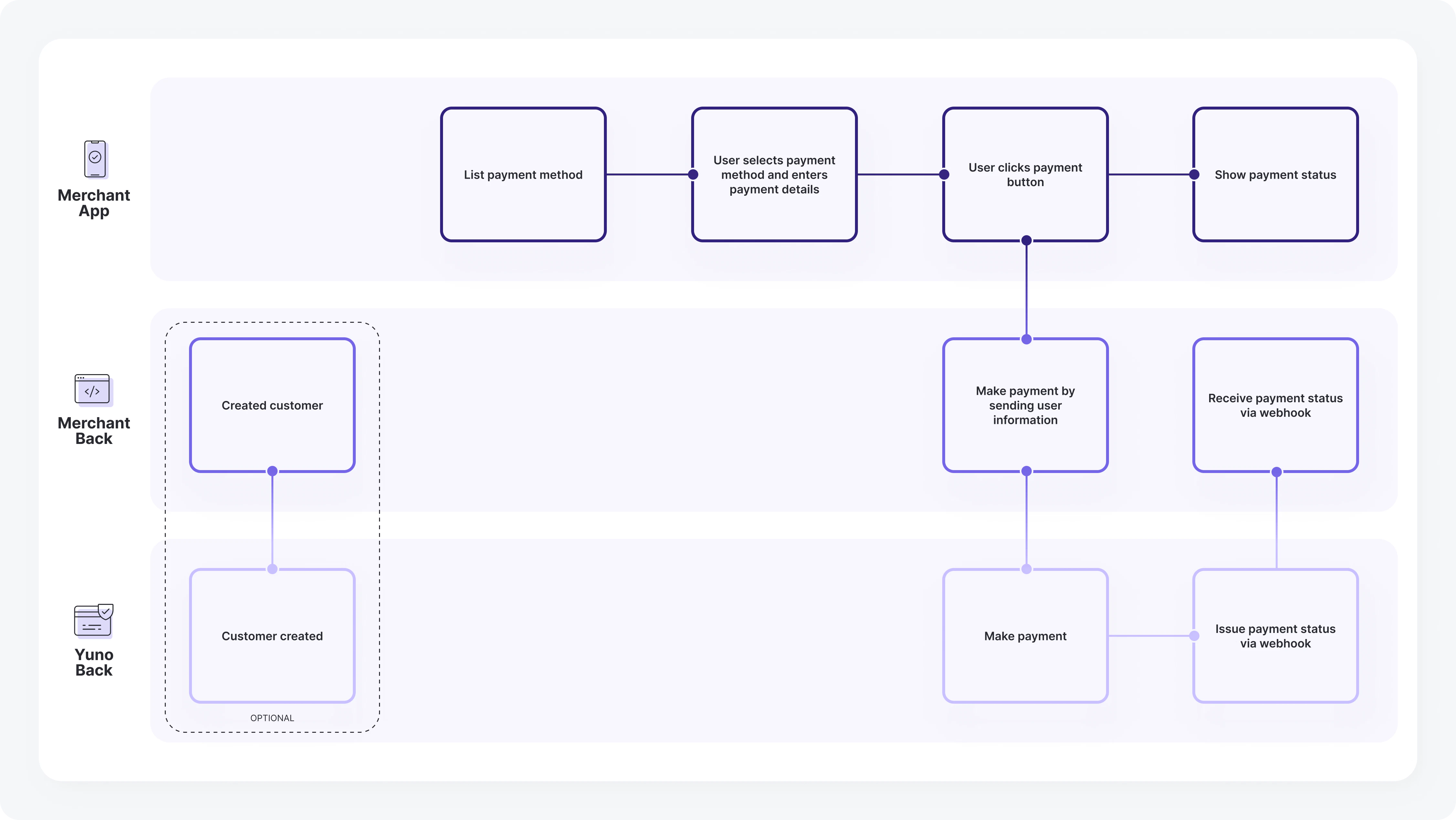 **\[Optional]**: The first step is to create a customer to associate payment methods. Use the [Create Customer](/reference/create-customer) endpoint to receive a unique ID.
* You can skip this step if the customer already exists.
* You can also send customer info directly in the payment without creating an object.
Customer creation is required to generate a `vaulted_token`.
Display the enabled payment methods in your Yuno account. Once selected, create a payment containing order details, customer info, amount, and more using the [Create Payment](/reference/create-payment) endpoint.
* Reference the [examples section](/reference/payment-examples) for implementation details.
* Use a `vaulted_token` for previously enrolled methods.
During integration, use the payment **status** and **sub\_status** as the primary reference for the payment state.
### DIRECT vs REDIRECT Workflow
While using the Direct integration in Yuno, you have two available `workflow` options:
* **DIRECT**: We return the raw response from the providers so you can build the experience however you like with the unfiltered data.
* **REDIRECT**: While we also return the direct response from the providers, we additionally offer merchants the possibility to use a redirection link provided by Yuno where we handle the payment experience just for that payment. You can find such a URL in the `payment_method.detail.redirect_url` field in the payment's response.
Both workflows support Cards (including Cards with 3DS) and Alternative Payment Methods (PSE, Nequi, MercadoPago, PIX, etc.). For cards with 3DS, both workflows require PCI certification.
### Important Add-ons
* **Webhooks**: We recommend configuring [Webhooks](/docs/webhooks) in your Yuno dashboard. Webhooks are the best way to ensure your system stays up-to-date with payment progress and status. Since event notifications are triggered automatically, your system won't need to perform repeated requests to Yuno.
* **Device Fingerprints**: The customer's device fingerprints are used for fraud prevention purposes. They are usually generated by using third-party JavaScript in the checkout. If you are using a **Direct integration** and want to support fraud providers in the [payment flow](/reference/create-payment), you can use this object to specify the necessary information. For integrations using Yuno checkout, the value is obtained automatically, so do not send this field.
* ```json theme={"theme":{"light":"github-dark","dark":"github-dark"}}
[...]
"customer_payer": {
"merchant_customer_id": "1690161049",
"first_name": "Giovanna",
"last_name": "Bartell",
"email": "Lisandro_Leannon58@hotmail.com",
"device_fingerprints": [
{
"provider_id": "MERCADO_PAGO",
"id": "20a6c463-dd0c-4323-9115-03668d178856"
},
{
"provider_id": "CLEARSALE",
"id": "92d2ea4b-4bf7-494b-aaea-c48276135941"
}
},
[...]
```
**\[Optional]**: The first step is to create a customer to associate payment methods. Use the [Create Customer](/reference/create-customer) endpoint to receive a unique ID.
* You can skip this step if the customer already exists.
* You can also send customer info directly in the payment without creating an object.
Customer creation is required to generate a `vaulted_token`.
Display the enabled payment methods in your Yuno account. Once selected, create a payment containing order details, customer info, amount, and more using the [Create Payment](/reference/create-payment) endpoint.
* Reference the [examples section](/reference/payment-examples) for implementation details.
* Use a `vaulted_token` for previously enrolled methods.
During integration, use the payment **status** and **sub\_status** as the primary reference for the payment state.
### DIRECT vs REDIRECT Workflow
While using the Direct integration in Yuno, you have two available `workflow` options:
* **DIRECT**: We return the raw response from the providers so you can build the experience however you like with the unfiltered data.
* **REDIRECT**: While we also return the direct response from the providers, we additionally offer merchants the possibility to use a redirection link provided by Yuno where we handle the payment experience just for that payment. You can find such a URL in the `payment_method.detail.redirect_url` field in the payment's response.
Both workflows support Cards (including Cards with 3DS) and Alternative Payment Methods (PSE, Nequi, MercadoPago, PIX, etc.). For cards with 3DS, both workflows require PCI certification.
### Important Add-ons
* **Webhooks**: We recommend configuring [Webhooks](/docs/webhooks) in your Yuno dashboard. Webhooks are the best way to ensure your system stays up-to-date with payment progress and status. Since event notifications are triggered automatically, your system won't need to perform repeated requests to Yuno.
* **Device Fingerprints**: The customer's device fingerprints are used for fraud prevention purposes. They are usually generated by using third-party JavaScript in the checkout. If you are using a **Direct integration** and want to support fraud providers in the [payment flow](/reference/create-payment), you can use this object to specify the necessary information. For integrations using Yuno checkout, the value is obtained automatically, so do not send this field.
* ```json theme={"theme":{"light":"github-dark","dark":"github-dark"}}
[...]
"customer_payer": {
"merchant_customer_id": "1690161049",
"first_name": "Giovanna",
"last_name": "Bartell",
"email": "Lisandro_Leannon58@hotmail.com",
"device_fingerprints": [
{
"provider_id": "MERCADO_PAGO",
"id": "20a6c463-dd0c-4323-9115-03668d178856"
},
{
"provider_id": "CLEARSALE",
"id": "92d2ea4b-4bf7-494b-aaea-c48276135941"
}
},
[...]
```
* **three\_d\_secure\_setup\_id**: Use our JS only to get the `three_d_secure_setup_id` and then handle the payment as an only API integration. The Direct workflow is only available for PCI-compliant merchants. It provides a straightforward way to create a payment and validate user information, requiring the merchant to perform just one request to create the payment. To successfully implement the Direct integration, follow the steps outlined in the [Payment](#payment) section above and provide the required information as instructed. This service is not necessary for 3DS implementation using Yuno's SDK.
## Enrollment
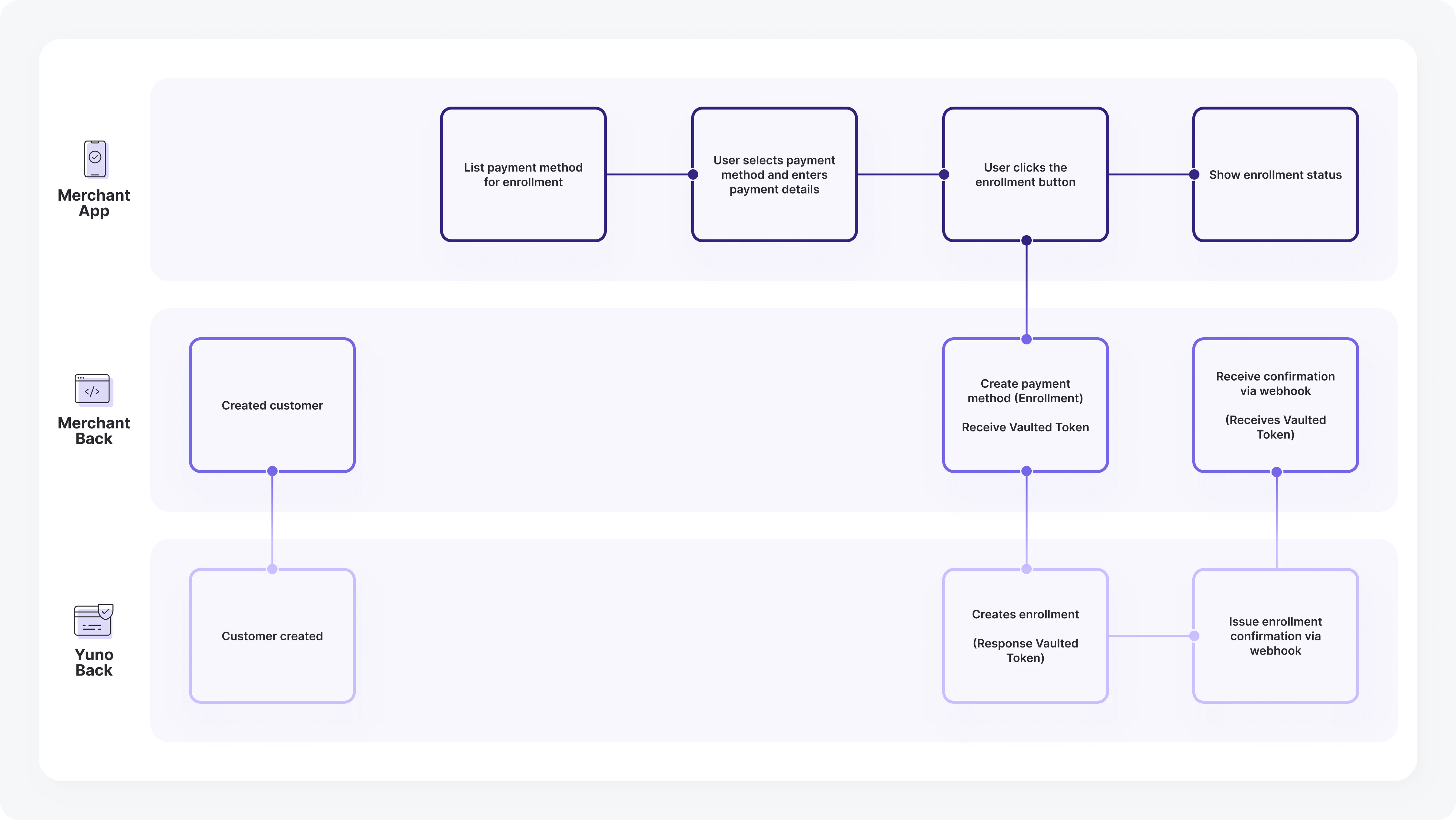 Associate payment methods by creating a customer (if not already existing) using the [Create Customer](/reference/create-customer) endpoint.
**Direct Flow Integration**
This feature is only available for enrolling Cards for PCI compliant merchants.
Enroll the payment method via the [Enroll Payment Method](/reference/enroll-payment-method-api) endpoint. You will receive a `vaulted_token` for future purchases.
Associate payment methods by creating a customer (if not already existing) using the [Create Customer](/reference/create-customer) endpoint.
**Direct Flow Integration**
This feature is only available for enrolling Cards for PCI compliant merchants.
Enroll the payment method via the [Enroll Payment Method](/reference/enroll-payment-method-api) endpoint. You will receive a `vaulted_token` for future purchases.